
Multi-Node Deployment Guide
Operating systems: Windows 10, 11, Server 2022, Ubuntu 22.04, 24.04, RHEL 9, Rocky 9, Debian 12 ✅
Software requirements: Docker, MySQL, npm, Git
Domestic operating systems (Xinchuang): Kylin Advanced Server V10 SP3, openEuler 22.03 LTS SP4 ✅
OpenPartner cannot be installed or run on any other unverified operating system.
Prerequisites: you have completed a single-node deployment following the Single-Node Quick Deployment Guide and are familiar with the deployment process.
Table of Contents
- I. Dependency Requirements
- II. Deploying the Primary Node (Primary)
- III. Adding a New Node (Secondary)
- IV. Common Commands
- Appendix A · JSON Configuration Parameter Reference
- Appendix B · JSON Example
- Appendix C · Configuration File Locations
- Appendix D · FAQ
I. Dependency Requirements
1.1 Server Specifications
| Resource | Minimum | Recommended |
|---|---|---|
| CPU | 4 cores | 8+ cores |
| Memory | 8 GB | 16 GB+ |
| Disk | 100 GB | 500 GB+ (user files take up most of the space) |
| Network | 1 Gbps intranet | 1 Gbps intranet |
1.2 General Prerequisites
| Dependency | Minimum version | Notes |
|---|---|---|
| Docker | ≥ 20.10 | Use Docker Desktop on Windows, Docker Engine on Linux |
| Node.js / npm | ≥ 18 | Only needed for Method 1: installs the openpartner package |
| MySQL | ≥ 8.0 | Only the primary node needs it; added nodes connect to the primary node's database |
| Git | Latest version | Skill script editing |
For the supported Git / Node.js / Docker / MySQL version combinations in domestic operating system environments (Kylin Advanced Server V10 SP3, openEuler 22.03 LTS SP4), see "I. Dependency Requirements" in the Single-Node Quick Deployment Guide.
Network requirements: all nodes must be reachable over the intranet (TCP 3306 for MySQL, 3001 for the backend API, 9620 for the web UI).
II. Deploying the Primary Node (Primary)
Please complete the primary node deployment directly following the Single-Node Quick Deployment Guide.
III. Adding a New Node (Secondary)
3.1 Adding a Node on Windows
Permission note: all commands are run in Administrator PowerShell.
Preparation
Adding a node requires Docker, Node.js / npm (only for Method 1), and Git. No local MySQL is required.
- Install Docker, Node.js (npm), and Git: see "2.1 Preparation" in the Single-Node Quick Deployment Guide;
- Verify the environment:
docker --version    # should print a version number
node --version      # should print >= 18 (only needed for Method 1)
npm --version       # should print a version number (only needed for Method 1)
git --version       # should print a version number
Choose one installation method: Method 1: One-Click NPM Installation (3.1.1) or Method 2: Manual Installation from the Official Download (3.1.2).
3.1.1 Method 1: One-Click NPM Installation
node --version        # Node.js >= 18
npm i -g @sogood360/openpartner   # no local MySQL is needed when adding a node
Initialization
⚠️ The primary node must allow inbound TCP 3306 (for child nodes to connect to MySQL), otherwise initialization will not be able to reach the database.
$params = @{
  server   = @{ port = 3001 }   # changeable: backend API port
  frontend = @{ port = 9620 }   # adding a node does not create a frontend container, the default is fine
  # host=primary node database address; port=database port; user=database account; password=replace with the real password; name=database name
  database = @{ host = "<PRIMARY_MYSQL_IP>"; port = 3306; user = "root"; password = "<PRIMARY_MYSQL_PASSWORD>"; name = "openpartner" }
  workspace = @{ root = "D:\openpartner\workspace" }   # changeable: working directory
  # fixed: an added node only uses the agent image
  images   = @{ frontend = ""; agent = "sogood360/openpartner-agent:latest" }
  # leave empty to generate automatically; must match the primary node after initialization
  secrets  = @{ jwt_secret = ""; encryption_key = ""; encryption_salt = ""; internal_token = "" }
  admin    = @{ password = "admin123456" }   # changeable: web login password
  # added node ID = unique identifier of the new node (cell_ + a single lowercase letter, such as cell_b); it must not duplicate any other node in the system; use the real IP for cell_url
  cell     = @{ id = "<NEW_NODE_ID>"; name = "<NEW_NODE_ID>"; cell_url = "http://<LOCAL_IP>:3001" }
  mode     = "secondary"   # fixed: added node
  container_api_url = ""   # address the container uses to reach the backend; leave empty to derive it automatically
  public_base_url = ""   # leave empty for an added node
  # pull_images=init pulls the agent image automatically; fixed: no frontend container is created and the database is left untouched; register_autostart=true registers auto-start on boot
  actions  = @{ pull_images = $true; create_frontend_container = $false; register_autostart = $true; reset_db = $false }
}
[System.IO.File]::WriteAllText((Join-Path $PWD "params.json"), ($params | ConvertTo-Json -Depth 10), (New-Object System.Text.UTF8Encoding($false)))
For a detailed description of each parameter field, see Appendix A "JSON Configuration Parameter Reference".
Run (Administrator PowerShell):
openpartner init --from-json params.json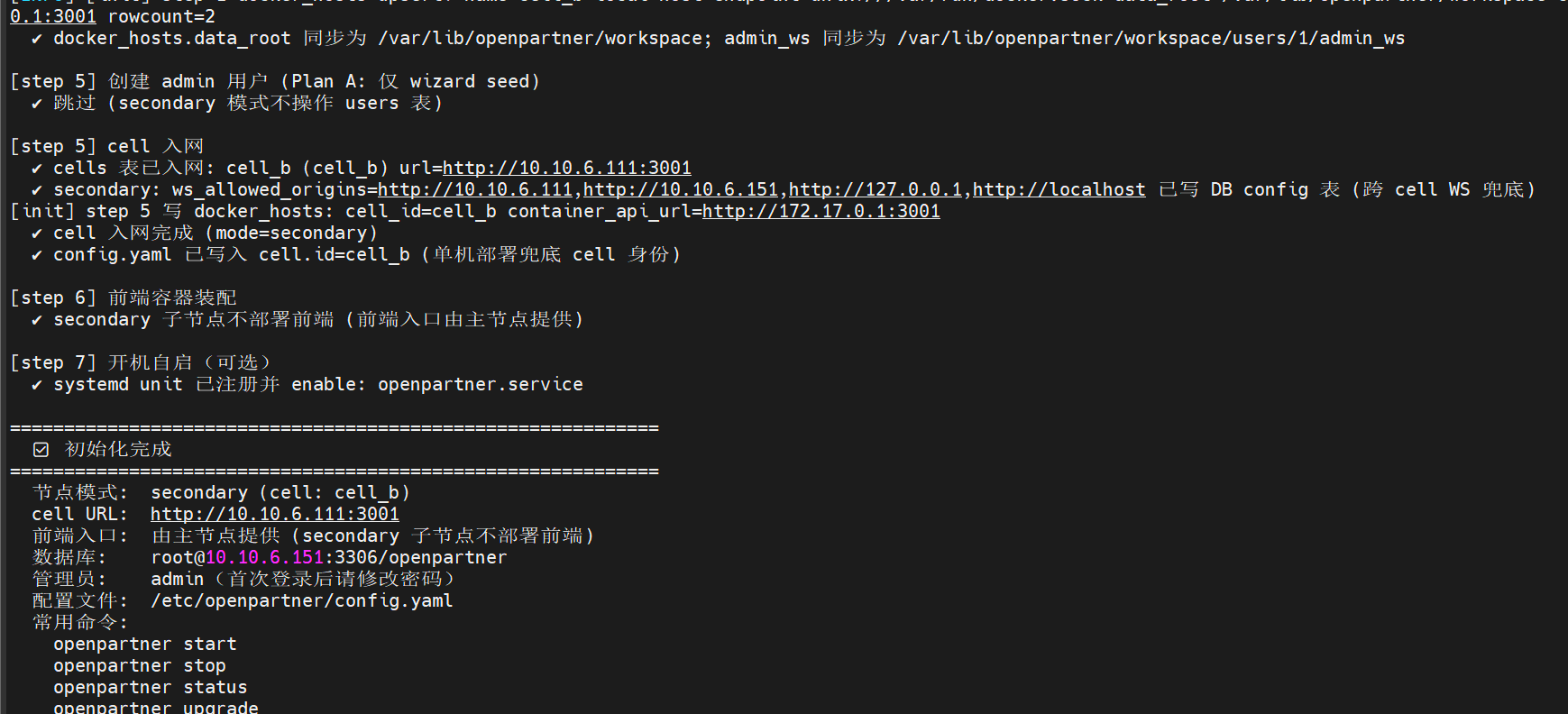
After initialization, confirm that jwt.secret, encryption.key, and encryption.salt in config.yaml match those of the primary node's config.yaml.
Update the Current System Frontend Server
In the terminal of OpenPartner (primary node), run the following to confirm that the new node has been registered in the primary node's MySQL database (a record should be found):
# query the primary node database to confirm that the new node record has been written
docker exec -it mysql8 mysql -uroot -p'<PRIMARY_MYSQL_PASSWORD>' openpartner -e "SELECT id,name,cell_url FROM cells WHERE id='<NEW_NODE_ID>';"
In the terminal of OpenPartner (primary node), run the following to update the system frontend server's routes:
⚠️ Please run the commands below one at a time (wait for the previous one to finish before running the next). Do not paste them all at once, otherwise it may hang or report an error.
# read the child node addresses currently recorded in the frontend container
$existing = (docker inspect openpartner_frontend --format '{{range .Config.Env}}{{println .}}{{end}}' | Select-String CELL_ROUTES).Line -replace '^CELL_ROUTES=',''
$new = "<NEW_NODE_ID>=<NEW_NODE_IP>:3001"
docker stop openpartner_frontend
docker rm openpartner_frontend
docker run -d --name openpartner_frontend -p 9620:9620 -e "CELL_ROUTES=$existing,$new" sogood360/openpartner-frontend:<CURRENT_VERSION>
When OpenPartner (primary node) runs on Linux, replace
Select-Stringin the first command withgrep.9620 is the default web port. If the frontend port was changed during initialization (
frontend.portis changeable), replace the9620in front of-pwith the actual port (e.g.-p 8080:9620).If
$existingis empty (the first node), put$newdirectly inCELL_ROUTESinside-e; do not leave a leading comma.Use
docker imagesto look up the current frontend image tag for<CURRENT_VERSION>(it matches the npm-installed version).
Start
openpartner start   # start (runs in the background by default since 1.5.7; see 2.2 in the Single-Node Quick Deployment Guide)
# verify
# expected: 200
(Invoke-WebRequest "http://127.0.0.1:3001/api/health" -UseBasicParsing -TimeoutSec 5).StatusCode
# allow this node's port
New-NetFirewallRule -DisplayName "OpenPartner-Agent-3001" -Direction Inbound -Protocol TCP -LocalPort 3001 -Action Allow -Profile Any
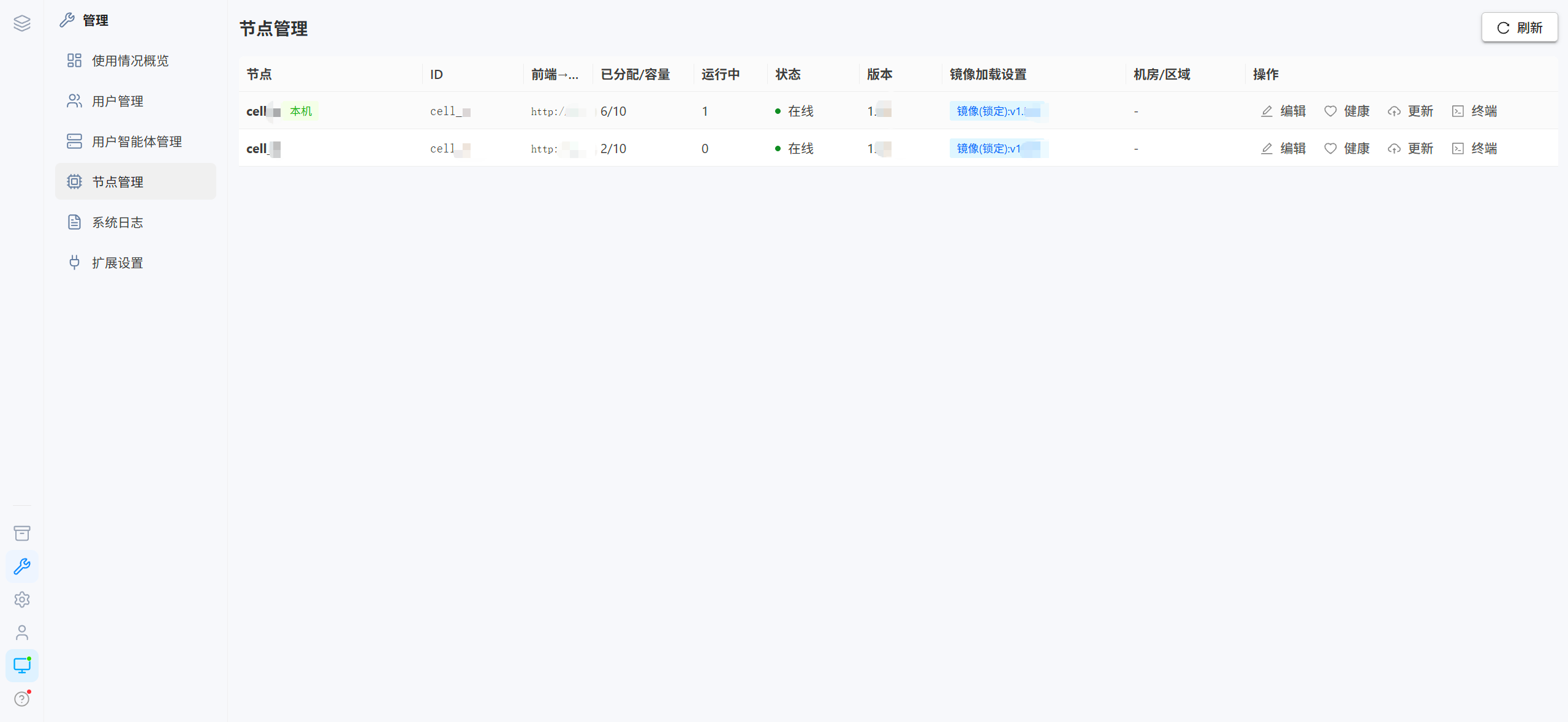
Log in to the OpenPartner admin console → Node Management, and confirm that the new node's status is 「Online」.
3.1.2 Method 2: Manual Installation from the Official Download
- Open the download page https://openpartner.sogood360.com/download.html;
- On the page, find Manual Installation from the Official Download: download the two zips for Windows x64 (backend service
openpartner-server, initialization wizardopenpartner-init-ui);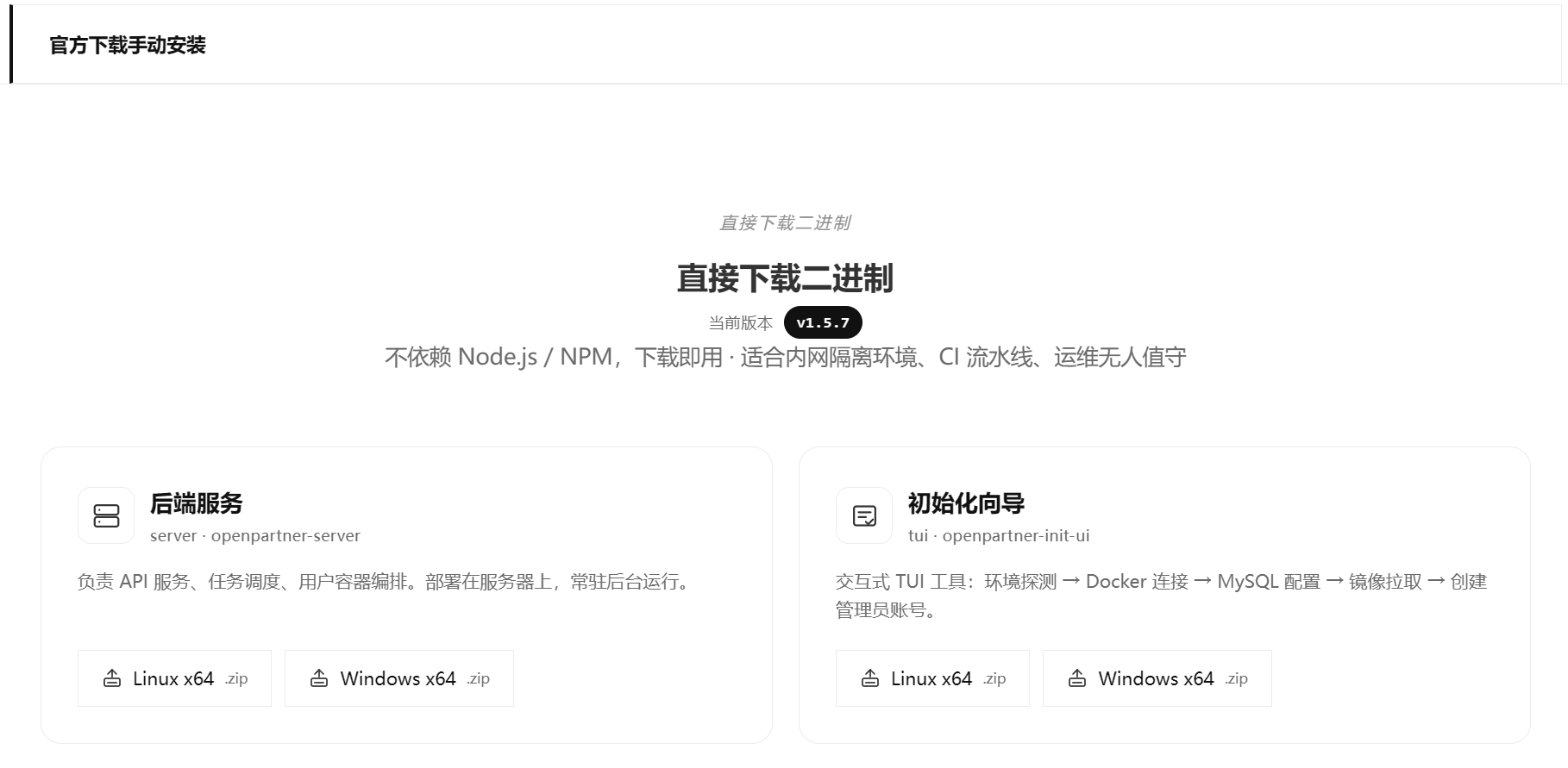
- Extract them to a fixed directory (e.g.
C:\openpartner\bin), add that directory to PATH, and reopen the terminal (see Method 2 in 2.3 of the Single-Node Quick Deployment Guide).
After installation, the remaining steps are the same as Method 1: initialization, updating the current system frontend server, and starting — see 3.1.1.
3.2 Adding a Node on Linux
The commands below assume installation as an administrator; a regular user does not need sudo. Before a regular user deploys, an administrator must complete the directory authorization and add the user to the docker group as described in 3.1 of the Linux section of the Single-Node Quick Deployment Guide; log in again before continuing. The installation, initialization, and startup of an added node are all performed in the same terminal; operations on the primary node are the exception.
Preparation
Adding a node requires Docker, Node.js / npm (only for Method 1), and Git. No local MySQL is required.
- Install Docker, Node.js (npm), and Git: see "3.1 Preparation" in the Single-Node Quick Deployment Guide;
- Verify the environment:
docker --version    # should print >= 20.10
node --version      # should print >= 18 (only needed for Method 1)
npm --version       # should print a version number (only needed for Method 1)
git --version       # should print a version number
Choose one installation method: Method 1: One-Click NPM Installation (3.2.1) or Method 2: Manual Installation from the Official Download (3.2.2).
3.2.1 Method 1: One-Click NPM Installation
node --version        # Node.js >= 18
sudo npm i -g @sogood360/openpartner   # no local MySQL is needed when adding a node
Regular users: the
sudo npmcommand above is only for administrators; regular users should follow the no-sudo installation instructions in 3.2 of the Linux section of the Single-Node Quick Deployment Guide.
⚠️ If
openpartner: command not foundoropenpartner: Permission deniedis reported after installation, see the FAQ in this document.
Initialization
⚠️ The primary node must allow inbound TCP 3306 (for child nodes to connect to MySQL), otherwise initialization will not be able to reach the database.
sudo mkdir -p /var/lib/openpartner/workspace /var/log/openpartner /tmp/ocw
sudo chown $USER:$USER /var/lib/openpartner/workspace /var/log/openpartner

cat > /tmp/ocw/params.json <<EOF
{
  "server": { "port": 3001 },
  "frontend": { "port": 9620 },
  "database": { "host": "<PRIMARY_MYSQL_IP>", "port": 3306, "user": "root", "password": "<PRIMARY_MYSQL_PASSWORD>", "name": "openpartner" },
  "workspace": { "root": "/var/lib/openpartner/workspace" },
  "images": { "frontend": "", "agent": "sogood360/openpartner-agent:latest" },
  "secrets": { "jwt_secret": "", "encryption_key": "", "encryption_salt": "", "internal_token": "" },
  "admin": { "password": "admin123456" },
  "cell": { "id": "<NEW_NODE_ID>", "name": "<NEW_NODE_ID>", "cell_url": "http://<LOCAL_IP>:3001" },
  "mode": "secondary",
  "container_api_url": "",
  "public_base_url": "",
  "actions": { "pull_images": true, "create_frontend_container": false, "register_autostart": true, "reset_db": false }
}
EOF
⚠️
<NEW_NODE_ID>= the unique identifier of the new node (cell_+ a single lowercase letter, such ascell_b); it must not duplicate any other node in the system.For a detailed description of each parameter field, see Appendix A "JSON Configuration Parameter Reference".
⚠️ Regular users: skip the two
sudo mkdir/sudo chowncommands above; the required directories have already been authorized by the administrator; change the path incat > /tmp/ocw/params.jsonto"$HOME/ocw/params.json"; changeworkspace.rootto$HOME/openpartner/workspace(the unquoted<<EOFabove expands$HOMEto the current user's home directory); changeregister_autostarttofalse.
Run (local terminal):
openpartner init --from-json /tmp/ocw/params.json
After initialization, confirm that jwt.secret, encryption.key, and encryption.salt in config.yaml match those of the primary node, and fix backend_url to the docker0 gateway:
sudo sed -i "s#^\(\s*backend_url:\s*\).*#\1http://172.17.0.1:3001#" /etc/openpartner/config.yamlRegular users:
/etc/openpartnerhas already been authorized by the administrator; removesudowhen running the command above.
Update the Current System Frontend Server
In the terminal of OpenPartner (primary node), run the following to confirm that the new node has been registered in the primary node's MySQL database (a record should be found):
# query the primary node database to confirm that the new node record has been written
docker exec -it mysql8 mysql -uroot -p'<PRIMARY_MYSQL_PASSWORD>' openpartner -e "SELECT id,name,cell_url FROM cells WHERE id='<NEW_NODE_ID>';"
In the terminal of OpenPartner (primary node), run the following to update the system frontend server's routes:
⚠️ Please run the commands below one at a time (wait for the previous one to finish before running the next). Do not paste them all at once, otherwise it may hang or report an error.
# read the child node addresses currently recorded in the frontend container
EXISTING=$(docker inspect openpartner_frontend --format '{{range .Config.Env}}{{println .}}{{end}}' | grep '^CELL_ROUTES=' | cut -d= -f2-)
docker stop openpartner_frontend && docker rm openpartner_frontend
docker run -d --name openpartner_frontend -p 9620:9620 -e "CELL_ROUTES=$EXISTING,<NEW_NODE_ID>=<NEW_NODE_IP>:3001" sogood360/openpartner-frontend:<CURRENT_VERSION>
When OpenPartner (primary node) runs on Windows, the bash commands in this section cannot be executed; use the PowerShell commands under "Update the Current System Frontend Server" in 3.1.1 instead.
9620 is the default web port. If the frontend port was changed during initialization (
frontend.portis changeable), replace the9620in front of-pwith the actual port (e.g.-p 8080:9620).If
$EXISTINGis empty (the first node), put<NEW_NODE_ID>=<NEW_NODE_IP>:3001directly inCELL_ROUTESinside-e; do not leave a leading comma.Use
docker imagesto look up the current frontend image tag for<CURRENT_VERSION>(it matches the npm-installed version).
Start
openpartner start   # start (auto-start on boot has been registered, so it also runs automatically after a reboot)
curl -s --max-time 10 http://127.0.0.1:3001/api/health   # expected: {"status":"ok",...}
sudo ufw allow 3001/tcp   # allow this node's port
Regular users:
register_autostarthas been set tofalse, so the "auto-start on boot has been registered" note above does not apply to regular users; just runopenpartner start(it runs in the background by default since 1.5.7).sudo ufwis run by an administrator.
Log in to the OpenPartner admin console → Node Management, and confirm that the new node's status is 「Online」.
3.2.2 Method 2: Manual Installation from the Official Download
- Open the download page https://openpartner.sogood360.com/download.html;
- On the page, find Manual Installation from the Official Download: download the two zips for Linux x64 (backend service
openpartner-server, initialization wizardopenpartner-init-ui); - Extract them to a fixed directory and add it to PATH (see Method 2 in 3.3 of the Single-Node Quick Deployment Guide).
After installation, the remaining steps are the same as Method 1: initialization, updating the current system frontend server, and starting — see 3.2.1.
IV. Common Commands
openpartner start     # start (runs in the background by default since 1.5.7)
openpartner stop      # stop
openpartner status    # view the running status
To upgrade OpenPartner, see the Upgrade Documentation.
Appendix A · JSON Configuration Parameter Reference
This appendix lists only the parameters for adding a node (secondary); the primary node parameters are in Appendix A of the Single-Node Quick Deployment Guide.
| Block | Key | Default | Description |
|---|---|---|---|
server | port | 3001 | Backend API port of this node (changeable) |
frontend | port | 9620 | Web port (adding a node does not create a frontend container, so the default is fine) |
database | host | — | ⚠️ MySQL IP |
port | 3306 | Database port | |
user | root | Database account (changeable) | |
password | — | ⚠️ MySQL password (replace with the real value) | |
name | openpartner | Database name, must match the primary node (do not change) | |
workspace | root | Platform default | Workspace root directory (changeable; $HOME/openpartner/workspace for regular users) |
images | frontend | "" | Fixed empty: an added node only runs the agent image |
agent | Current tag | agent image (changeable) | |
secrets | jwt_secret etc. | Leave empty to generate automatically | Must be compared against the primary node's config.yaml after initialization; do not change it manually |
admin | password | — | Initial administrator password (changeable) |
cell | id | — | ⚠️ Unique identifier of the new node (cell_ + a single lowercase letter, such as cell_b); it must not duplicate any other node in the system |
name | Same as id | Node display name | |
cell_url | — | Required: address reachable from other nodes (http://<LOCAL_IP>:3001); use the real IP, not 127.0.0.1 | |
container_api_url | — | Leave empty to derive automatically | Address the container uses to reach the backend (Windows host.docker.internal / Linux 172.17.0.1) |
public_base_url | — | Leave empty | Address used by the browser (leave empty for an added node; use the real IP for the primary node) |
mode | — | secondary | Fixed: secondary = added node |
actions | pull_images | true | init pulls the agent image automatically (the tag matches the npm-installed version) |
create_frontend_container | false | Fixed: no frontend container is created | |
register_autostart | true | Whether to register auto-start on boot (false for regular users) | |
reset_db | false | Fixed: the database is not rebuilt |
Appendix B · JSON Example
{
  "mode": "secondary",
  "server": { "port": 3001 },
  "frontend": { "port": 9620 },
  "database": { "host": "<PRIMARY_MYSQL_IP>", "port": 3306, "user": "root", "password": "<PRIMARY_MYSQL_PASSWORD>", "name": "openpartner" },
  "workspace": { "root": "/var/lib/openpartner/workspace" },
  "images": { "frontend": "", "agent": "sogood360/openpartner-agent:<VERSION>" },
  "secrets": { "jwt_secret": "", "encryption_key": "", "encryption_salt": "", "internal_token": "" },
  "admin": { "password": "admin123456" },
  "cell": { "id": "<NEW_NODE_ID>", "name": "<NEW_NODE_ID>", "cell_url": "http://<LOCAL_IP>:3001", "region": "", "zone": "" },
  "container_api_url": "",
  "public_base_url": "",
  "actions": { "pull_images": true, "create_frontend_container": false, "register_autostart": true, "reset_db": false }
}
Appendix C · Configuration File Locations
| Platform | Path |
|---|---|
| Windows | C:\ProgramData\openpartner\config.yaml |
| Linux | /etc/openpartner/config.yaml |
Appendix D · FAQ
For common deployment issues (TTY exit, database connection, image pull failures, port conflicts, command not found, forgotten password, etc.), see Appendix D of the Single-Node Quick Deployment Guide; only issues related to adding nodes are listed below.
Q: The new node was added, but it does not show up under "Node Management"?
- Check whether the new node can connect to the primary node's MySQL (
mysql -h PRIMARY_NODE_IP -uroot -p); - Check whether
jwt.secretis synchronized (after changing the secret on the primary node, wait for the60scache to expire, or manually restart all nodes); - Look at the new node's backend logs:
openpartner logsorjournalctl -u openpartner -n 100.
Q: Users are redirected repeatedly after logging in?
- Confirm that
users.cell_idhas been set correctly in MySQL (the frontend routes by node ownership); - Press F12 to open the browser developer tools → Network, and check the
cell_urlfield inside thecell_redirectreturned by the login request.
Q: One node has failed — can the other nodes still be used?
- Yes — users on the failed node will experience failures, but the other nodes are unaffected;
- After the failed node is repaired, users just need to log in again.