
Account
Applicable roles: All users
Prerequisites: Signed in
The Account page contains three tabs: Account Info, My MCP, and My Scenes. All content applies only to you.
1. Account Info
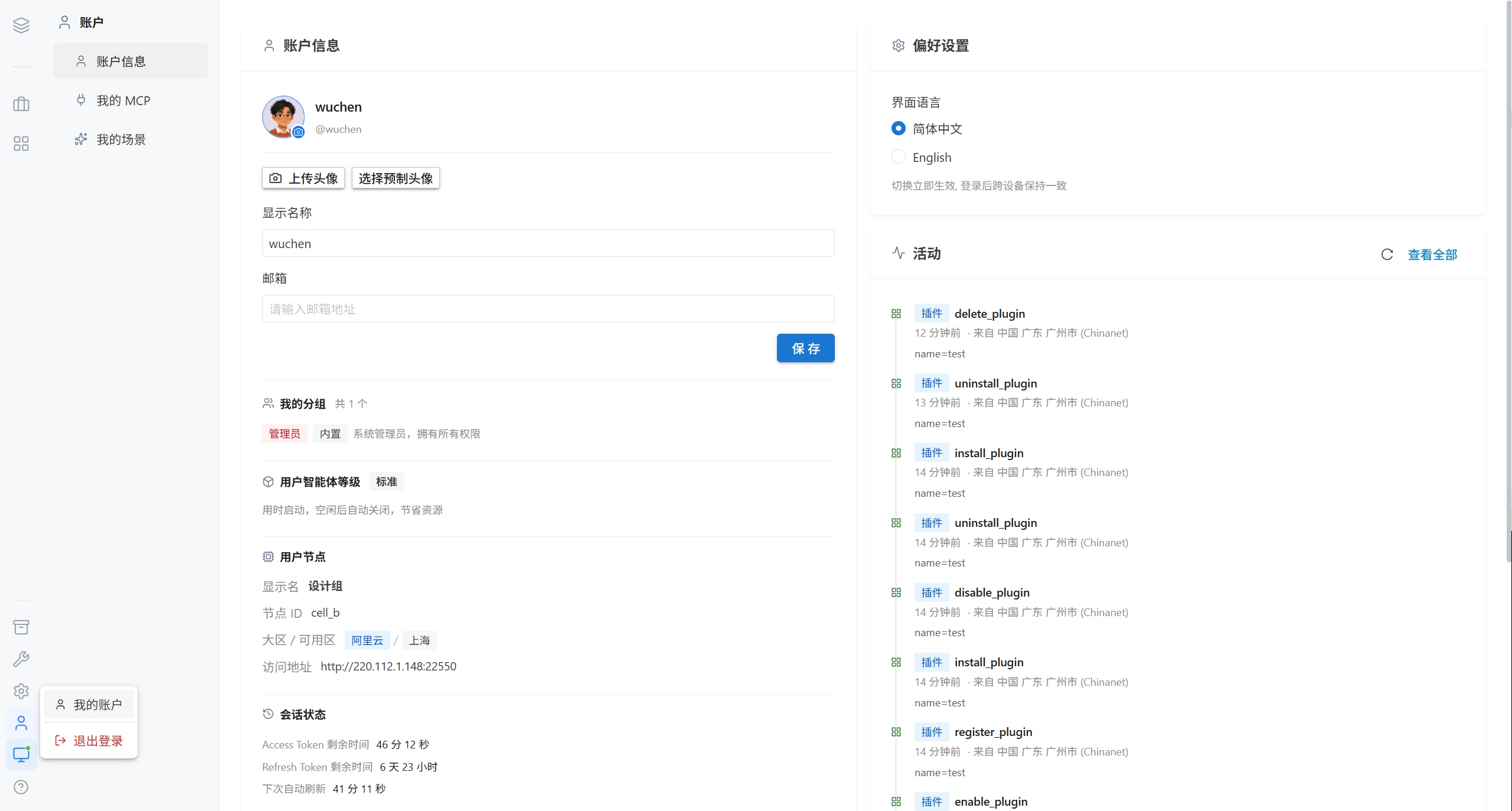
| Card | Contents |
|---|---|
| Account Info | Basic profile information such as username, display name, and email |
| Password Security | Change the login password |
| Preferences | Interface language selection |
| My Groups | The groups you belong to and the resource visibility they grant |
| Session Status | The current login session and node information (an administrator can hide this card) |
| User Nodes | The nodes you have been assigned to |
| Activity | Recent operation records |
Changing Your Password
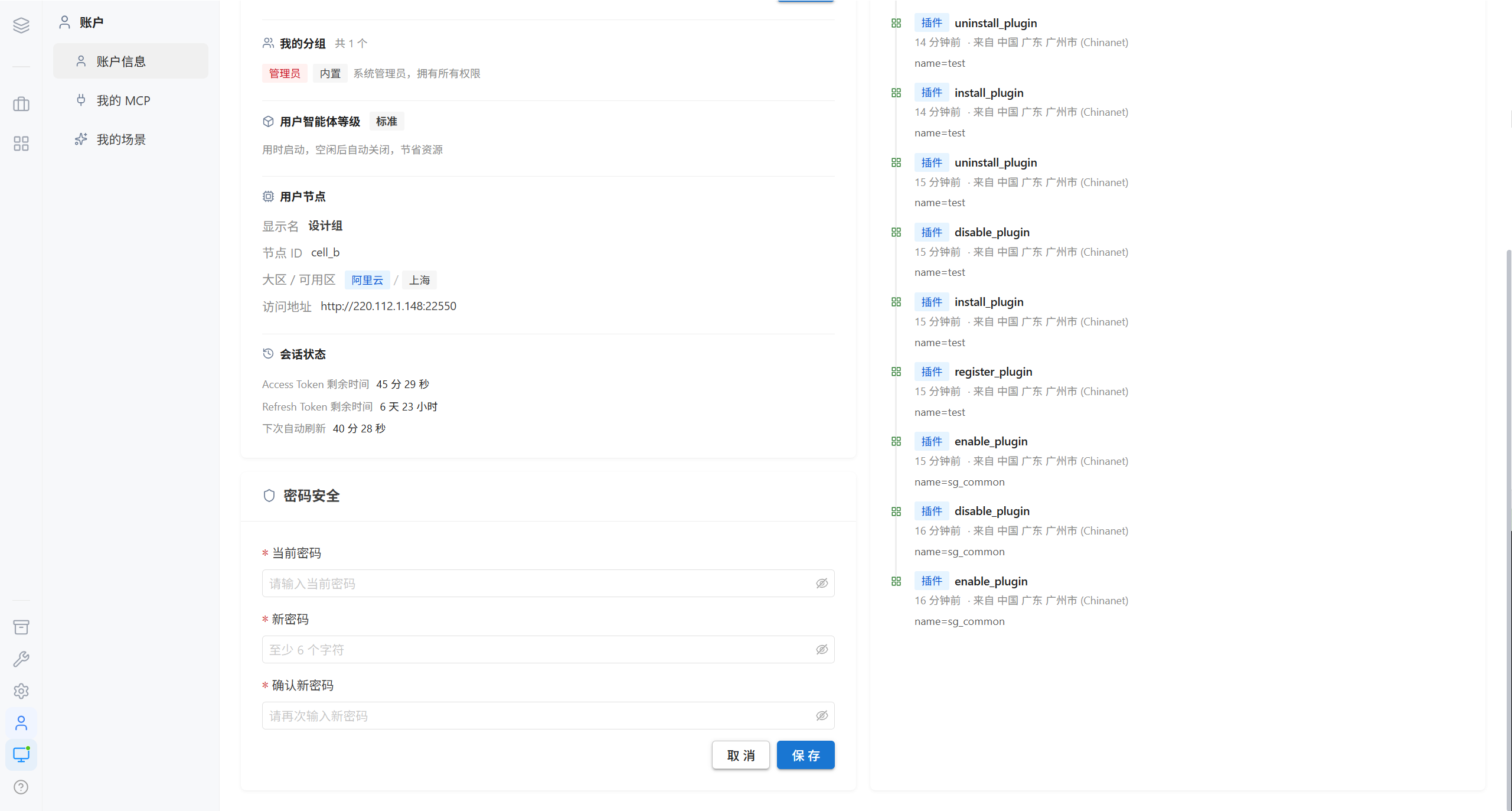
| Rule | Description |
|---|---|
| Forced sign-out after the change | The current token becomes invalid immediately, and you must sign in again |
| Sign-out on other devices | The platform enforces single sign-on, so existing sessions become invalid as well |
| Administrator resets the password | After an administrator resets it in User Management, you receive a new password that can be viewed only once |
Note · Changing your password invalidates sessions on all signed-in devices. This is by design, to keep your account secure.
My Groups
Groups determine which resources you can see.
| Resource | Rule |
|---|---|
| Git repositories | Visible only when the group is granted access; repositories with no group assigned are visible to administrators only |
| Skill catalog | Explicit grant > follow the repository > public |
| Dynamic scenes | The group the scene belongs to |
| Extensions | Visible to all users once an administrator enables them |
2. My MCP
You can add your own MCP services and call their tools in conversations. They sit alongside the System MCP configured by administrators, but are visible only to you.
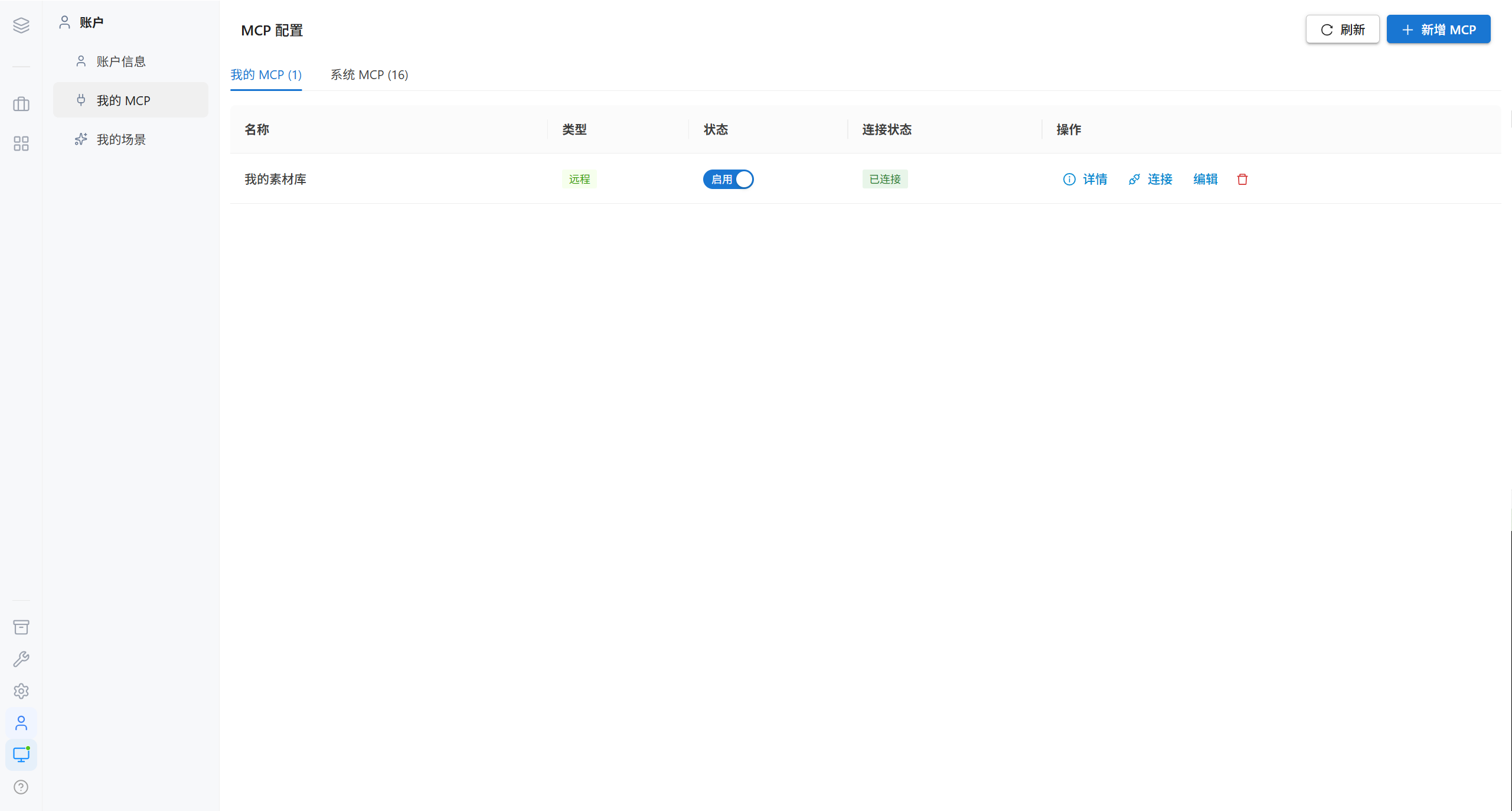
2.1 Adding an MCP
There are two editing methods, and the two are functionally equivalent.
Method 1 · Standard fields
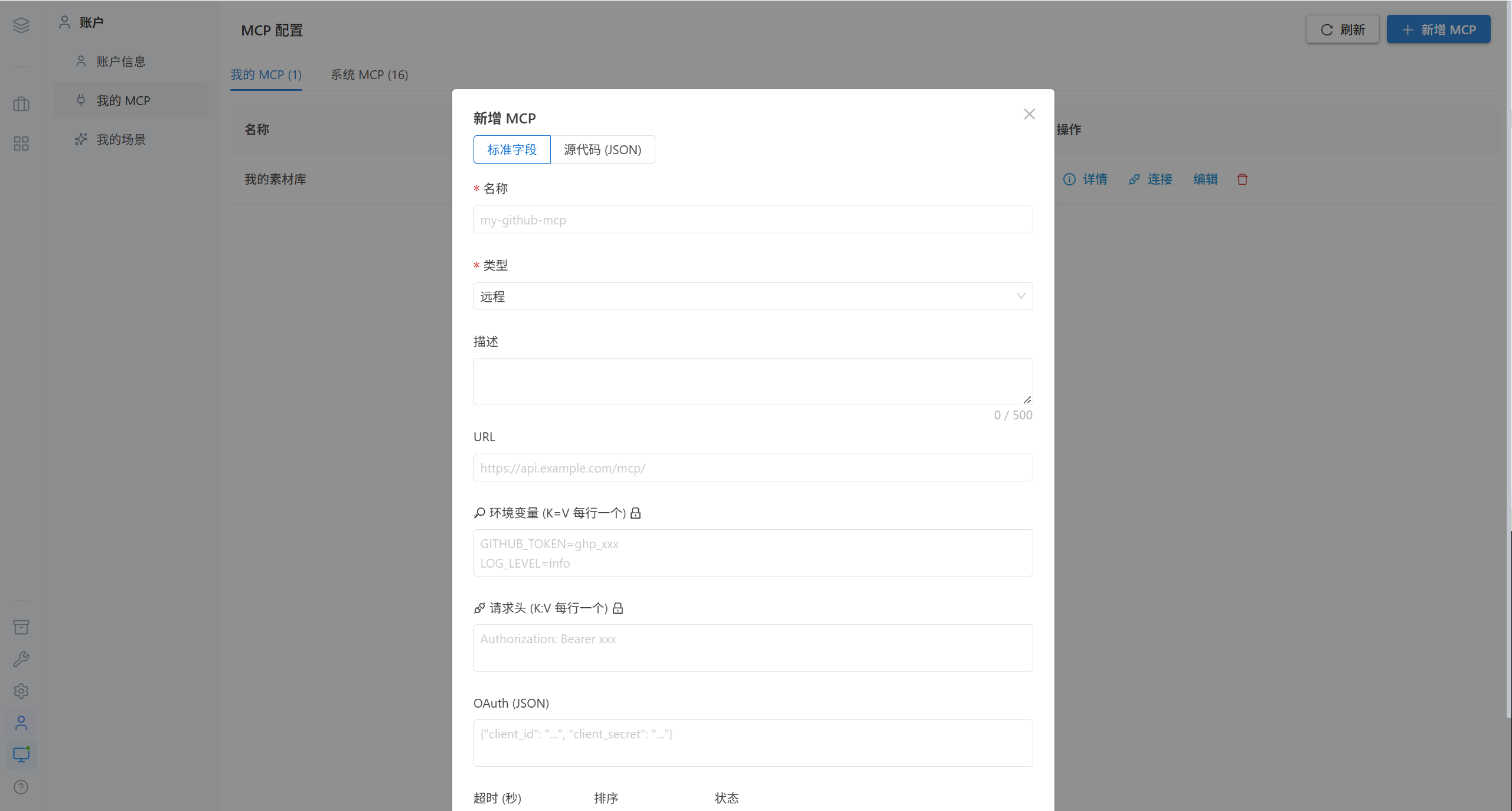
| Field | Description |
|---|---|
| Name | The MCP name |
| Type | Local (startup command) / Remote (URL) |
| Command | The startup command for the local type, such as npx -y @upstash/context7-mcp@latest |
| URL | The server address for the remote type, such as https://mcp.context7.com/mcp |
| Environment variables | One KEY=value per line, such as CONTEXT7_API_KEY=your-key |
| Timeout | In milliseconds, such as 30000 |
Method 2 · Source code (JSON)
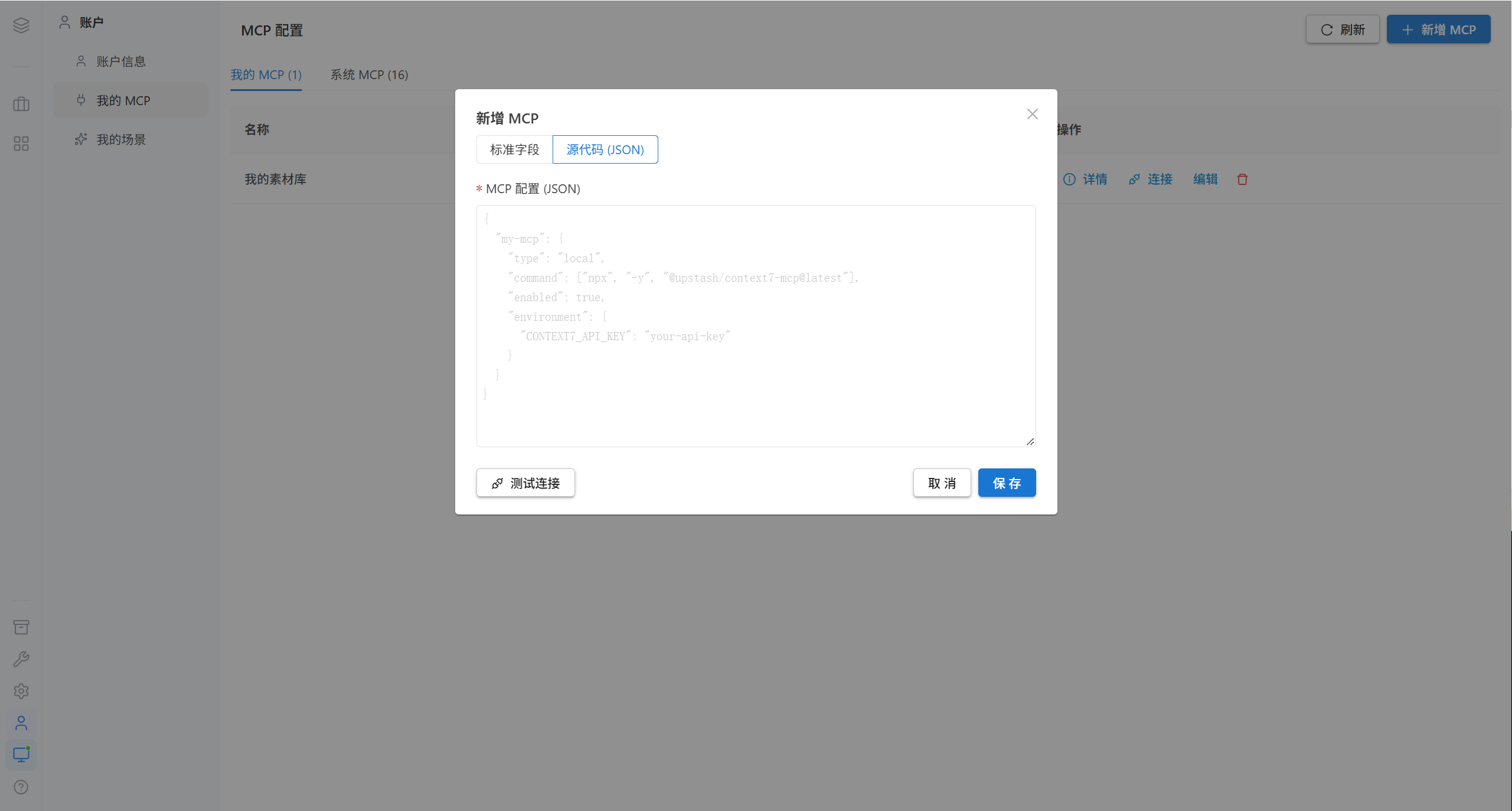
Paste the MCP JSON configuration directly:
{
  "my-mcp": {
    "type": "local",
    "command": ["npx", "-y", "@upstash/context7-mcp@latest"],
    "enabled": true,
    "environment": {
      "CONTEXT7_API_KEY": "your-api-key"
    }
  }
}
Note · When the JSON format is invalid, a message says "Please enter a valid JSON format". Fields that contain keys are stored encrypted, and neither administrators nor anyone else can view the plaintext.
2.2 Viewing and Managing
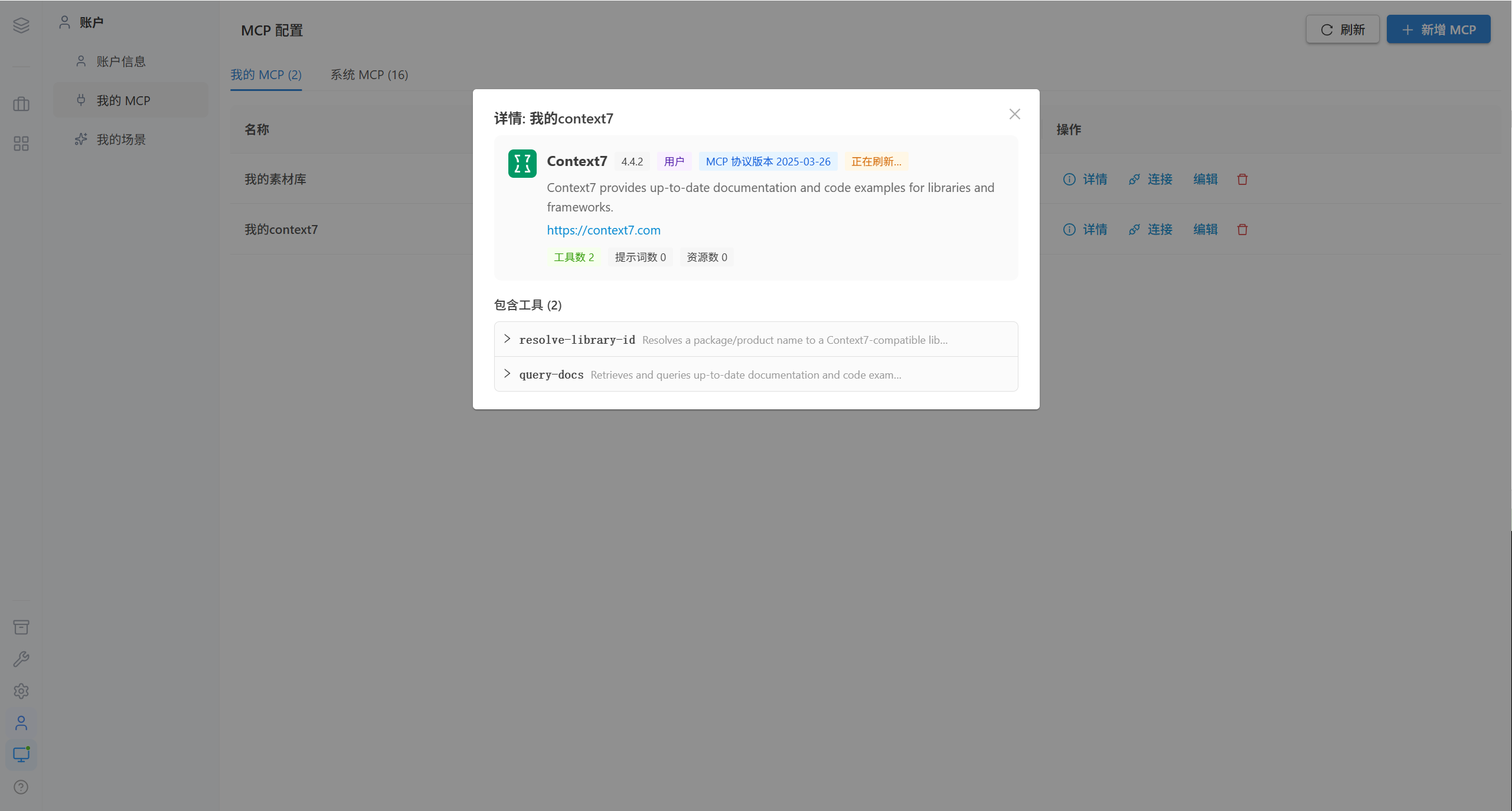
| Action | Description |
|---|---|
| Edit | Changes to the configuration take effect immediately after you save |
| Link | View the connection address / startup command of this MCP |
| Delete | Remove this MCP |
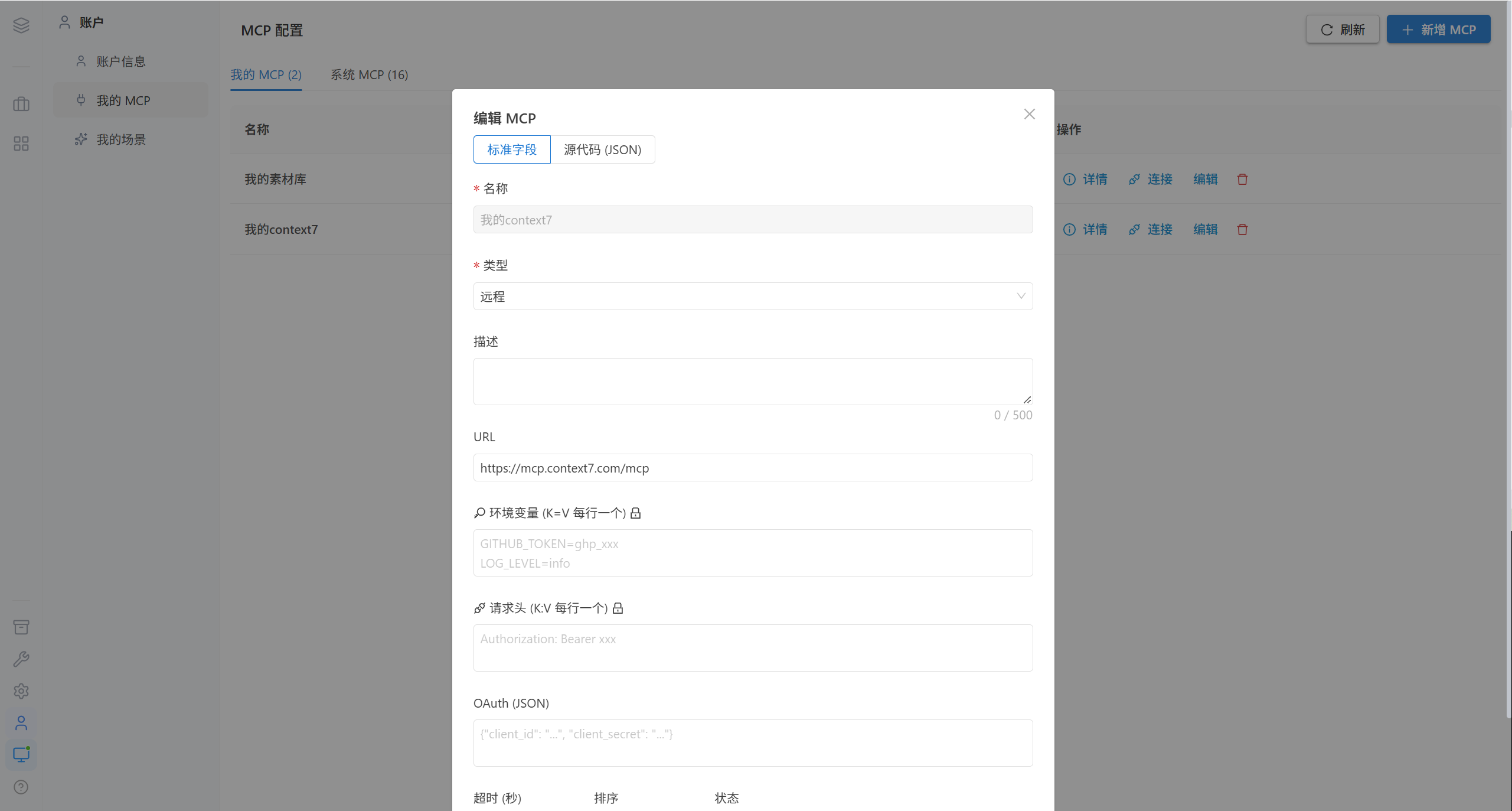
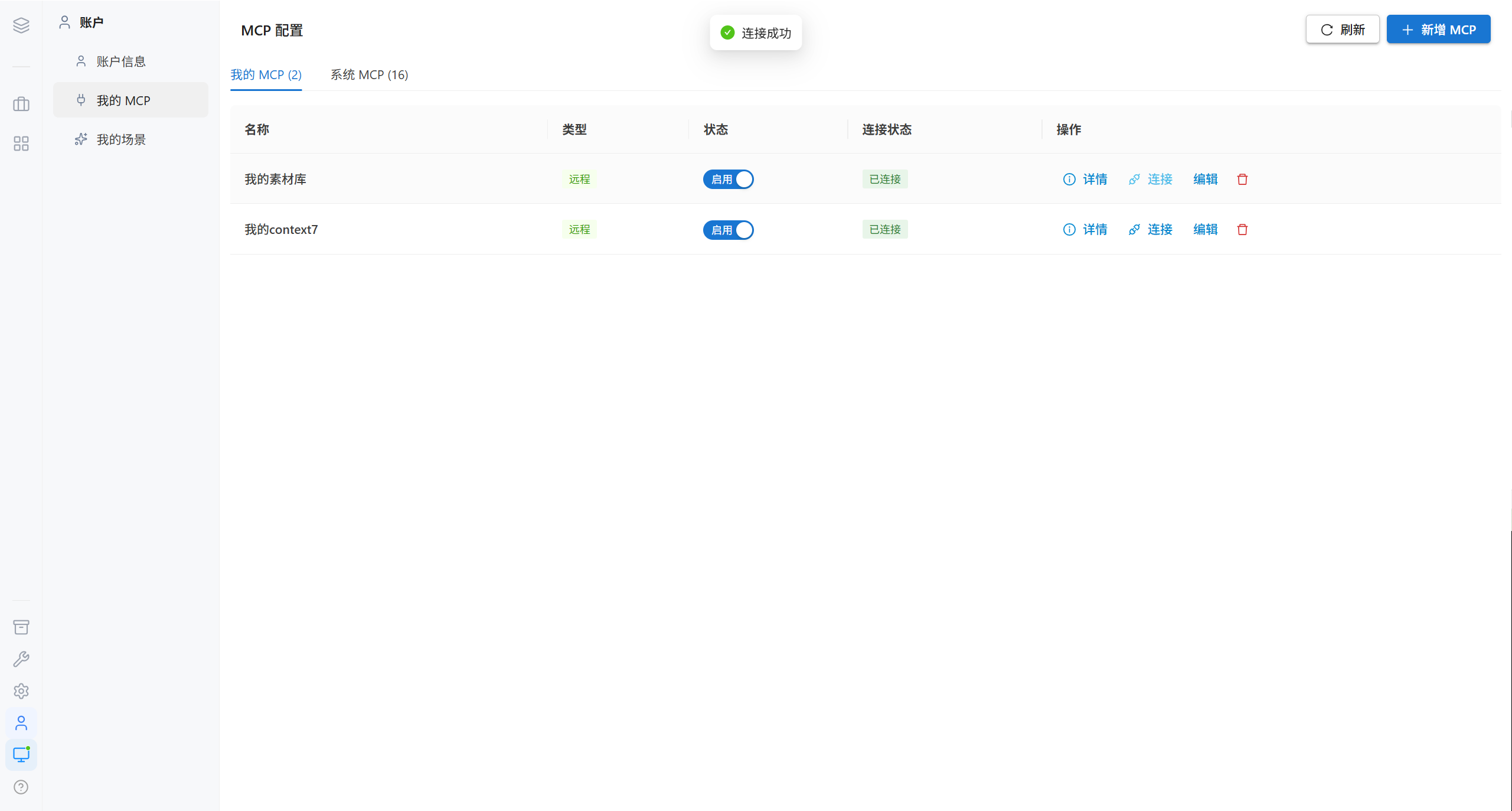
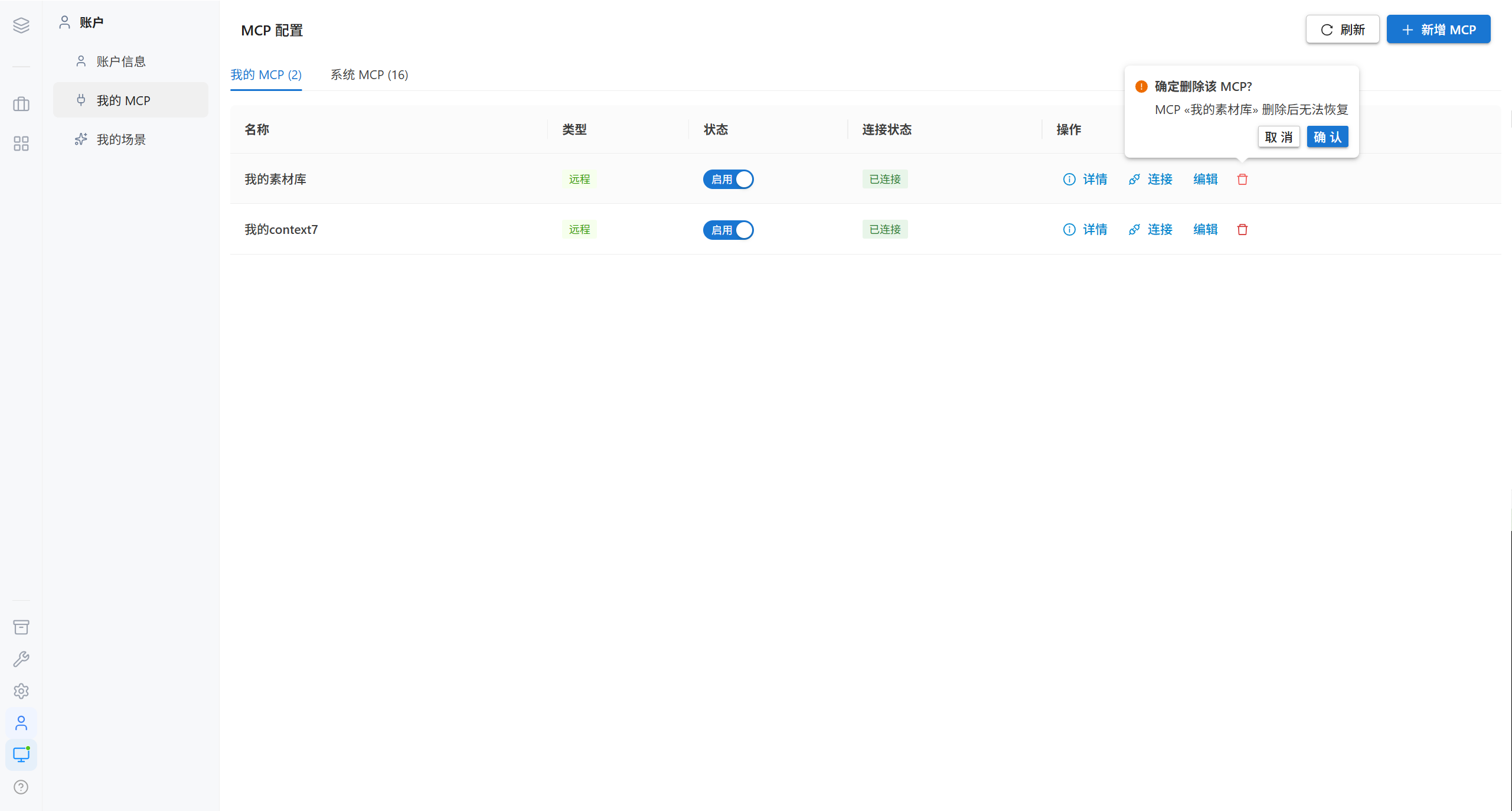
After deletion, the tools of that MCP no longer appear in the MCP selector in the input area.
2.3 System MCP
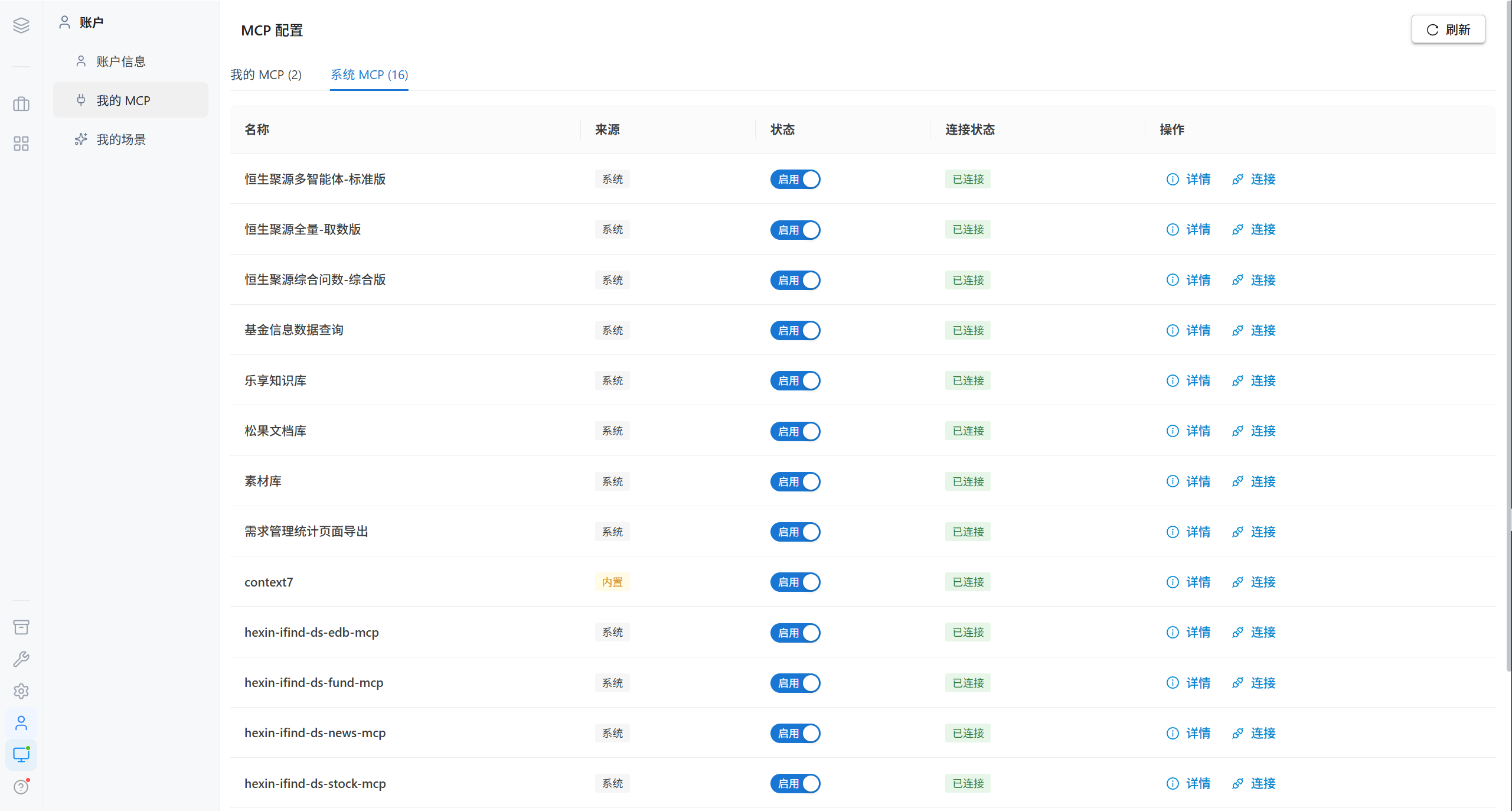
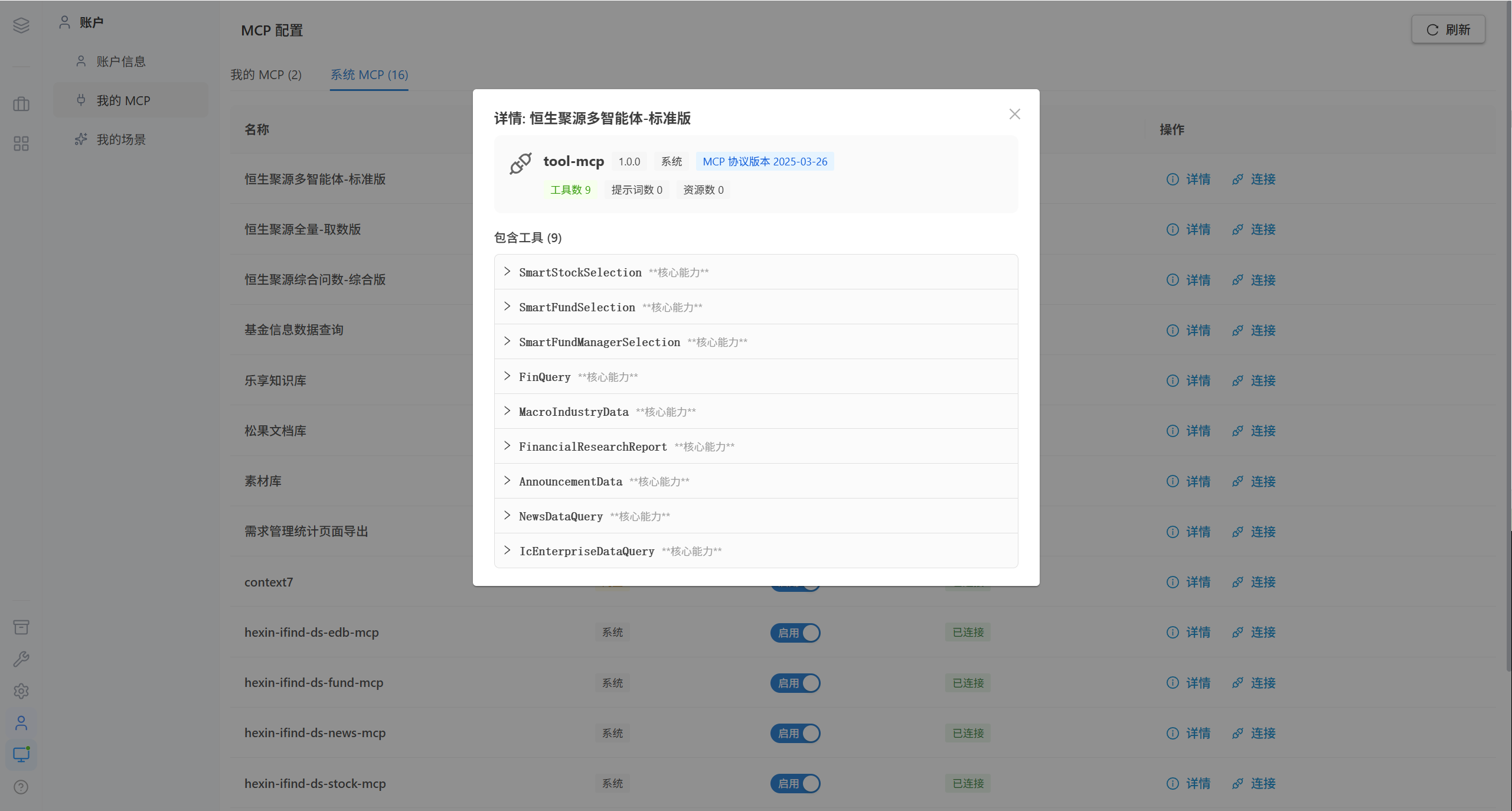
MCP configured by administrators for all users can be viewed and subscribed to here.
| Concept | Description |
|---|---|
| System MCP | Maintained by administrators in Settings → MCP Configuration; visible to all users |
| Subscribe | Once you subscribe, the tools of that MCP appear in your selector |
| Built-in MCP | Purpose | Status |
|---|---|---|
context7 | Documentation search (https://mcp.context7.com/mcp) | Enabled by default |
websearch | Web search (https://mcp.exa.ai/mcp) | Enabled by default |
3. My Scenes
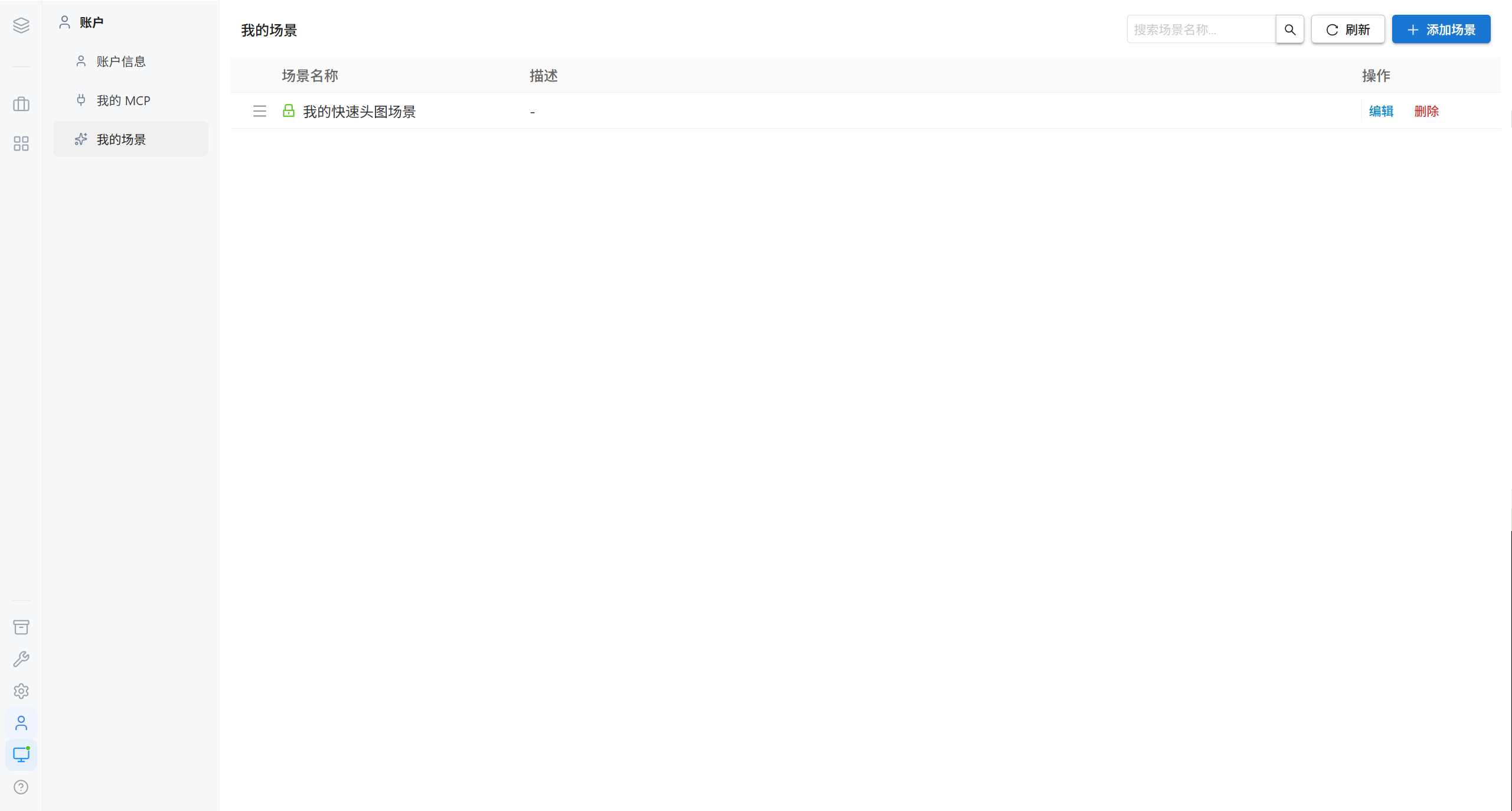
Personal scenes are visible only to you, and you can create them freely.
3.1 Adding a Scene
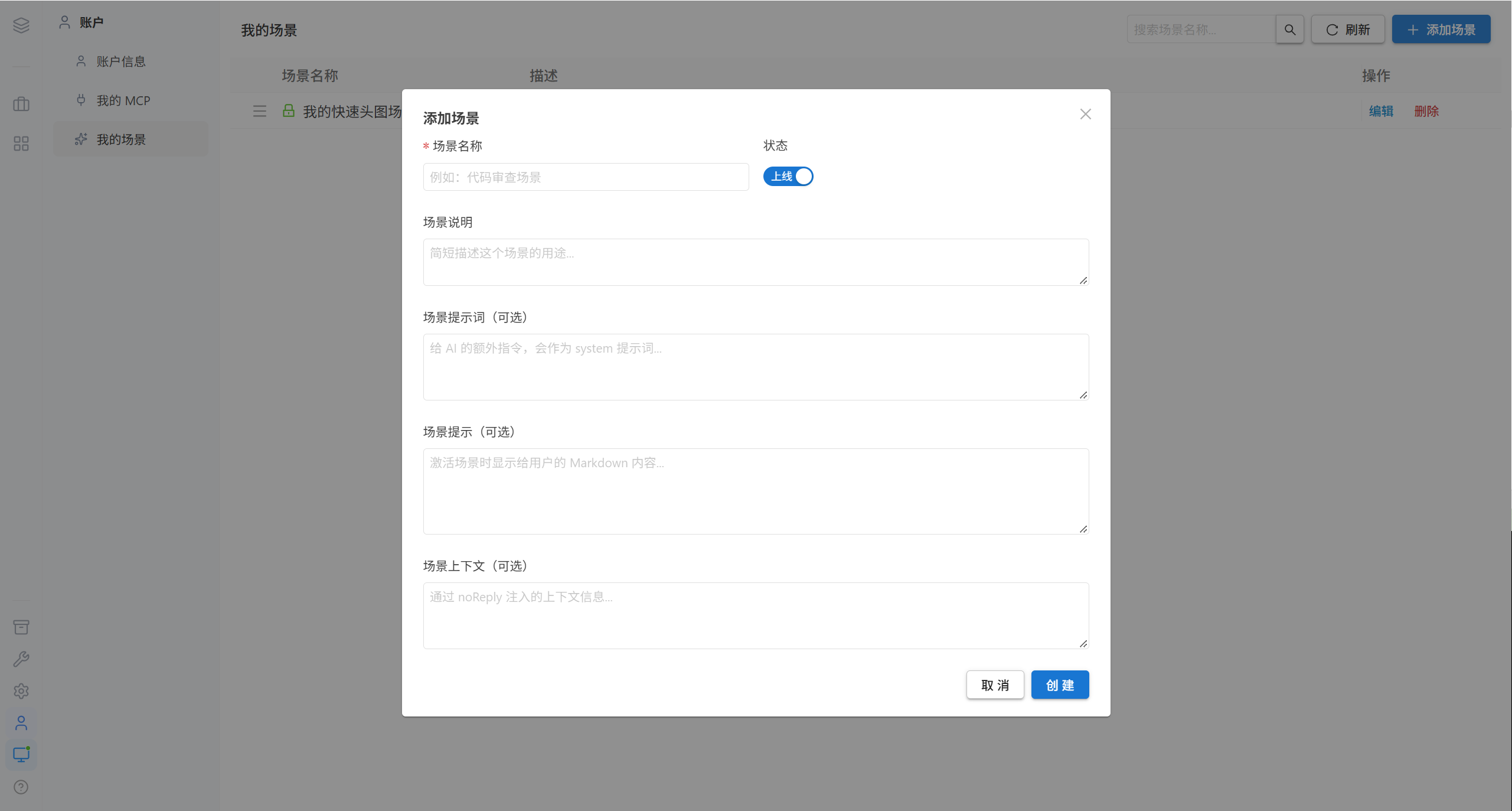
| Field | Description |
|---|---|
| Scene name | Required |
| Scene description | A brief description of what it is for |
| Scene prompt | Injected into the conversation as an additional system instruction |
| Scene hint | The text shown to you when the scene is activated (Markdown) |
Note · Personal scenes are not bound to a group, so they are visible only to you. For a scene to be shared by the whole company, ask an administrator to configure it under Dynamic Scenes.
3.2 Editing a Scene
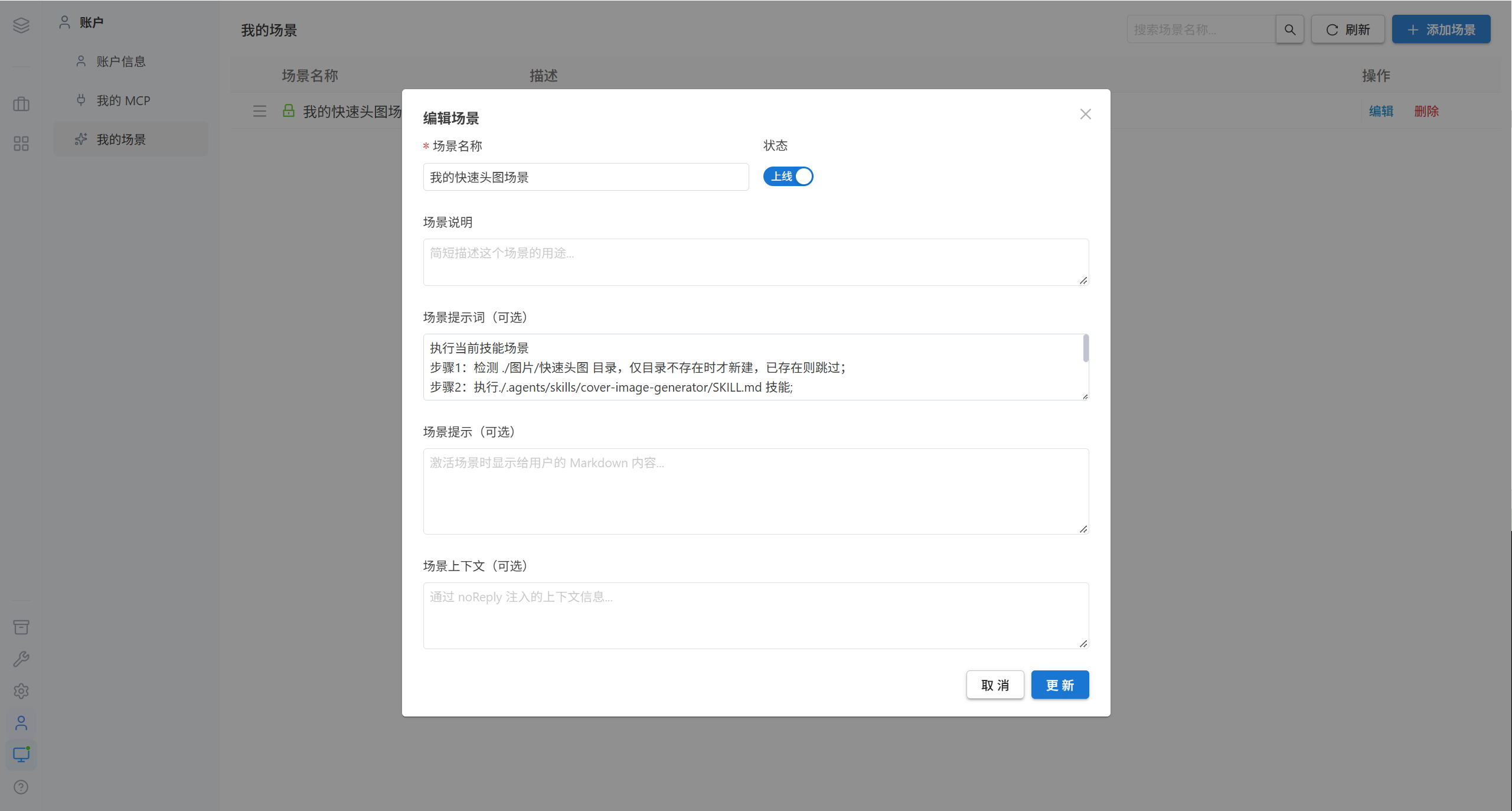
3.3 Deleting a Scene
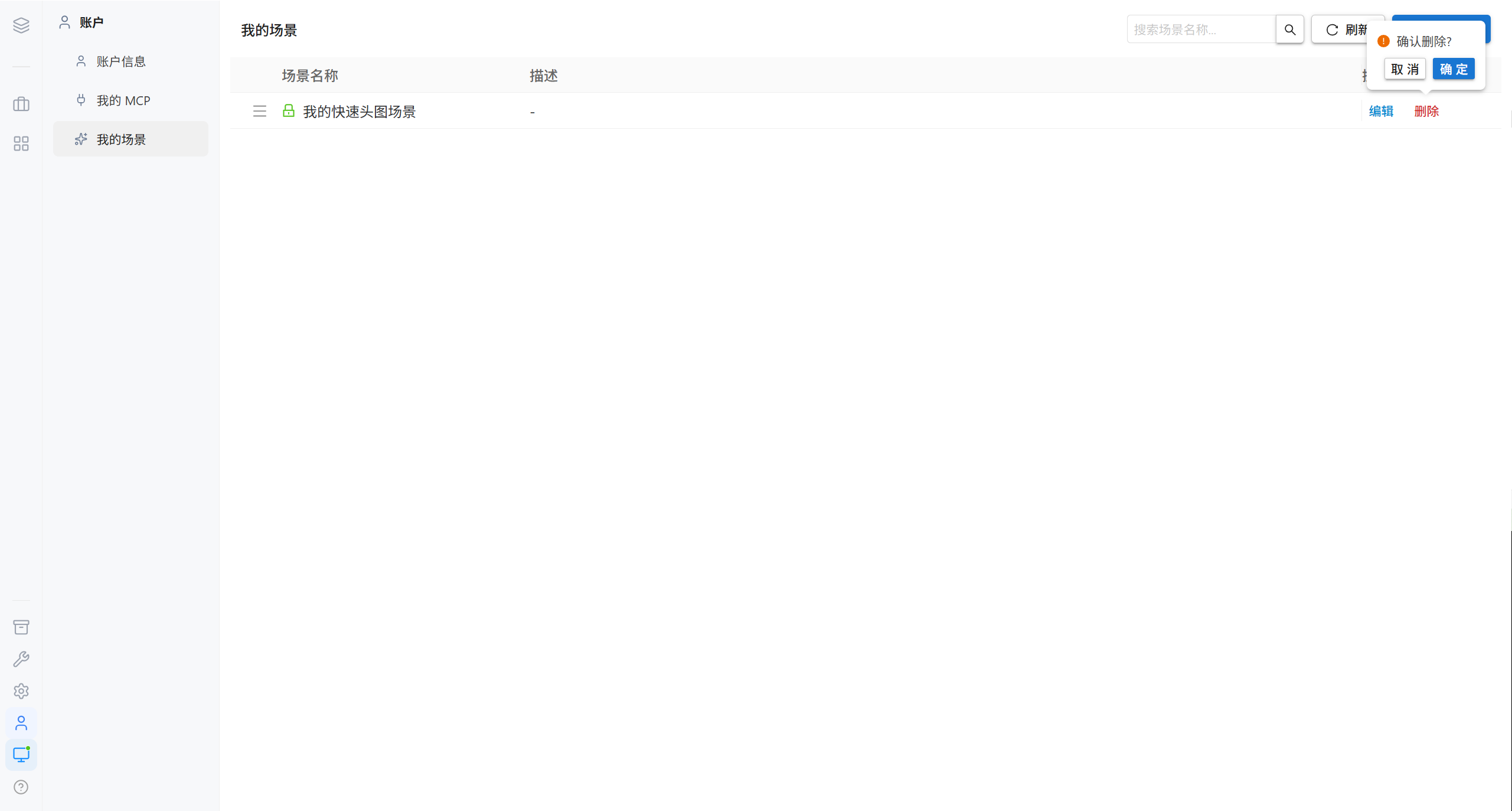
4. FAQ
| Symptom | Cause | Resolution |
|---|---|---|
| Signed out after changing the password | Changing the password forces every device to sign in again | This is a security design; just sign in again |
| My MCP does not appear in the selector | It is not subscribed, or the MCP connection failed | Subscribe under My MCP and check the connection status |
| Other people cannot see my scenes | Personal scenes are visible only to you | Ask an administrator to configure it as a Dynamic Scene |
5. Related Pages
| Page | Contents |
|---|---|
| Quick Start · Account Menu | Sign out, restart the AI agent, terminal mode |
| Capability Settings · MCP Configuration | MCP management on the administrator side |
| Capability Settings · Dynamic Scenes | Public scenes on the administrator side |