
Capability Settings
Applicable roles: Administrators
Prerequisites: Model Providers has been configured
This page covers four of the seven layers of the platform's capability architecture: AI agent → scene → plugin → MCP tool. Together they determine what the AI can do.
Table of Contents
| Section | Content | Purpose |
|---|---|---|
| 1. AI Agent Settings | Main agent / sub-agent, prompt, tool permissions | Defines the role of the AI |
| 2. Dynamic Scenes | Preset prompt + tool combinations | Distills frequently used workflows |
| 3. Plugin Management | Register, install, enable/disable plugins | Extends AI capabilities |
| 4. MCP Configuration | Connect external tools and data sources | Connects to the outside world |
1. AI Agent Settings
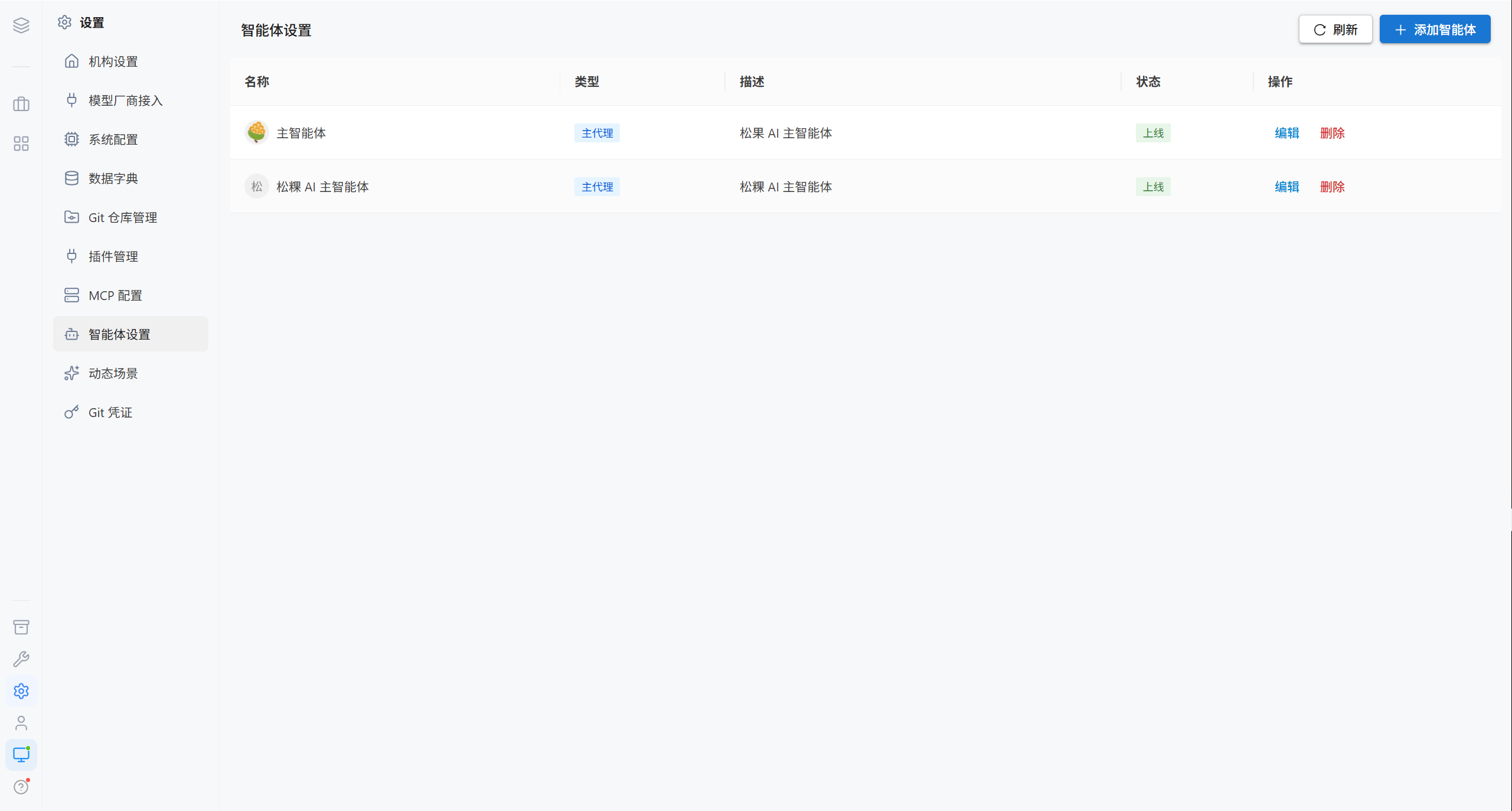
| Column | Description |
|---|---|
| Name | AI agent name |
| Type | Main agent / Sub-agent |
| Description | What it is used for |
| Status | Online / Offline |
| Actions | Edit, delete |
| Type | Limit | Purpose |
|---|---|---|
| Main agent | Only the first primary agent is kept at runtime | The platform's default assistant, and the default choice for all users |
| Sub-agent | Multiple | Dedicated to specific tasks, delegated to by the main agent as needed |
Note · The main agent is created by the installation wizard during initialization (named "Main AI Agent" by default). Changing the main agent briefly interrupts the sessions of all online users for about 2 seconds; session content is not lost.
1.1 Add an AI Agent
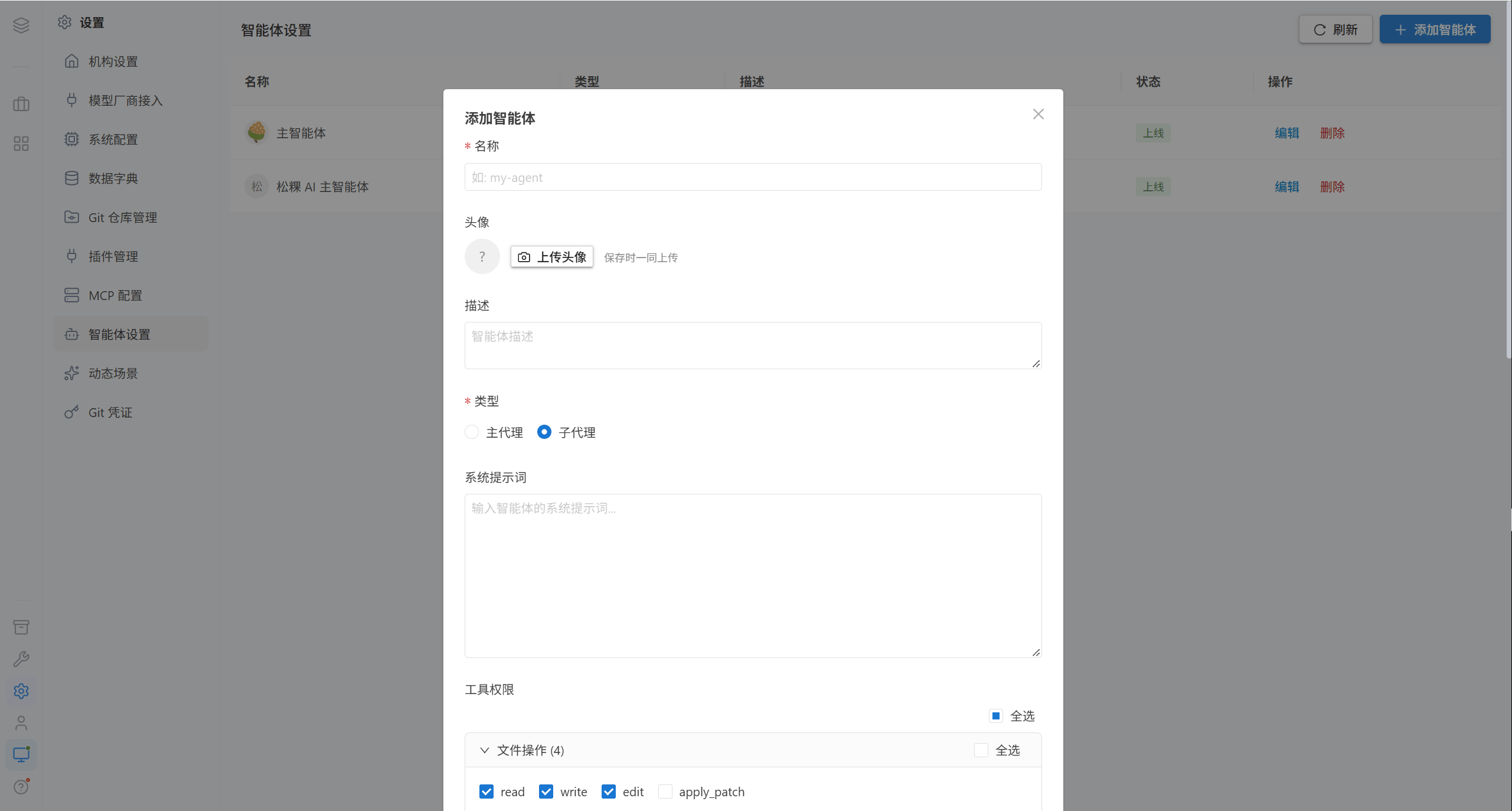
| Field | Required | Description |
|---|---|---|
| Name | ✅ | For example my-agent |
| Type | ✅ | Main agent / sub-agent |
| Description | — | What it is used for |
| System prompt | — | Defines the role and behavioral guidelines of the AI |
| Tool permissions | — | Check by category, see below |
| Avatar | — | png/jpg/webp, ≤ 2MB |
| Model | — | Leave blank to use the default language model |
| Status | — | Online / Offline |
1.2 Tool Permissions
Tool permissions are checked by category, in 10 categories:
| Category | Included tools |
|---|---|
| File operations | read (read file contents), write (create new files), edit (modify existing files), apply_patch (apply patches) |
| File search | glob (find files by pattern), grep (search file contents), ast-grep search / replace |
| Shell commands | bash (execute commands) |
| Agent / session | task (subtask) |
| Web | webfetch (fetch web pages), websearch (search the web) |
| LSP | Language Server Protocol related |
| To-do items | todowrite (task list management) |
| Skill / MCP | skill (invoke a Skill) |
| Background tasks | Background asynchronous tasks |
| Image generation | image_generation (AI image generation) |
Tip · The broader the permissions, the stronger the AI capabilities but the higher the risk. Assign them by role: a role that only writes documentation can turn off bash and web; only give Shell and file write access to development roles.
Note · Modifying tool permissions requires the OpenCode service to be online so that the native tool list can be read. If you see "Failed to fetch the native tool list, please make sure the OpenCode service has started", first confirm that there is an online user container.
1.3 Edit and Delete
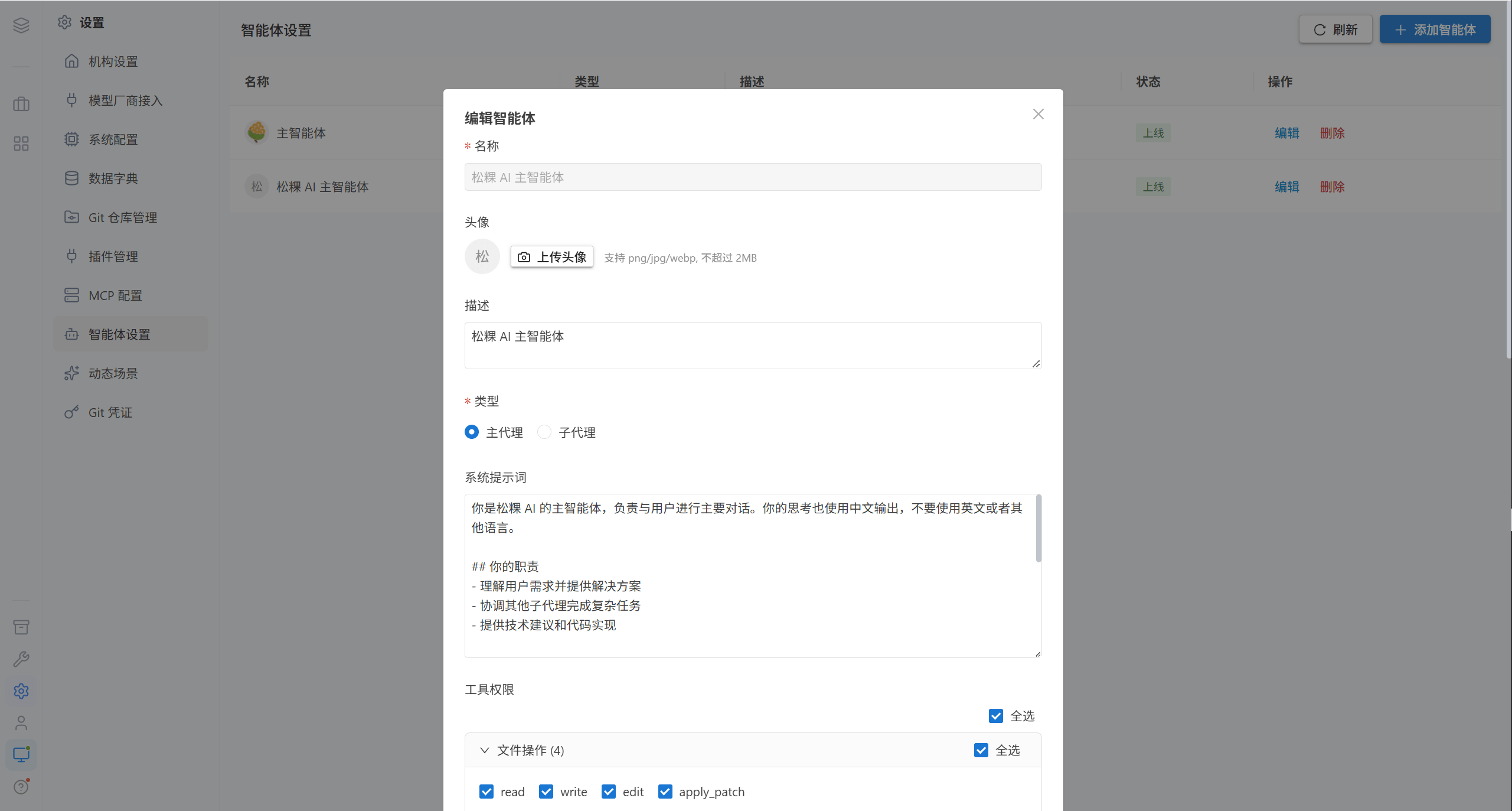
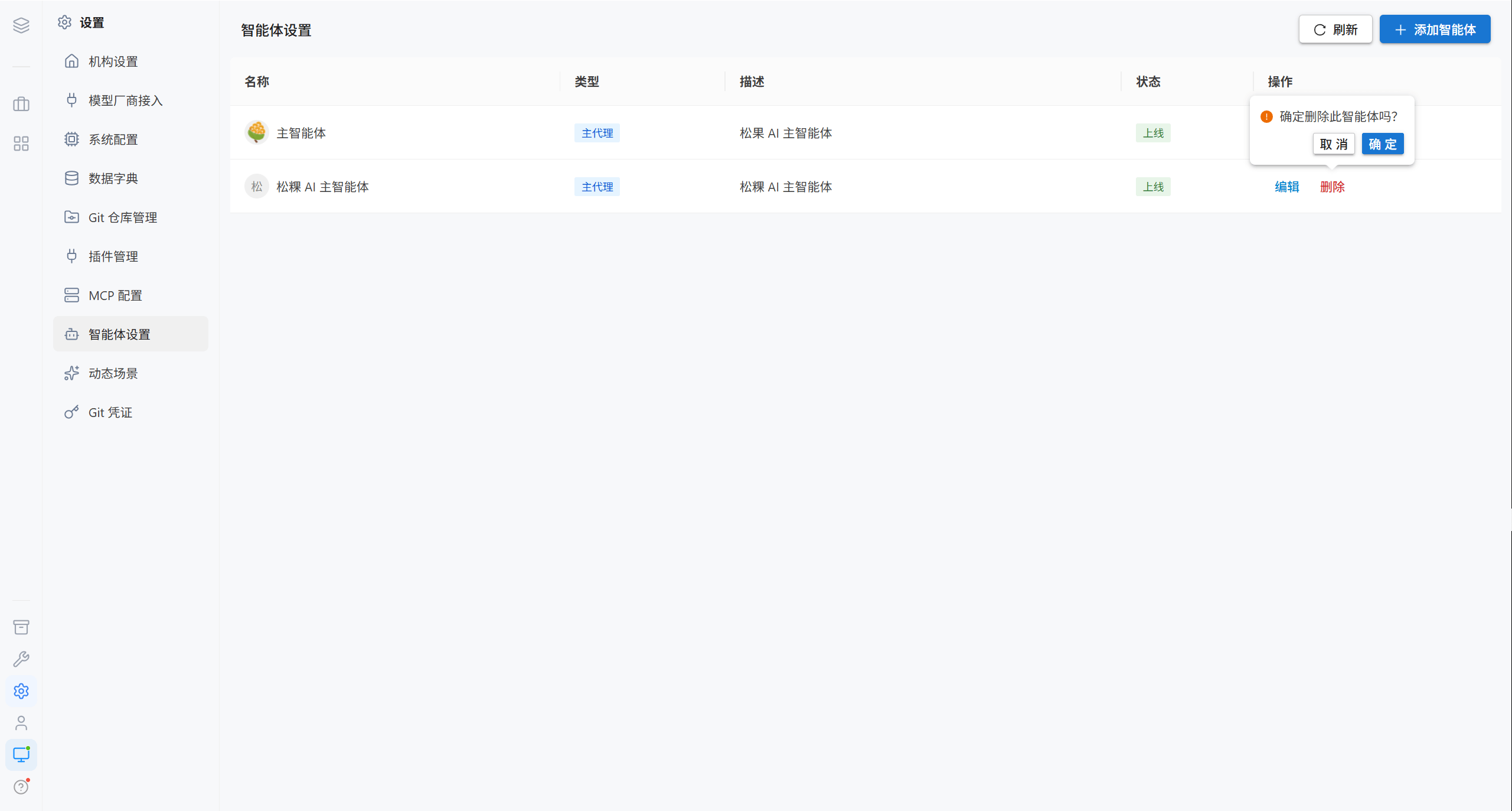
Before deleting the main agent, you must designate a new main agent; otherwise users will have no AI agent to select.
2. Dynamic Scenes
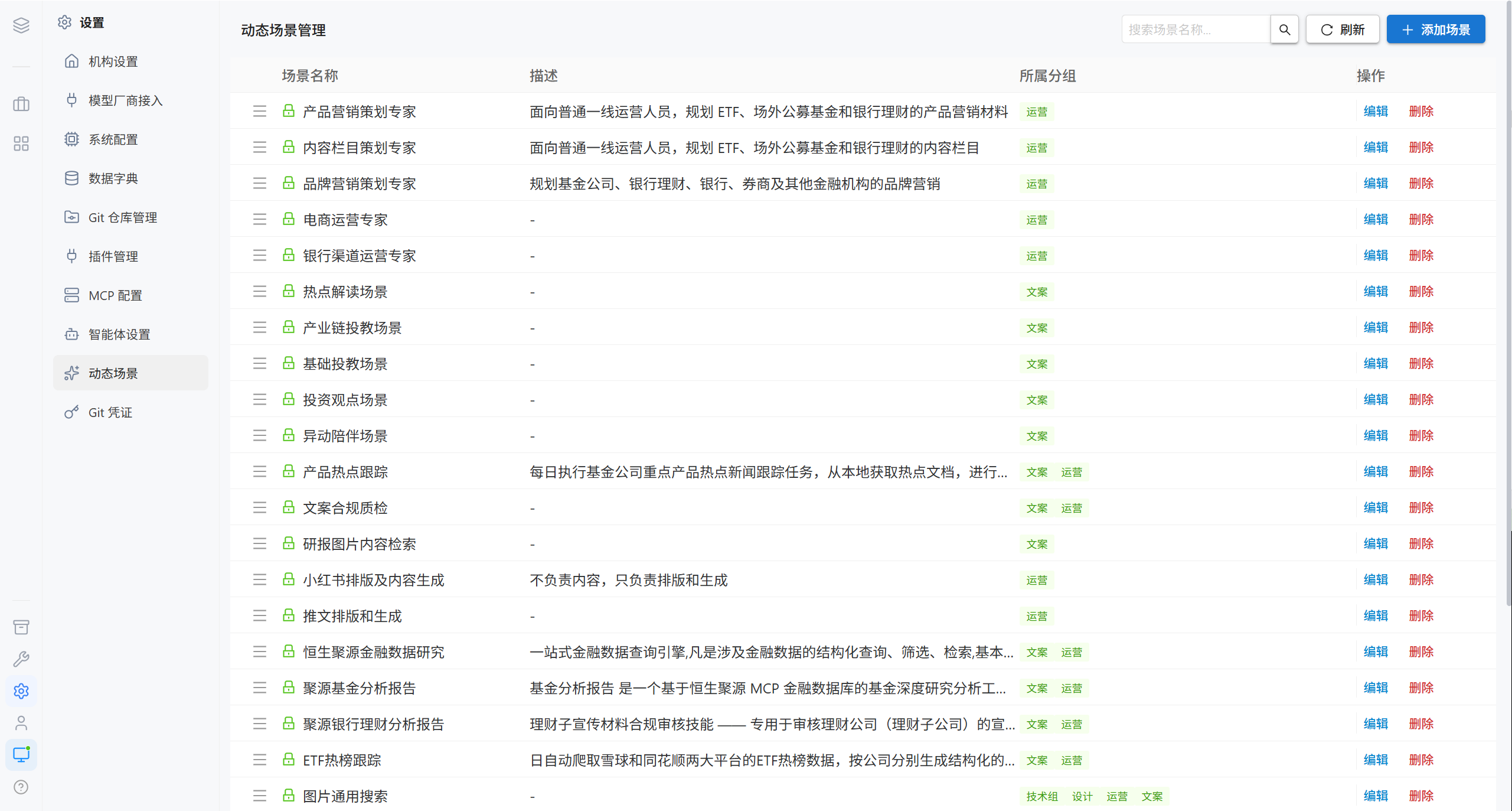
A scene is a preset combination of prompt and tools. Once a user activates one, they no longer have to describe the background every time.
| Column | Description |
|---|---|
| Scene name | Name |
| Description | What it is used for |
| Groups | Which groups can see this scene |
| Actions | Edit, reorder, delete |
2.1 Add a Scene
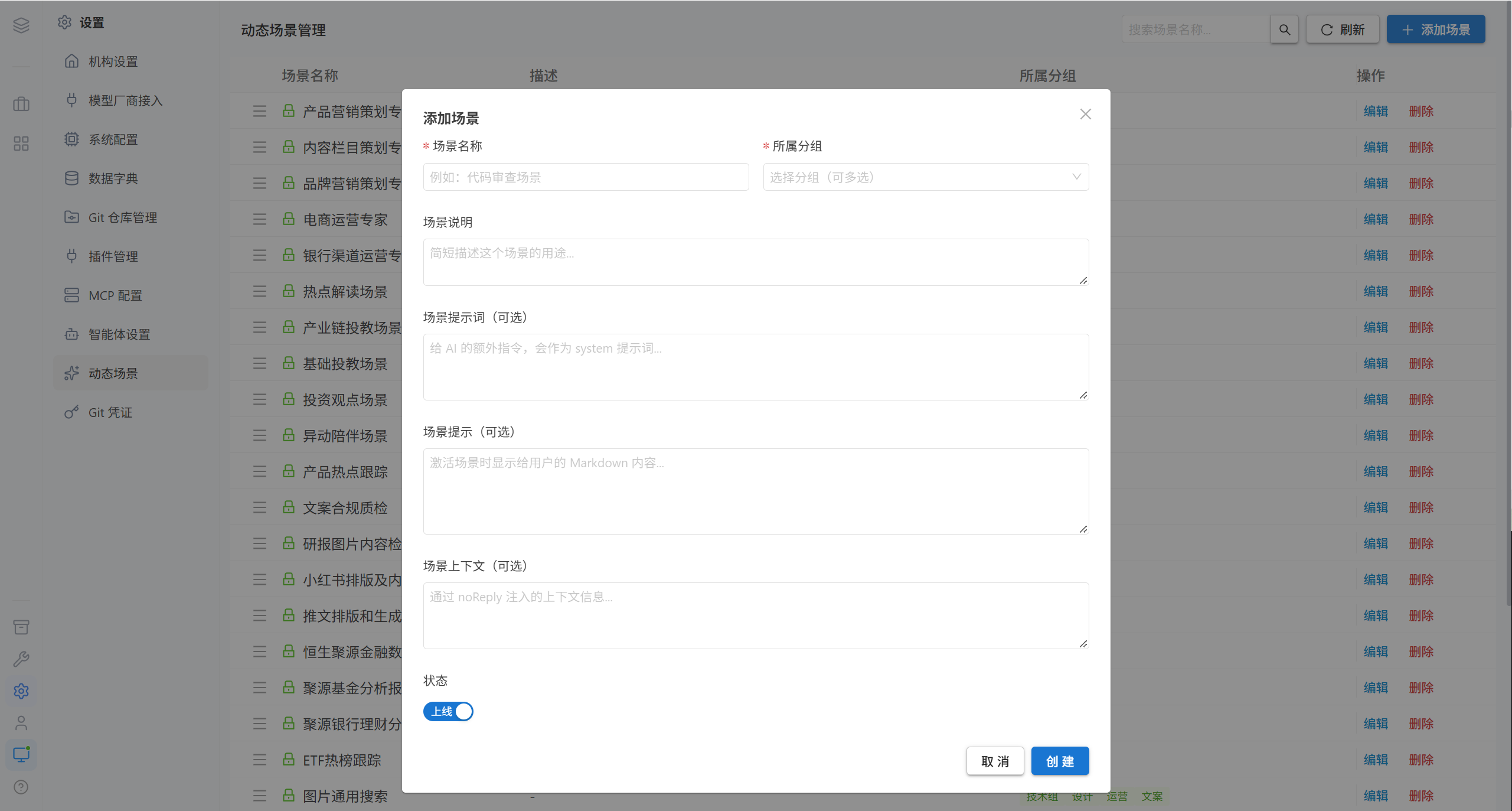
| Field | Required | Description |
|---|---|---|
| Scene name | ✅ | For example "Code Review Scene" |
| Groups | ✅ | Select at least one; this determines who can see it |
| Scene description | — | Description of what it is for |
| Scene prompt | — | Injected into the conversation as an additional system instruction |
| Scene hint | — | The Markdown notice shown to the user when the scene is activated |
| Start a new session | — | Automatically opens a new session on activation, avoiding context bleed |
| Scene context | — | Context information injected via noReply |
| Status | — | Online / Offline |
Tip · It is recommended to enable "Start a new session". When the same scene is applied repeatedly within the same session, contexts easily contaminate each other.
2.2 Edit and Delete
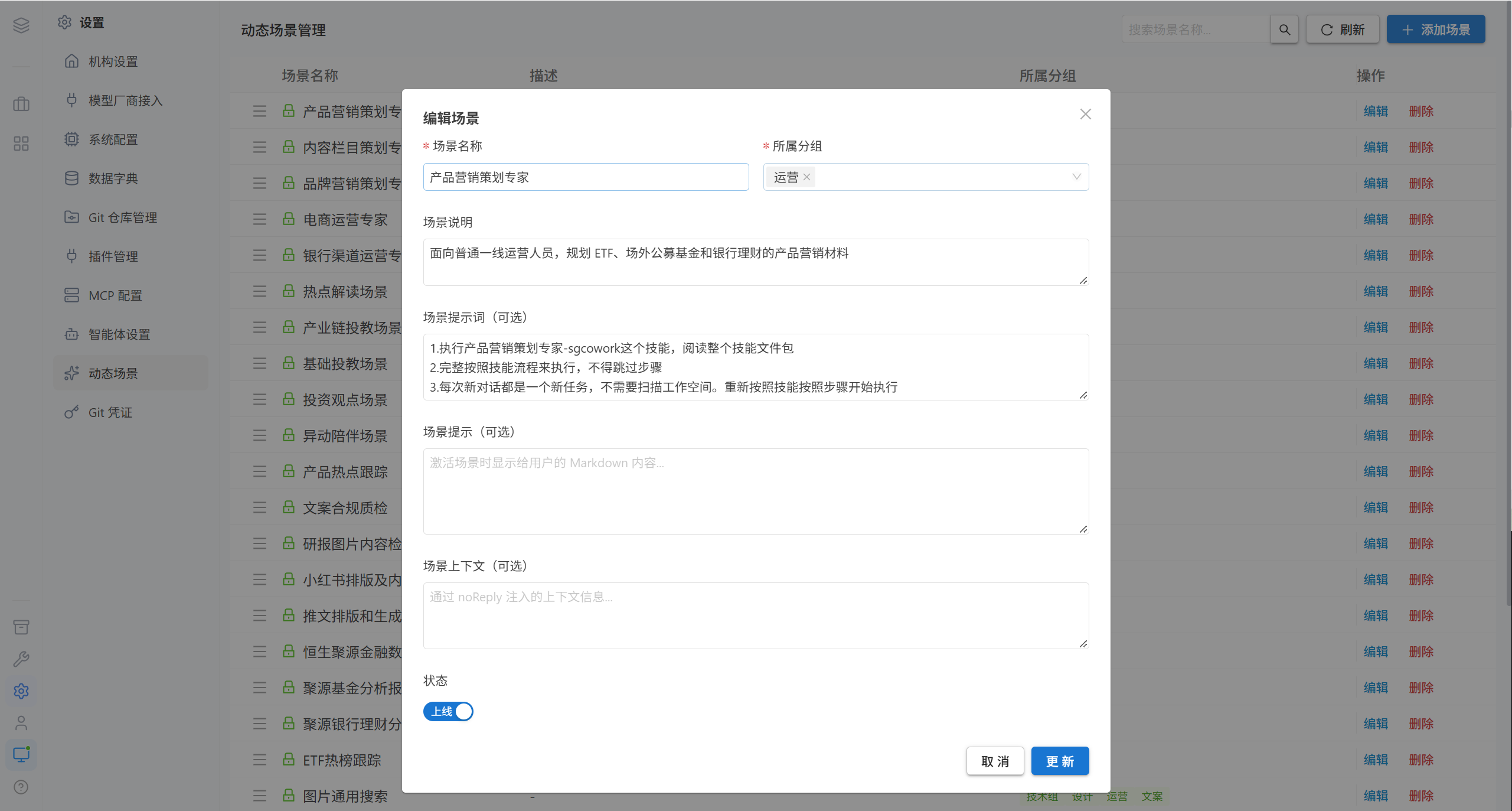
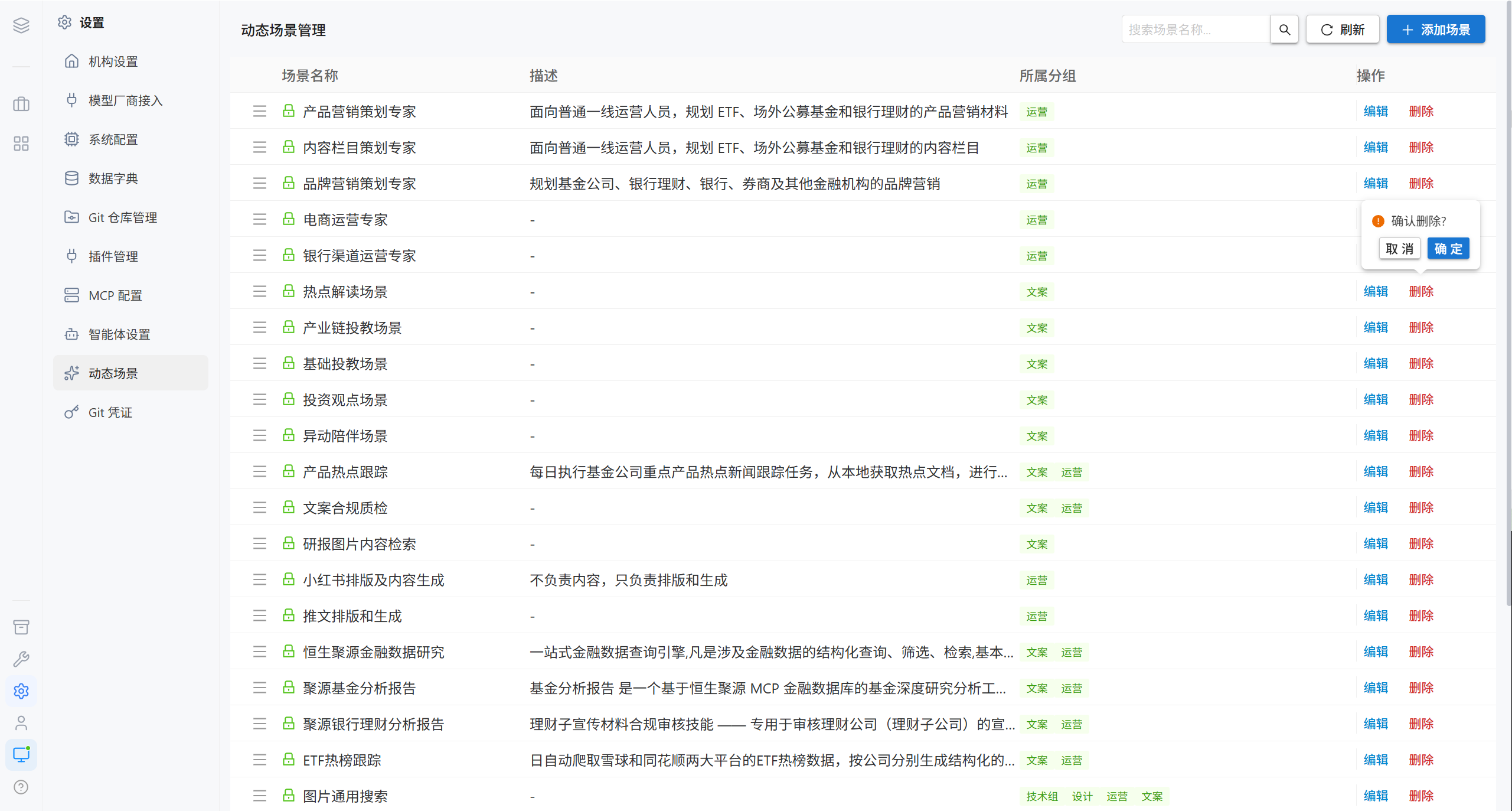
2.3 Ordering and Visibility
| Capability | Description |
|---|---|
| Ordering | Adjusts the order of scenes in the dropdown; frequently used scenes go first |
| Public | Makes the scene visible to all groups |
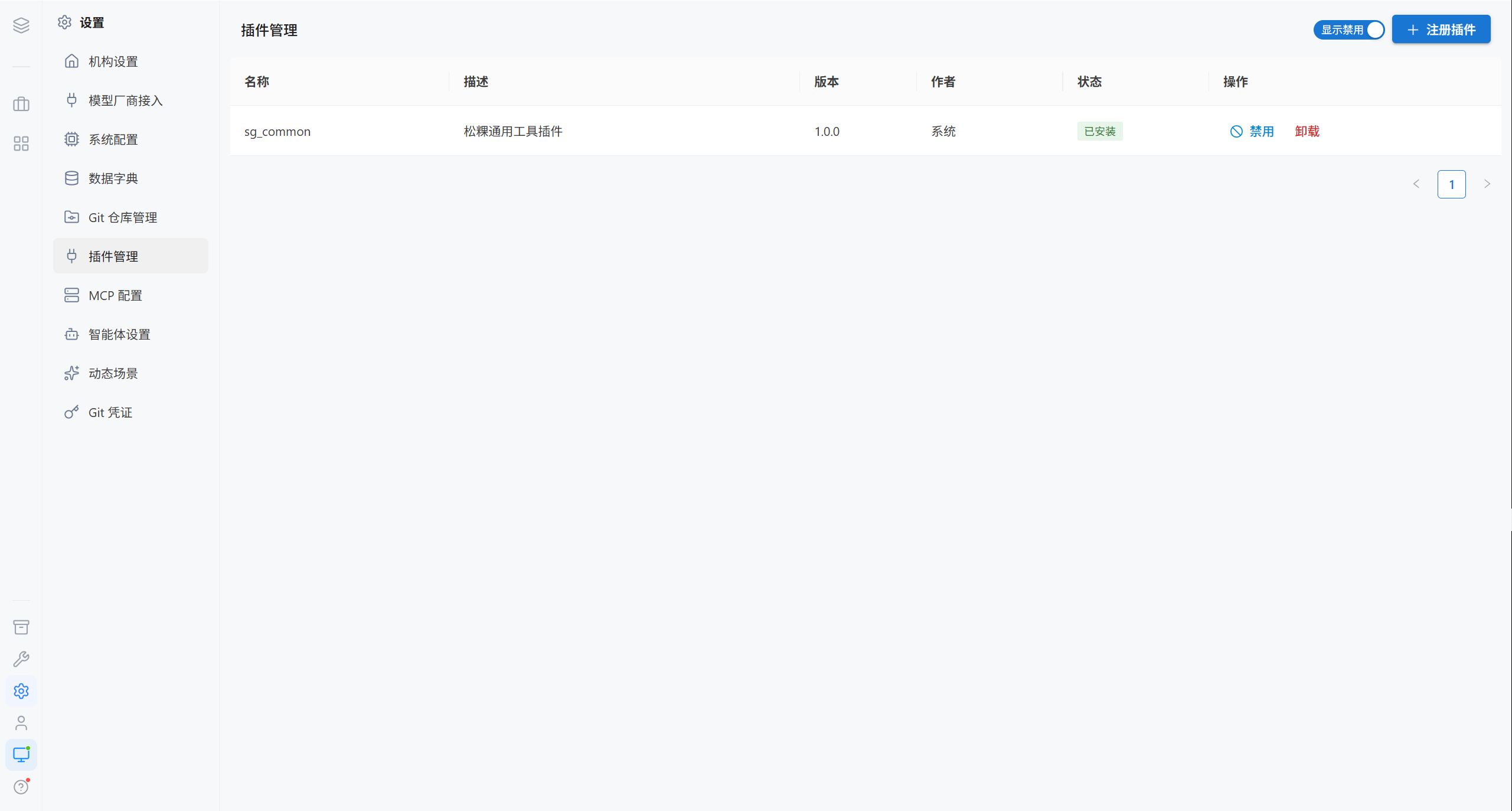
3. Plugin Management
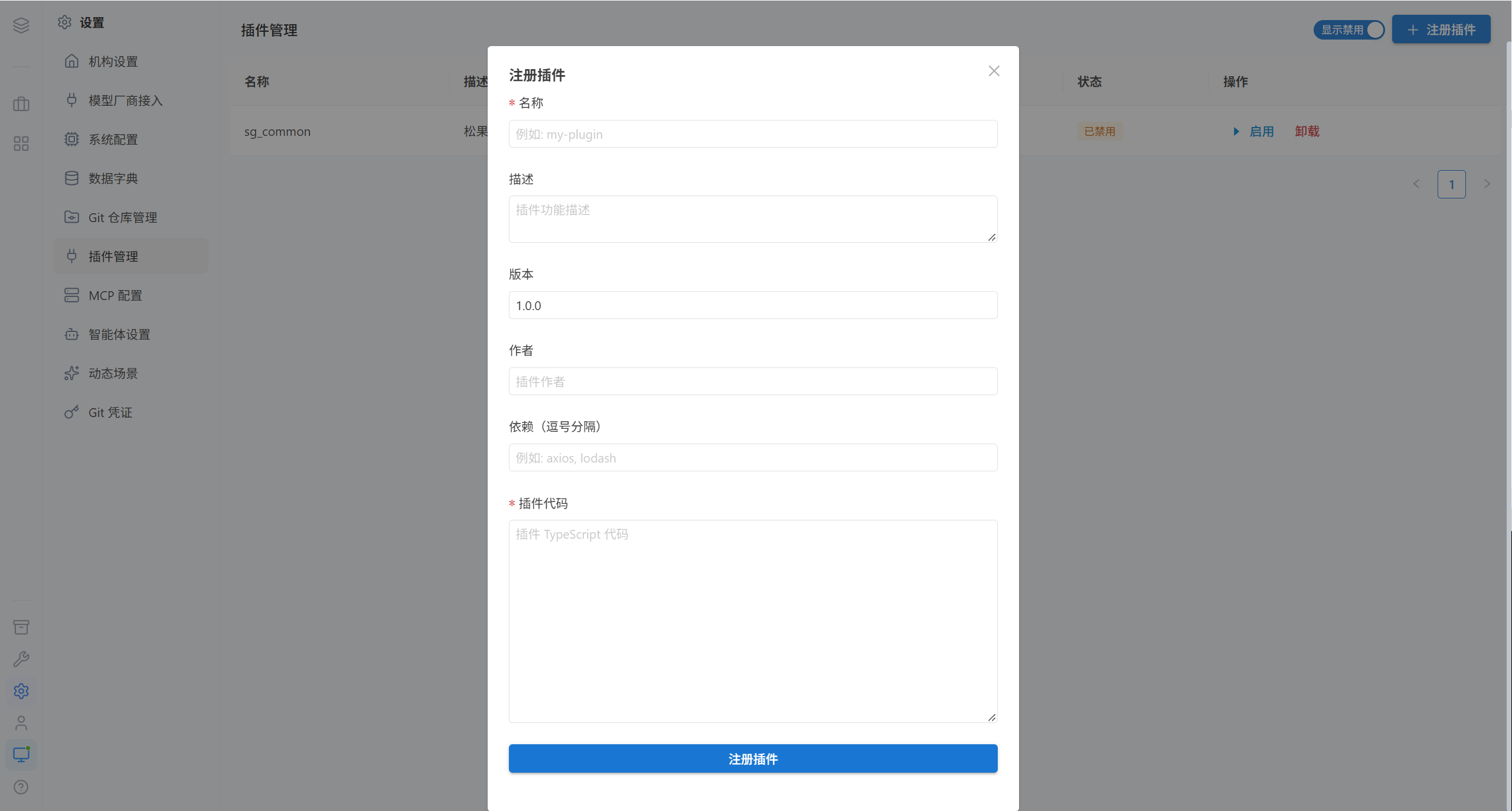
| Column | Description |
|---|---|
| Name | Plugin name |
| Description | Description of the functionality |
| Version | Plugin version |
| Author | Plugin author |
| Status | Registered / Installed / Disabled |
3.1 Register a Plugin
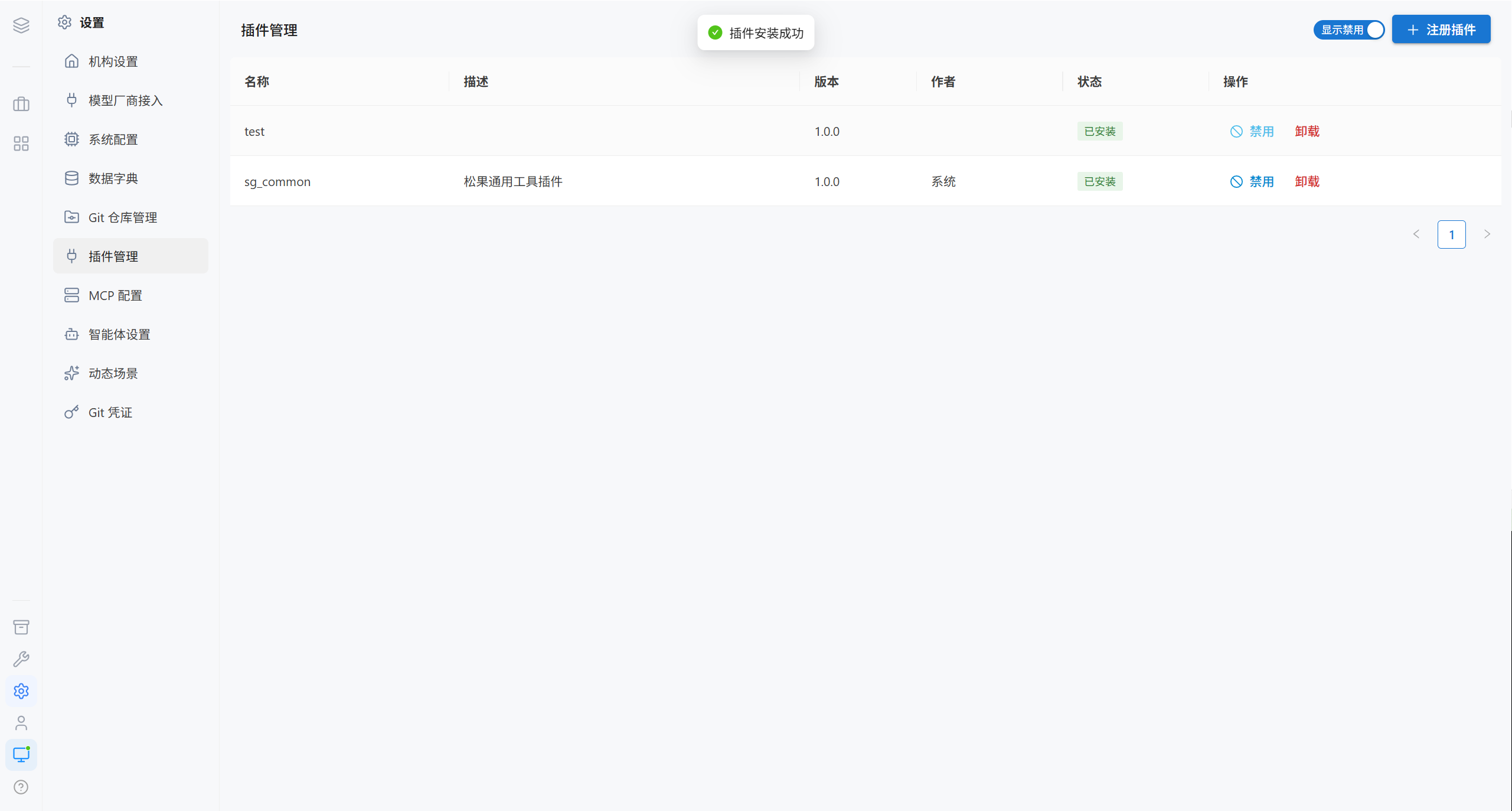
On the list page, click "Register Plugin" and fill in the plugin metadata.
| Field | Required | Description |
|---|---|---|
| Name | ✅ | For example my-plugin |
| Description | — | Description of the functionality |
| Version | — | For example 1.0.0 |
| Author | — | Plugin author |
| Dependencies | — | Comma-separated, for example axios, lodash |
| Plugin code | ✅ | The TypeScript source code of the plugin |
Note · Dependencies are automatically written into the npm dependency list of the user container by the platform. Registration only records metadata; it does not install anything.
3.2 Install and Uninstall
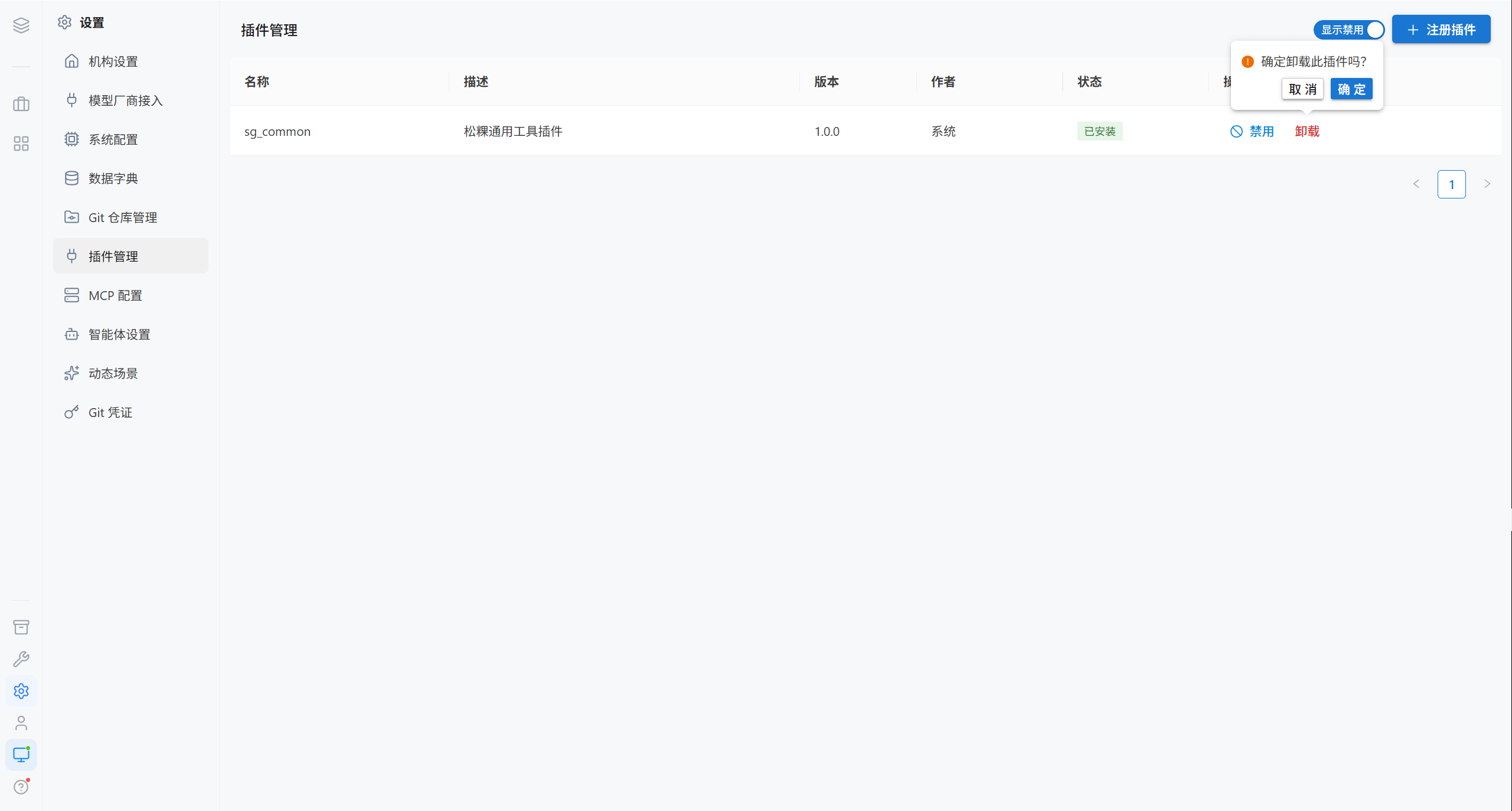
| Action | Effect |
|---|---|
| Install | Writes opencode.jsonc into the user container and pulls the npm dependencies |
| Uninstall | Removes the configuration and the dependencies |
| Enable / Disable | A temporary switch that does not affect the registration state |
| Delete | Removes the plugin from the list |
3.3 Show / Hide Disabled Items
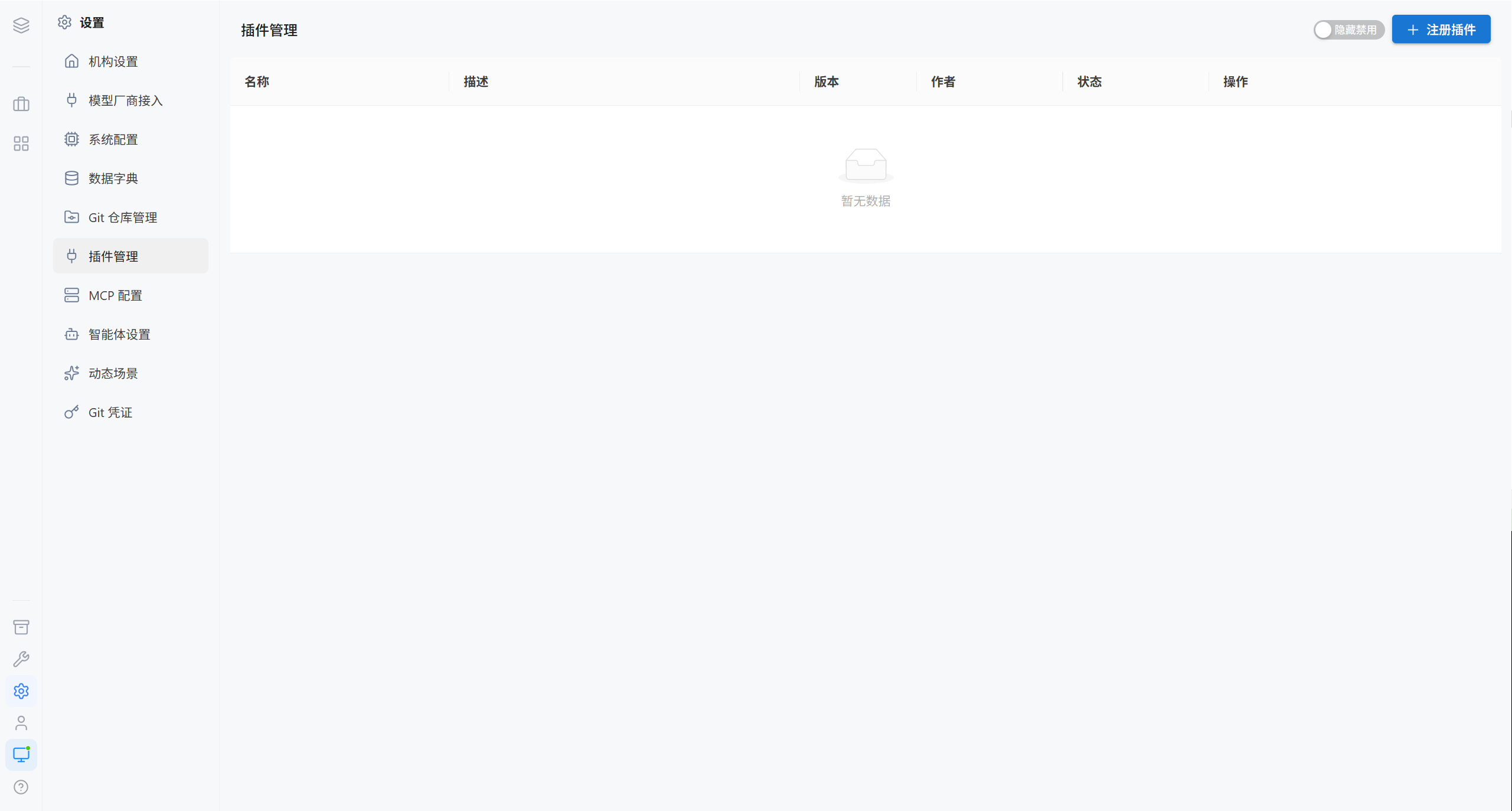
The list hides disabled plugins by default. Click "Show Disabled" to view all disabled items.
4. MCP Configuration
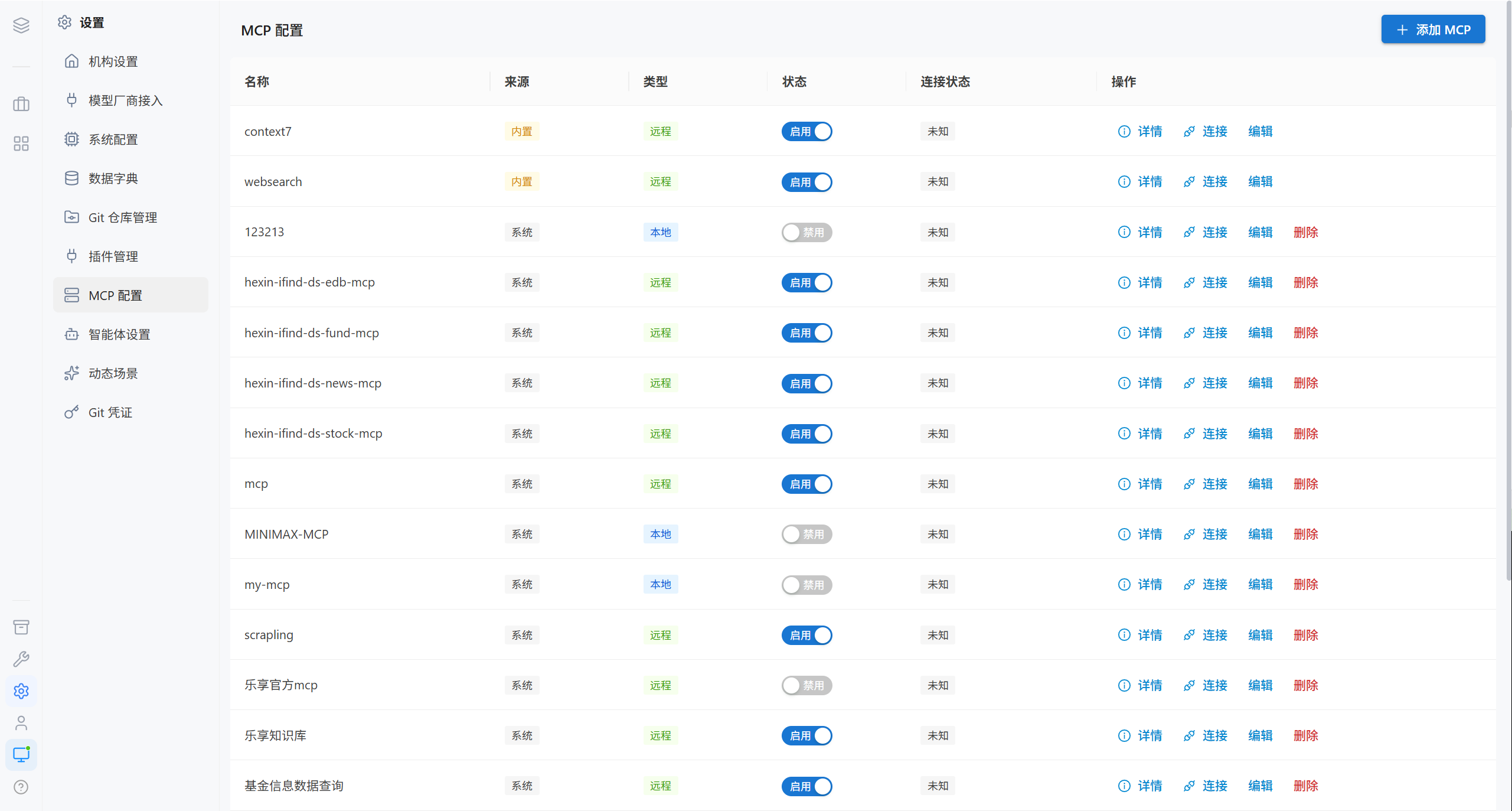
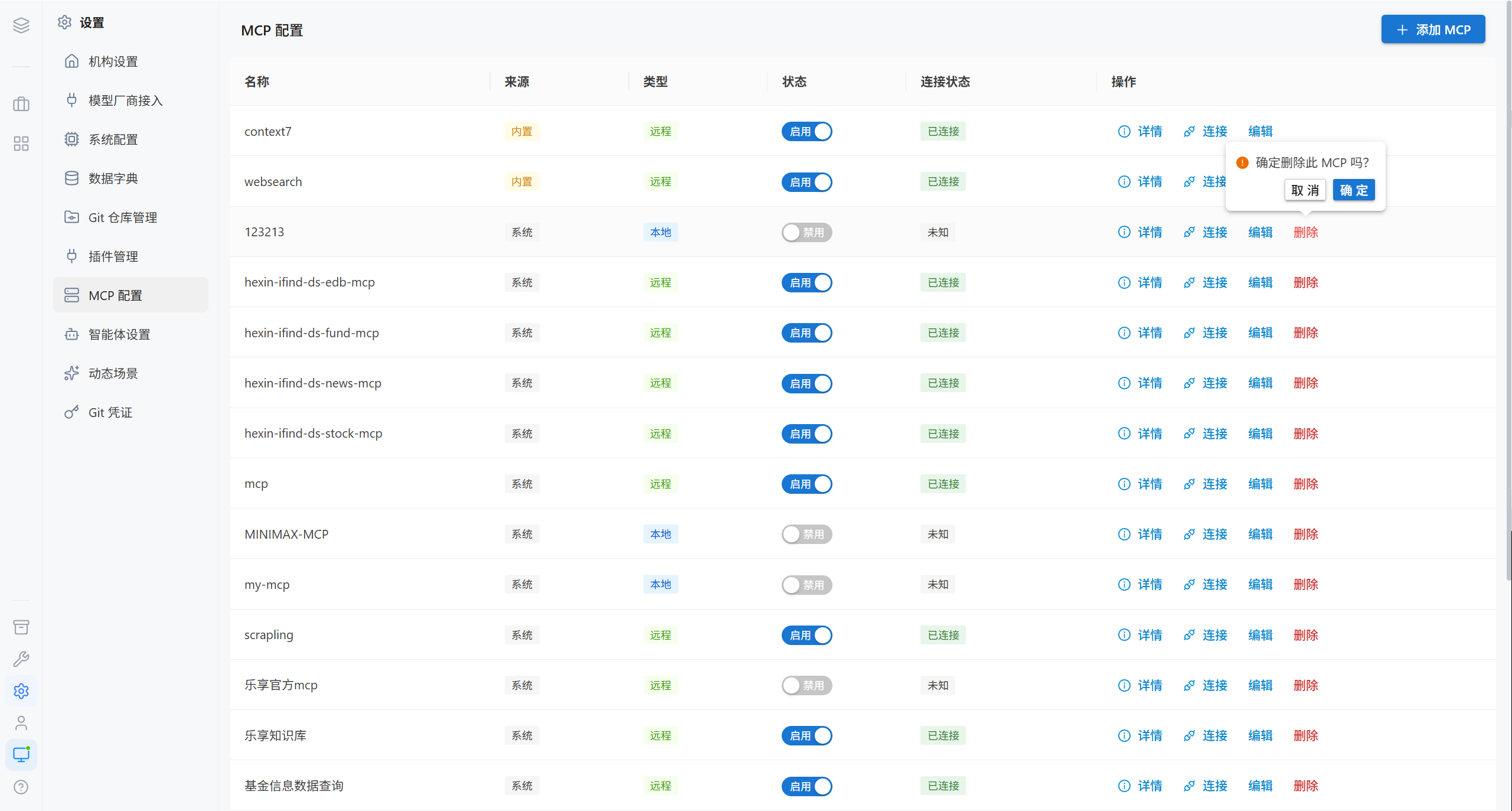
| Column | Description |
|---|---|
| Name | MCP name |
| Source | Built-in / System / User |
| Type | Local (startup command) / Remote (URL) |
| Status | Enabled / Disabled |
| Connection status | Connected / Connection failed / Not connected / Awaiting authorization / Offline / Unknown |
4.1 Built-in MCP
The platform ships with two public remote MCPs that work out of the box, with no API key:
| Name | Purpose | Address |
|---|---|---|
context7 | Documentation search | https://mcp.context7.com/mcp |
websearch | Web search | https://mcp.exa.ai/mcp?tools=web_search_exa |
Private or paid MCPs have to be added by yourself.
4.2 Add an MCP
There are two editing methods, and the two are functionally equivalent.
Method 1 · Standard fields
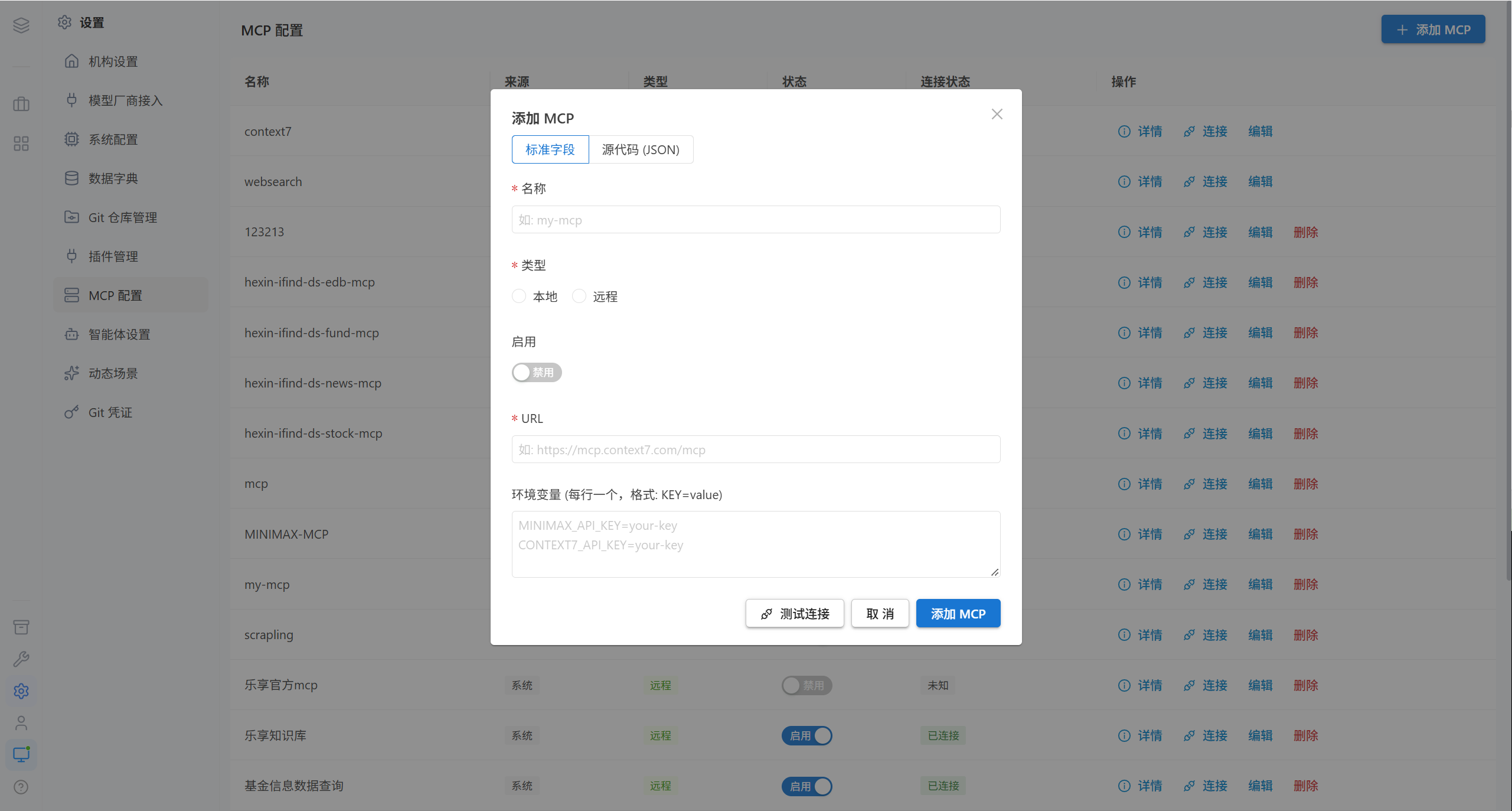
| Field | Required | Description |
|---|---|---|
| Name | ✅ | For example my-mcp |
| Type | ✅ | Local / Remote |
| Command | Required for local | For example npx -y @upstash/context7-mcp@latest |
| URL | Required for remote | For example https://mcp.context7.com/mcp |
| Environment variables | ❌ | One KEY=value per line |
| Timeout | ❌ | In milliseconds, for example 30000 |
Method 2 · Source code (JSON)
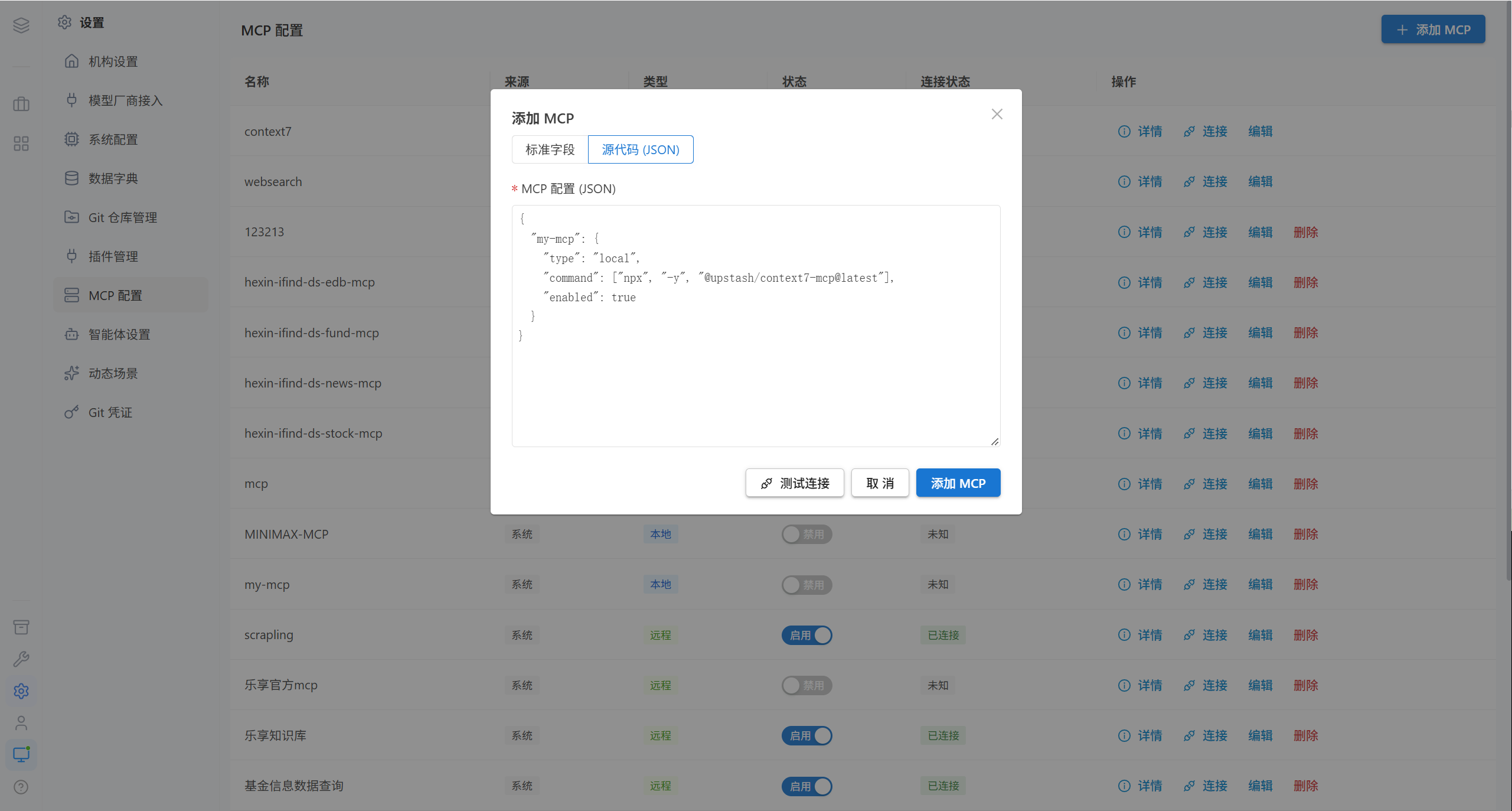
{
  "my-mcp": {
    "type": "local",
    "command": ["npx", "-y", "@upstash/context7-mcp@latest"],
    "enabled": true,
    "environment": {
      "CONTEXT7_API_KEY": "your-api-key"
    }
  }
}
4.3 Edit and Test
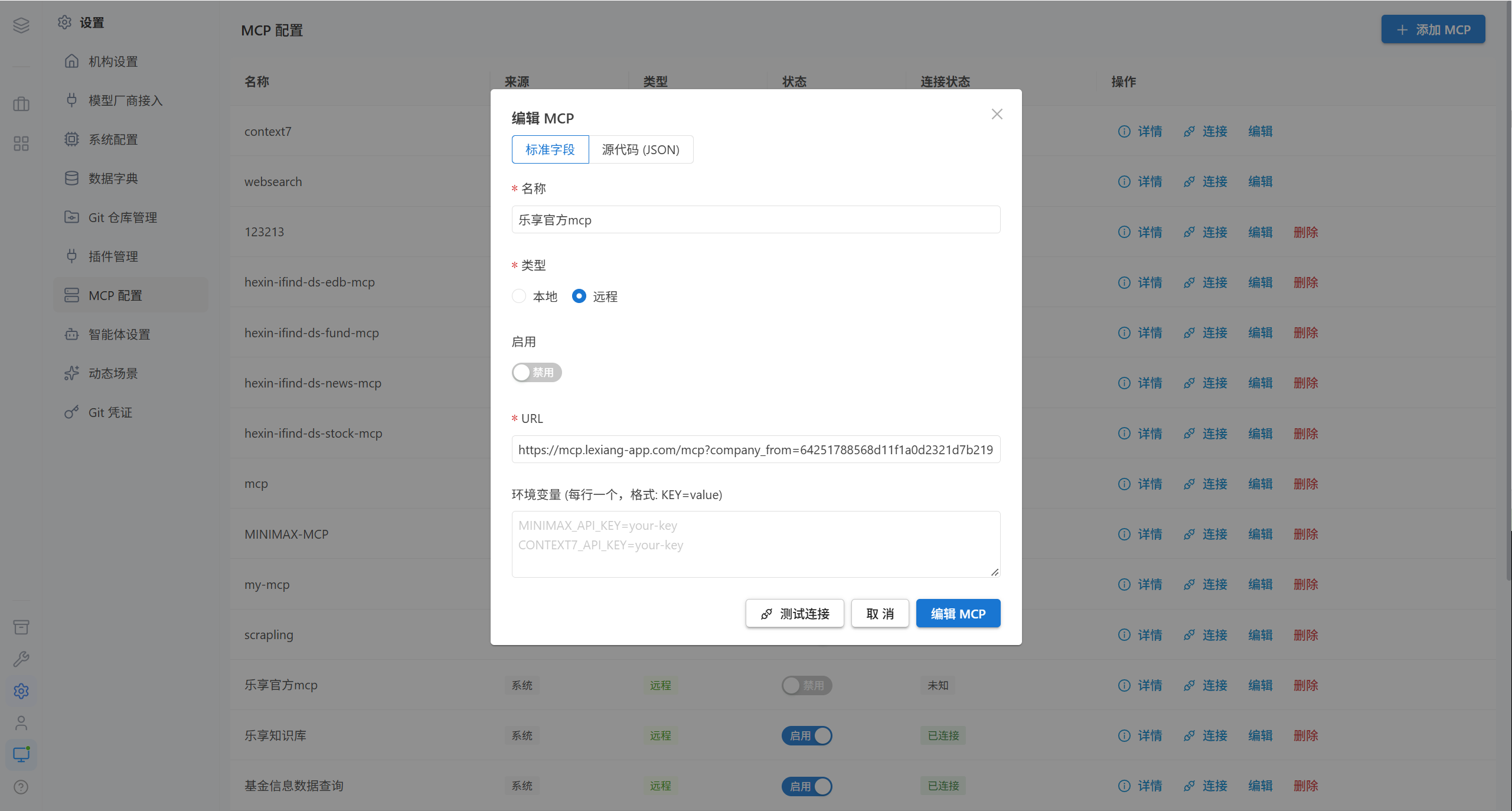
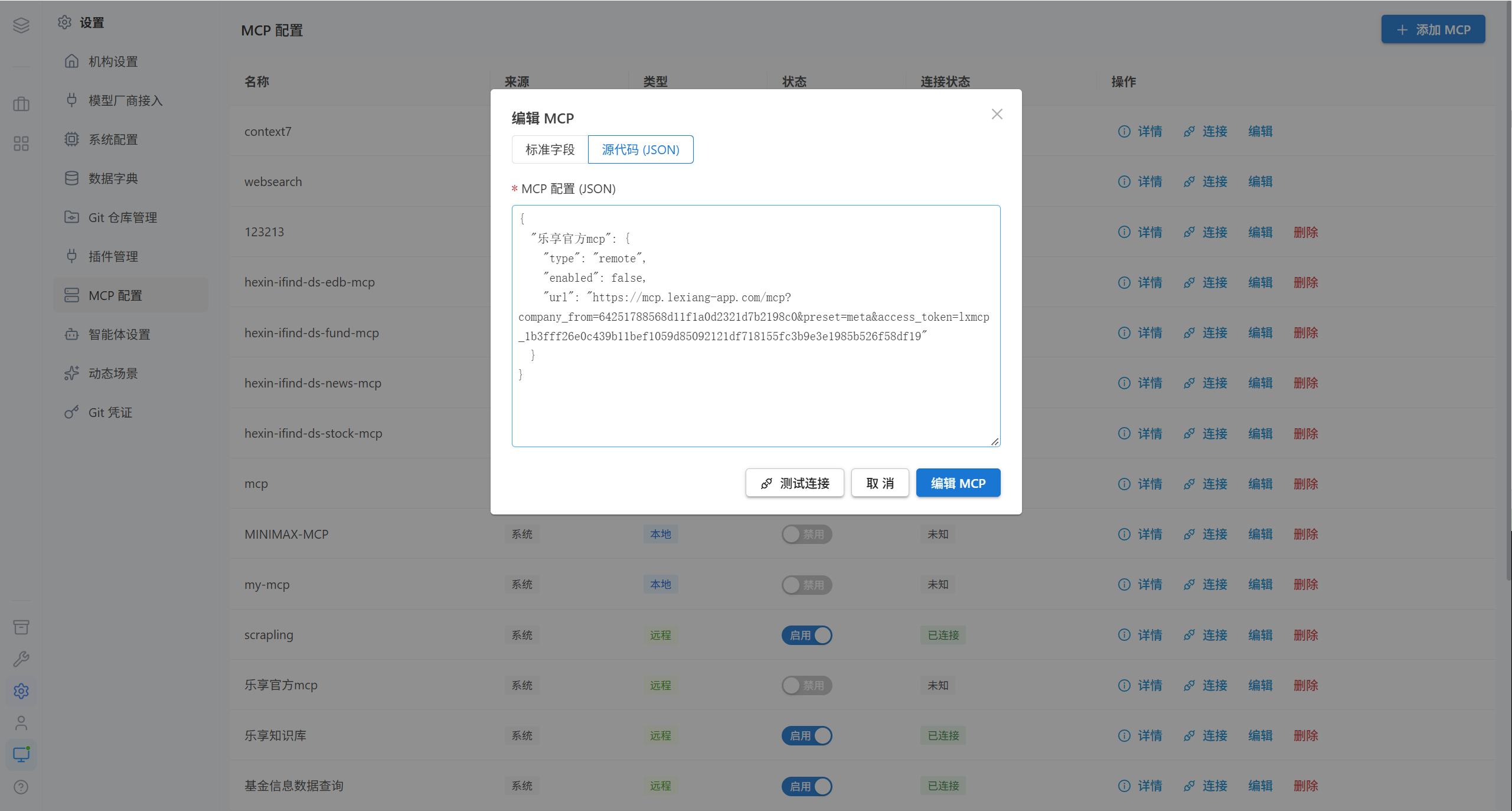
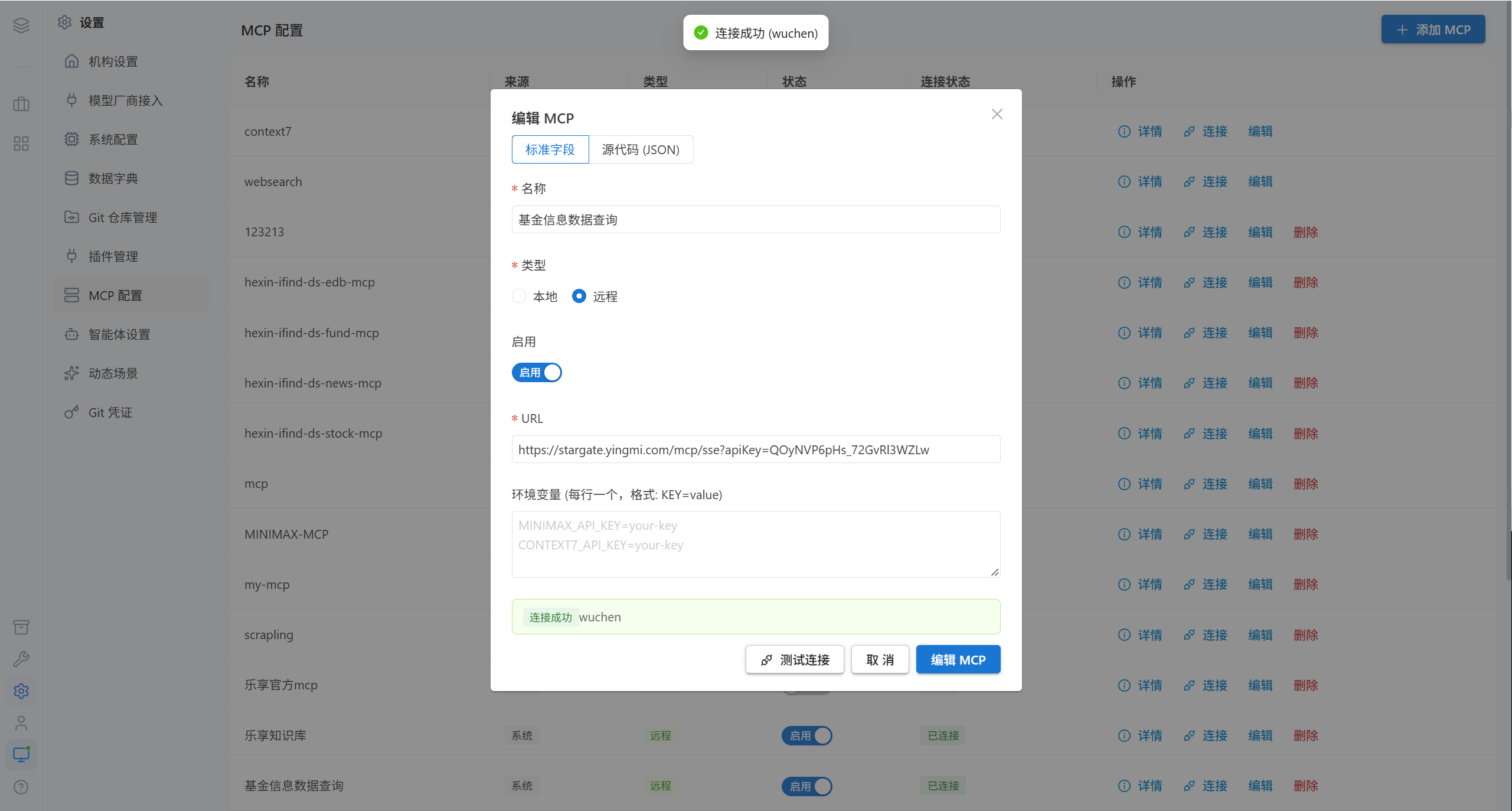
4.4 Details
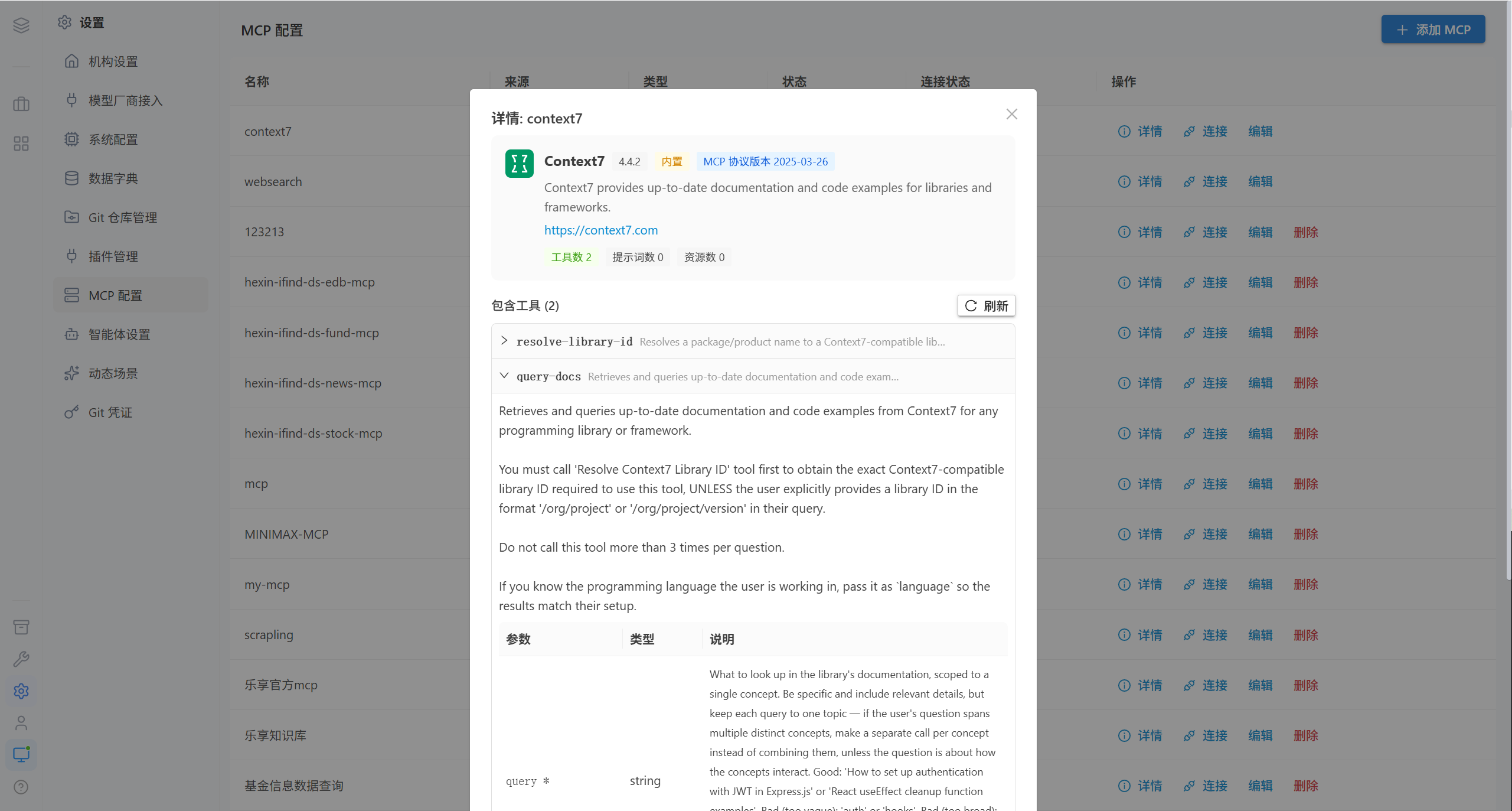
The details fetch the tool list provided by that MCP in real time and show the fetch time.
| Status | Meaning | Resolution |
|---|---|---|
| Connected | Can be called normally | — |
| Connection failed | The service is unreachable | Check the address, the credentials, and the network |
| Not connected | The connection has not been established yet | Click "Connect" |
| Awaiting authorization | Authorization is required | Complete the authorization as prompted |
4.5 Delete
Note · Starting, stopping, and modifying MCPs are hot-synced to all online user containers; no restart is needed.
5. Common Questions
| Symptom | Cause | Resolution |
|---|---|---|
| A user cannot see a scene | The scene has no group assigned, or it is offline | Edit the scene to adjust its groups and status |
| The scene dropdown is empty | All scenes are offline | Check the status |
| The tool permission list is empty | There is no online user container | Confirm that a user container is running |
| An MCP stays "Not connected" | "Connect" was never clicked, or the service is unreachable | Connect manually and read the error message |
| A plugin cannot be installed | The dependency name is wrong or the network is unreachable | Check the dependency field |
| The user interface did not change after modifying an AI agent | You have to wait for the container to reload (about 20 seconds) | Restarting the AI agent takes effect immediately |
| The MCP in the user's list has disappeared | A user-created MCP is visible only to its owner | See My MCP |
6. Related Pages
| Page | Content |
|---|---|
| Model Providers | Configuration of the model layer |
| Assets | Repository binding and authorization for Skills and important documents |