
Model Providers
Applicable roles: Administrators
Prerequisites: The API key of the provider is ready
⚠️ This page is the first priority. When the platform has no default language model, no user can start a conversation, and the interface reports "The system has not configured a language model yet, so a conversation cannot be started".
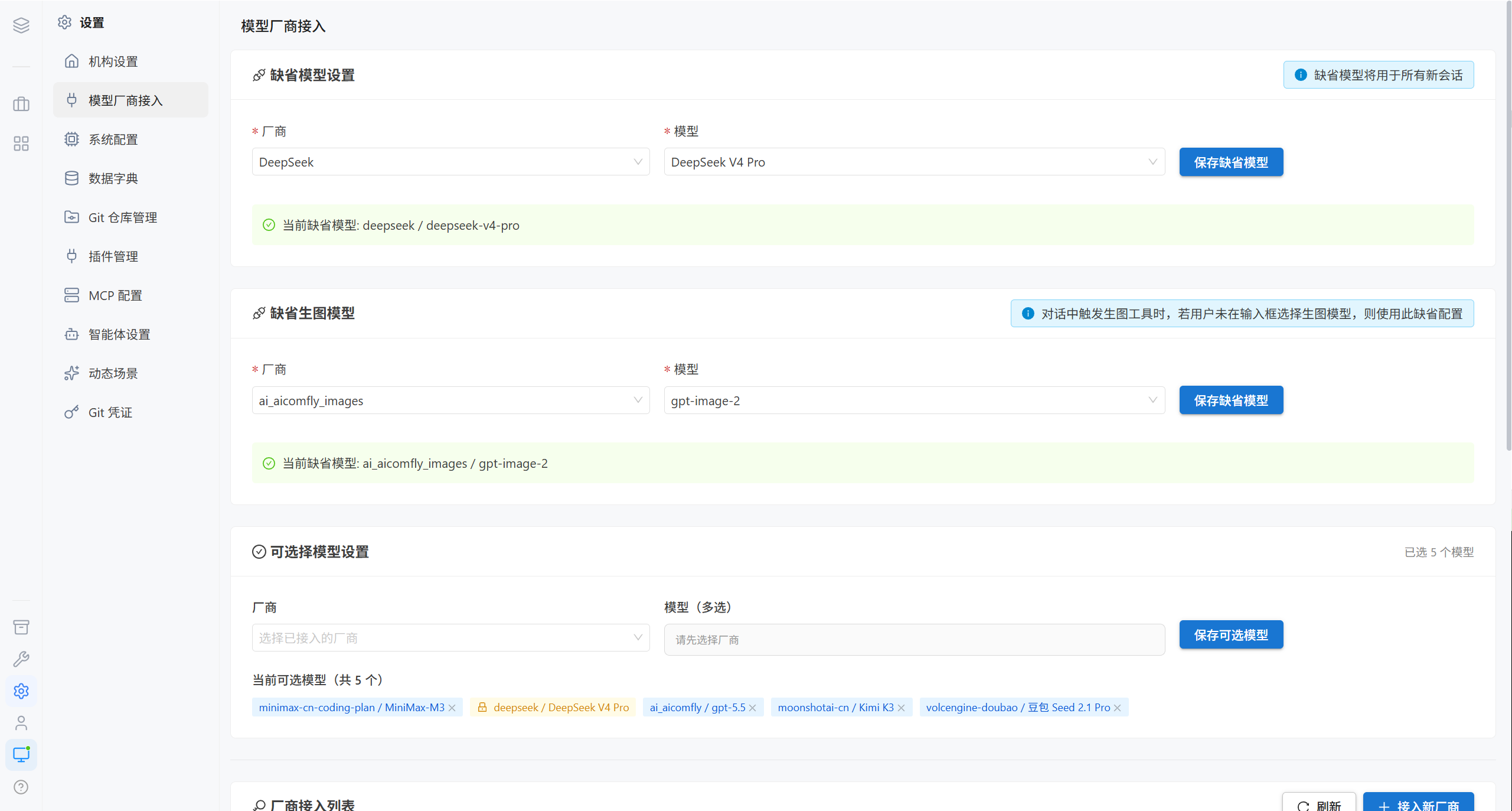
1. Concepts
| Concept | Description |
|---|---|
| Provider | An access entry for a large model service, including the address, the key, and the list of available models |
| Built-in provider | A provider template preset by the platform; fill in the API key and it is ready to use |
| Custom provider | An address and a model list that you fill in entirely yourself |
| Default language model | The single model used by default by all users. Required |
| Default image generation model | The default model for image generation tasks. Optional |
| Optional model allowlist | Limits the models that users can see in the dropdown; models that are not on the list are invisible to users |
Models fall into two categories:
| Type | Purpose | Required |
|---|---|---|
| Conversational | Text conversations, code generation, document processing | ✅ Required |
| Image generation | Text-to-image, image-to-image, inpainting | ❌ Optional |
There are two access protocols:
| Protocol | Applies to | Description |
|---|---|---|
| OpenAI compatible | The vast majority of third-party services | The standard /v1/chat/completions style |
| Alibaba Bailian DashScope | Alibaba Cloud Bailian | Native protocol, supporting the Qwen, Wanxiang, and other model families |
2. Provider List
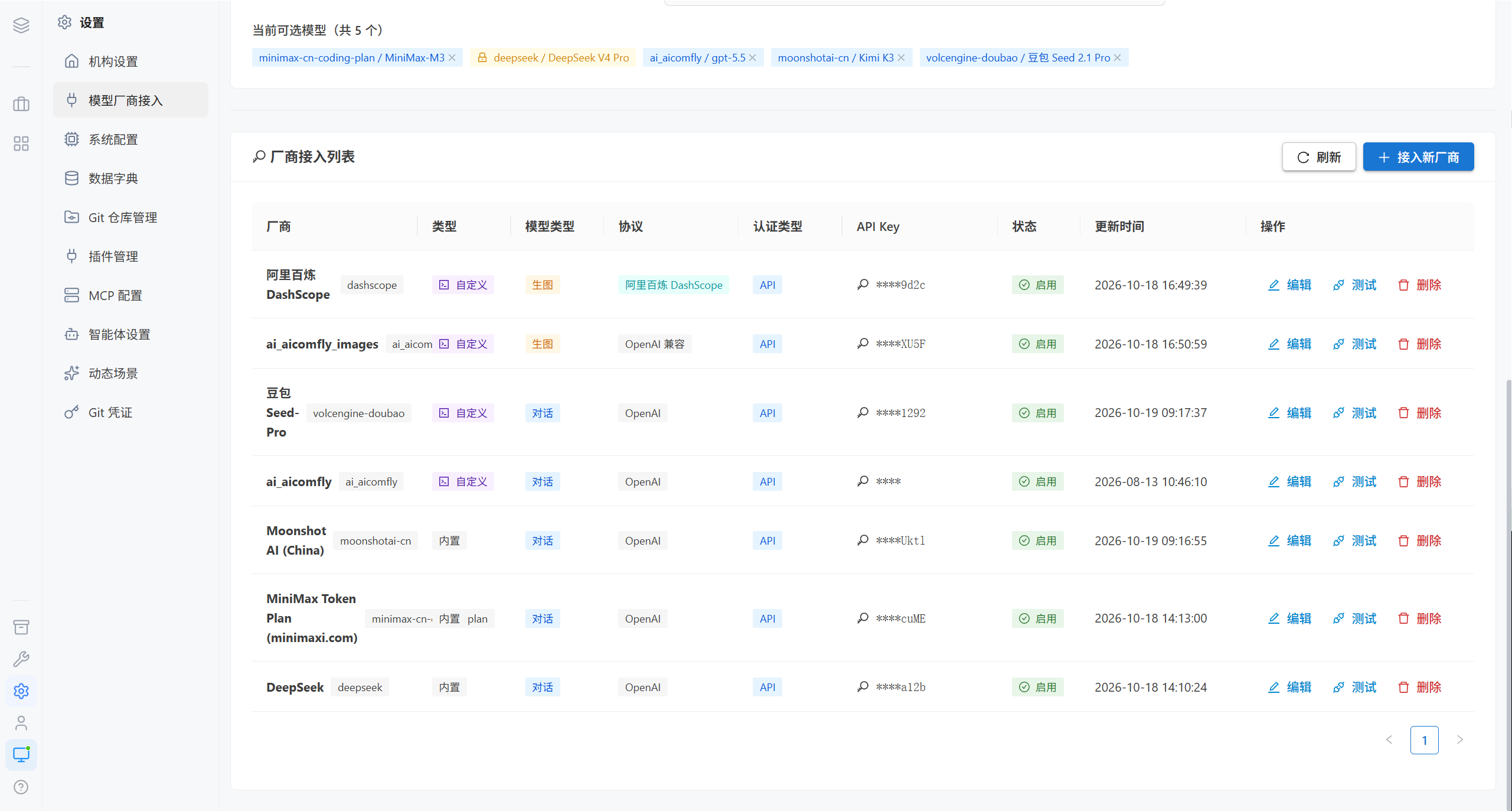
| Column | Description |
|---|---|
| Provider | Provider name and ID |
| Type | Built-in / Custom |
| Model type | Conversational / Image generation |
| Protocol | OpenAI compatible / DashScope |
| Authentication type | API Key |
| API Key | Masked (first few digits + last 4 digits); click to view the full value |
| Status | Enabled / Disabled |
| Updated | The time of the last modification |
There are two panels above the list:
| Area | Purpose |
|---|---|
| Currently available models | The model tags that have been added to the allowlist |
| Provider list | All providers that have been connected |
3. Connect a New Provider
Click "Connect New Provider" and first select the model type.
3.1 Conversational · Built-in Provider
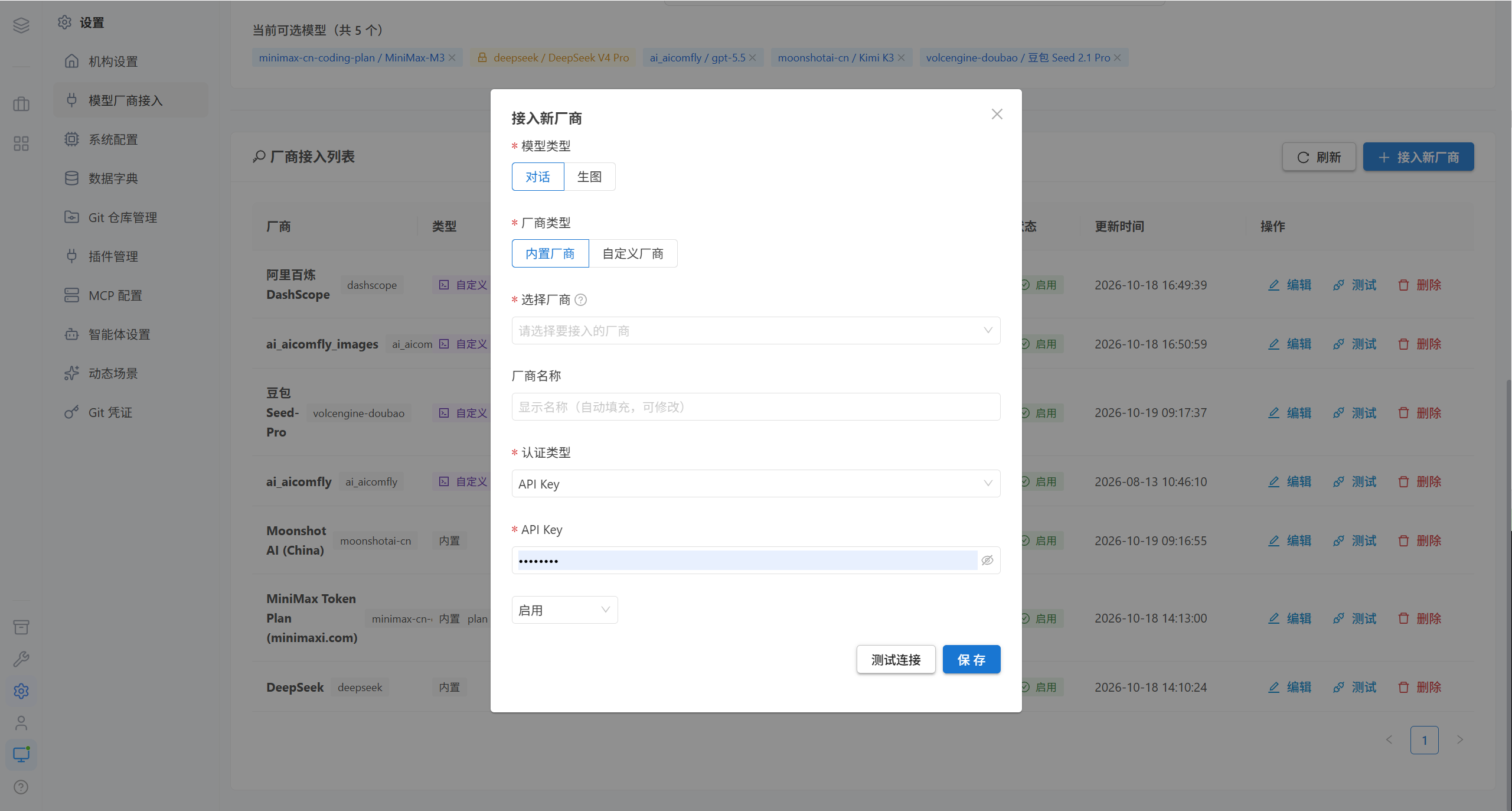
Built-in providers only require an API key; the address and the model list are preset by the platform.
| Field | Required | Description |
|---|---|---|
| Provider ID | ✅ | Preset by the platform, not editable |
| API Key | ✅ | Applied for in the console of the provider |
| Status | — | Enabled / Disabled |
3.2 Conversational · Custom Provider
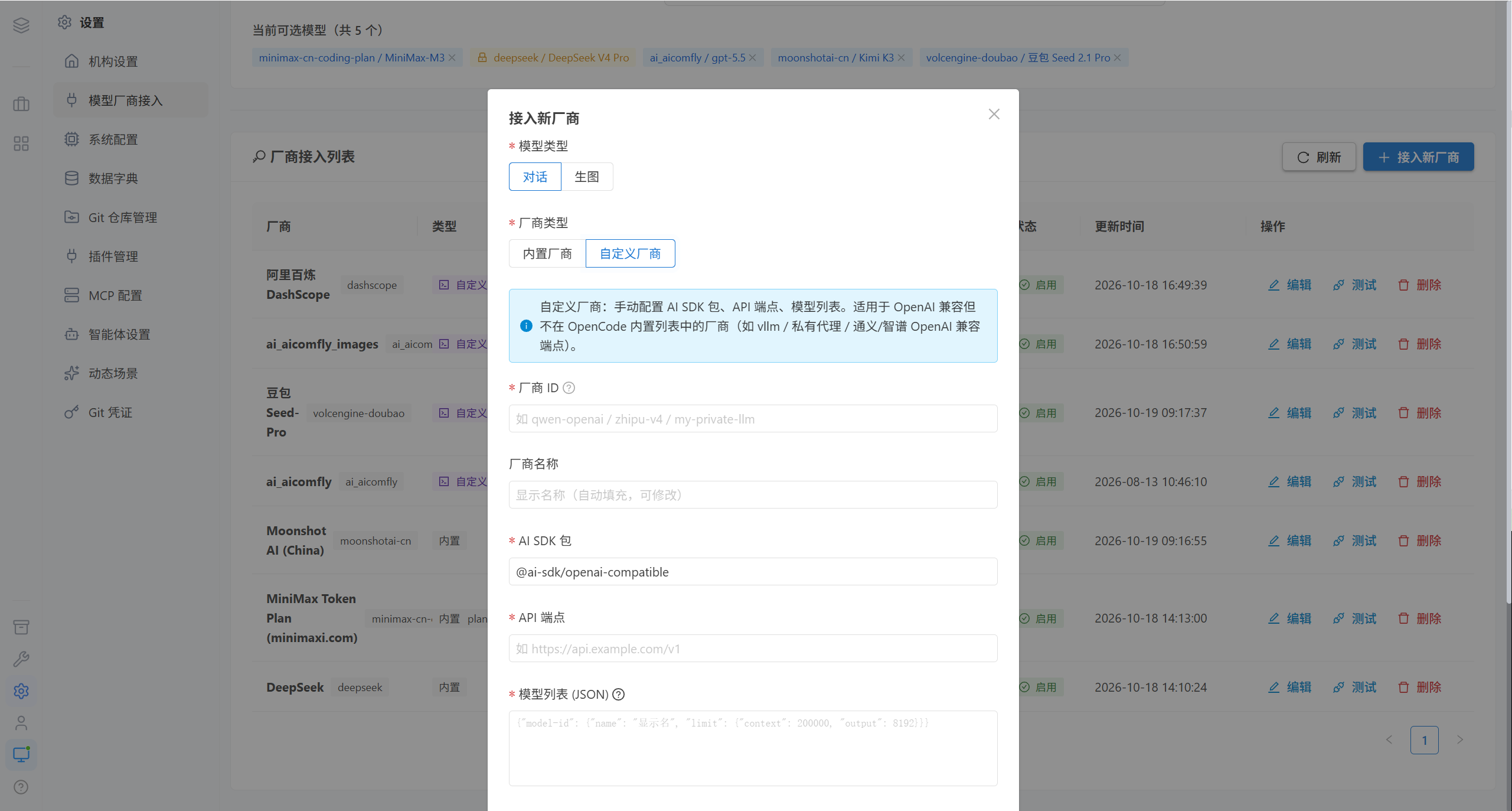
A custom provider requires you to fill in all the information yourself.
| Field | Required | Description |
|---|---|---|
| Provider ID | ✅ | Letters / digits / underscores; must start with a letter |
| Provider name | ✅ | Used for display |
| API protocol | ✅ | OpenAI compatible / DashScope |
| API Key | ✅ | Stored encrypted |
| Base URL | ✅ | The service address, for example https://dashscope.aliyuncs.com/compatible-mode/v1 |
| Model list (JSON) | ✅ | The list of available models |
| Request headers (JSON) | ❌ | Fill in when extra authentication headers are needed |
| NPM package name | ❌ | Only needed by some protocols |
Model list JSON format:
[
  { "id": "gpt-4o", "name": "GPT-4o" },
  { "id": "deepseek-chat", "name": "DeepSeek V3" }
]
3.3 Image Generation Models
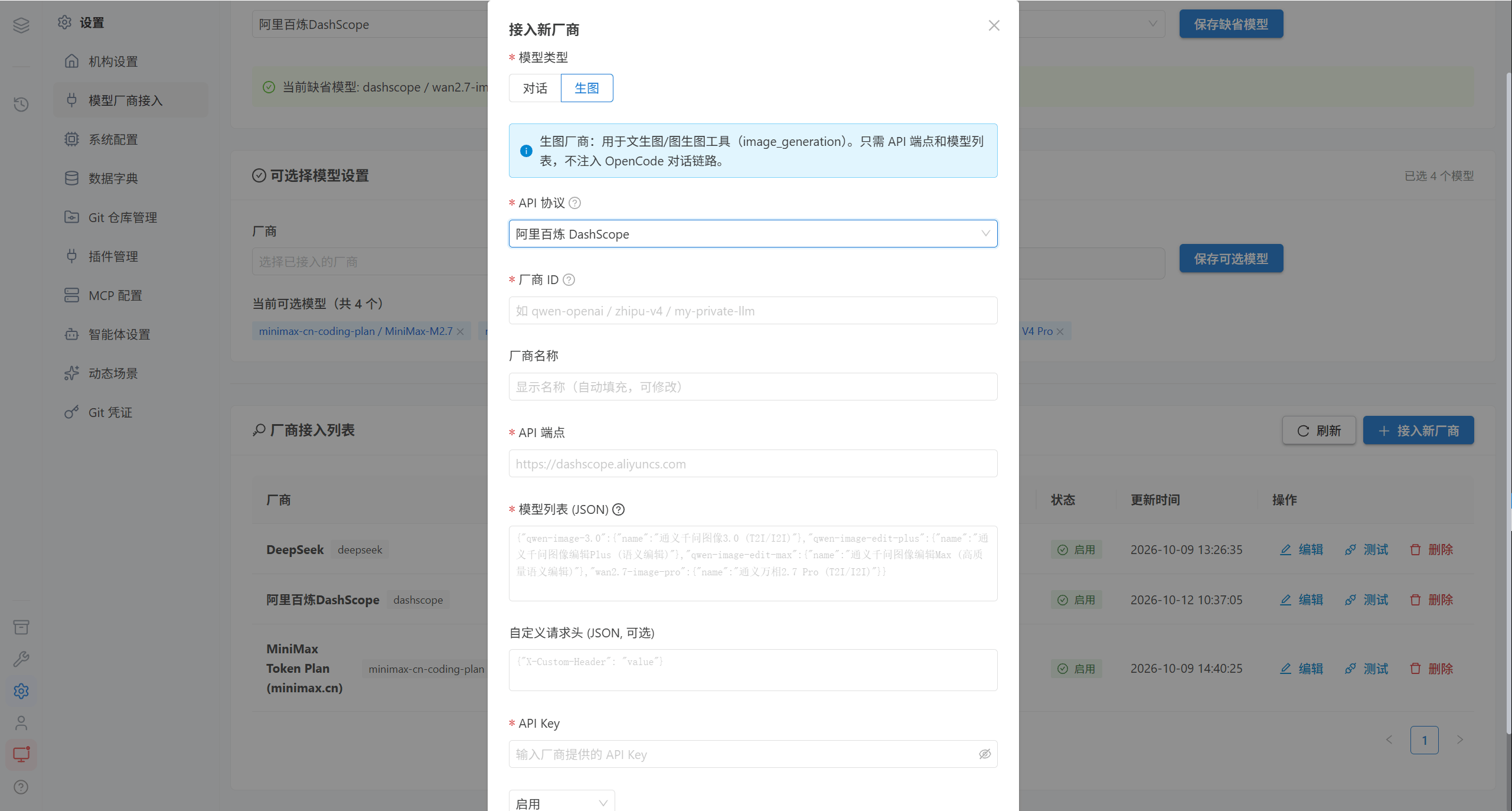
Image generation providers are configured in the same way as conversational ones; for some providers the model list has to follow the format given in the documentation of that provider.
3.4 Test the Connection
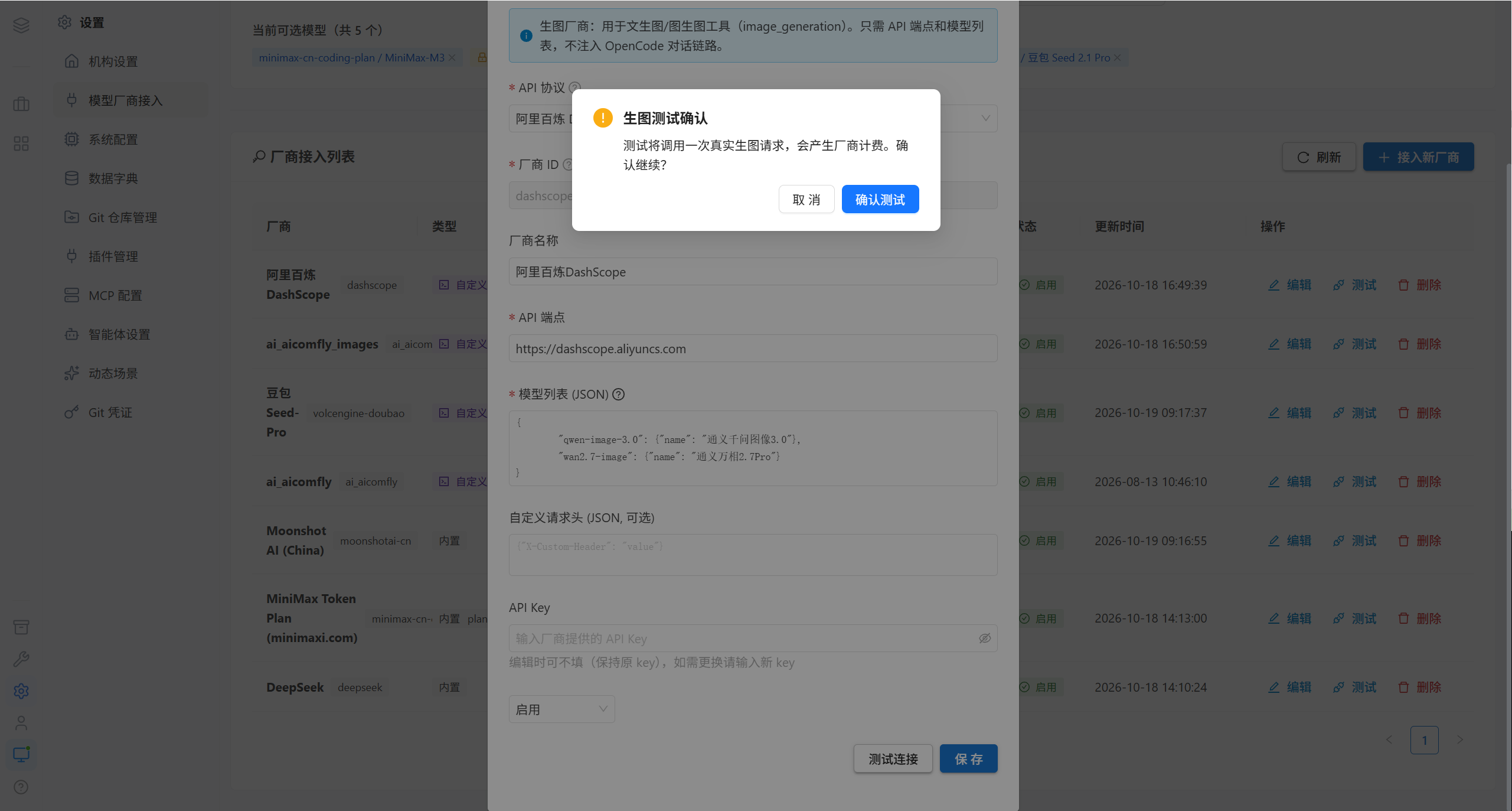
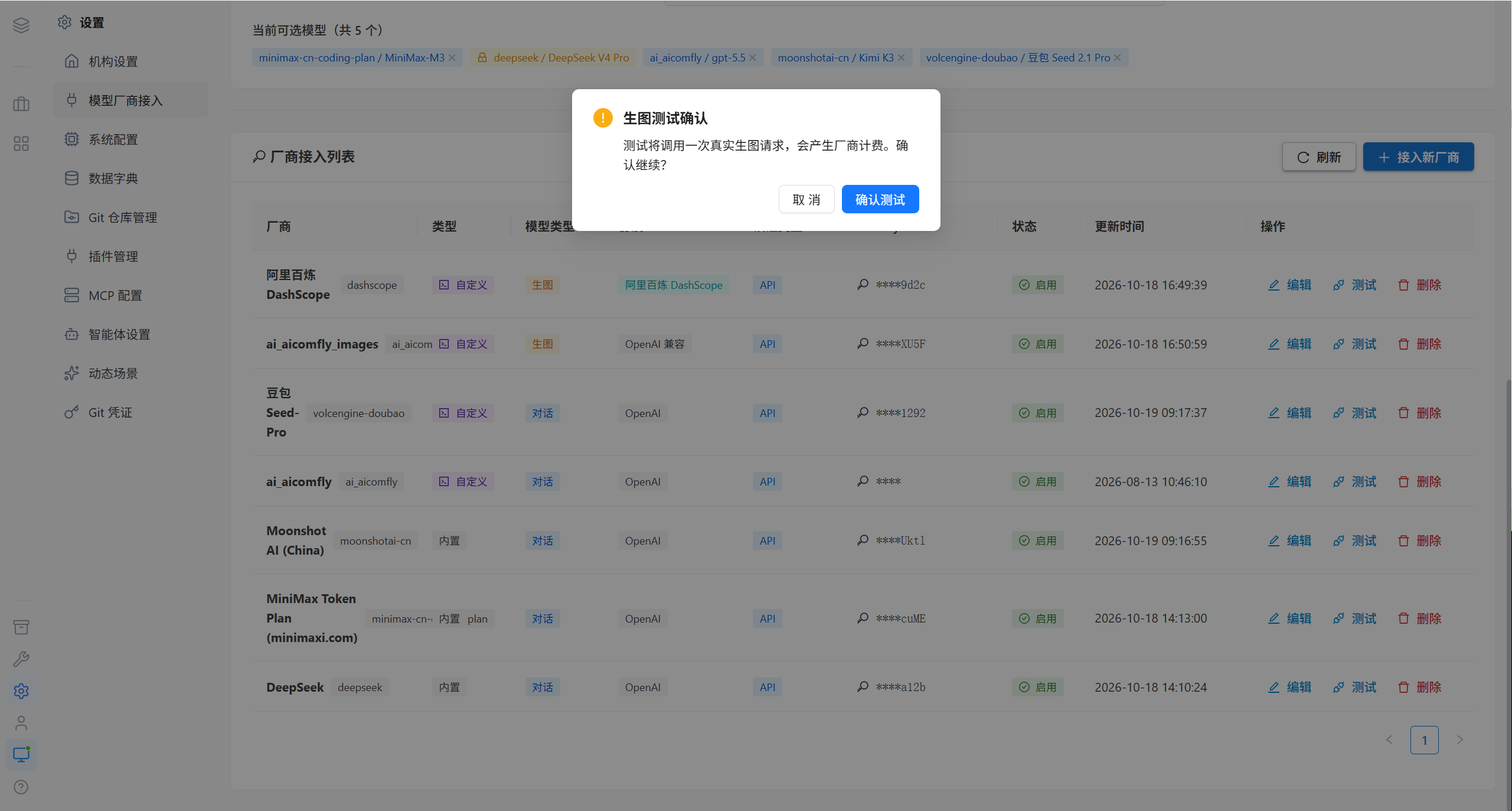
| Result | Resolution |
|---|---|
| Connection succeeded | Can be saved and enabled |
| Connection failed | Check that the Base URL, the API Key, and the model ID match the documentation of the provider |
Tip · Providers that are already in the list can be re-tested at any time by clicking "Test".
3.5 Edit and Delete
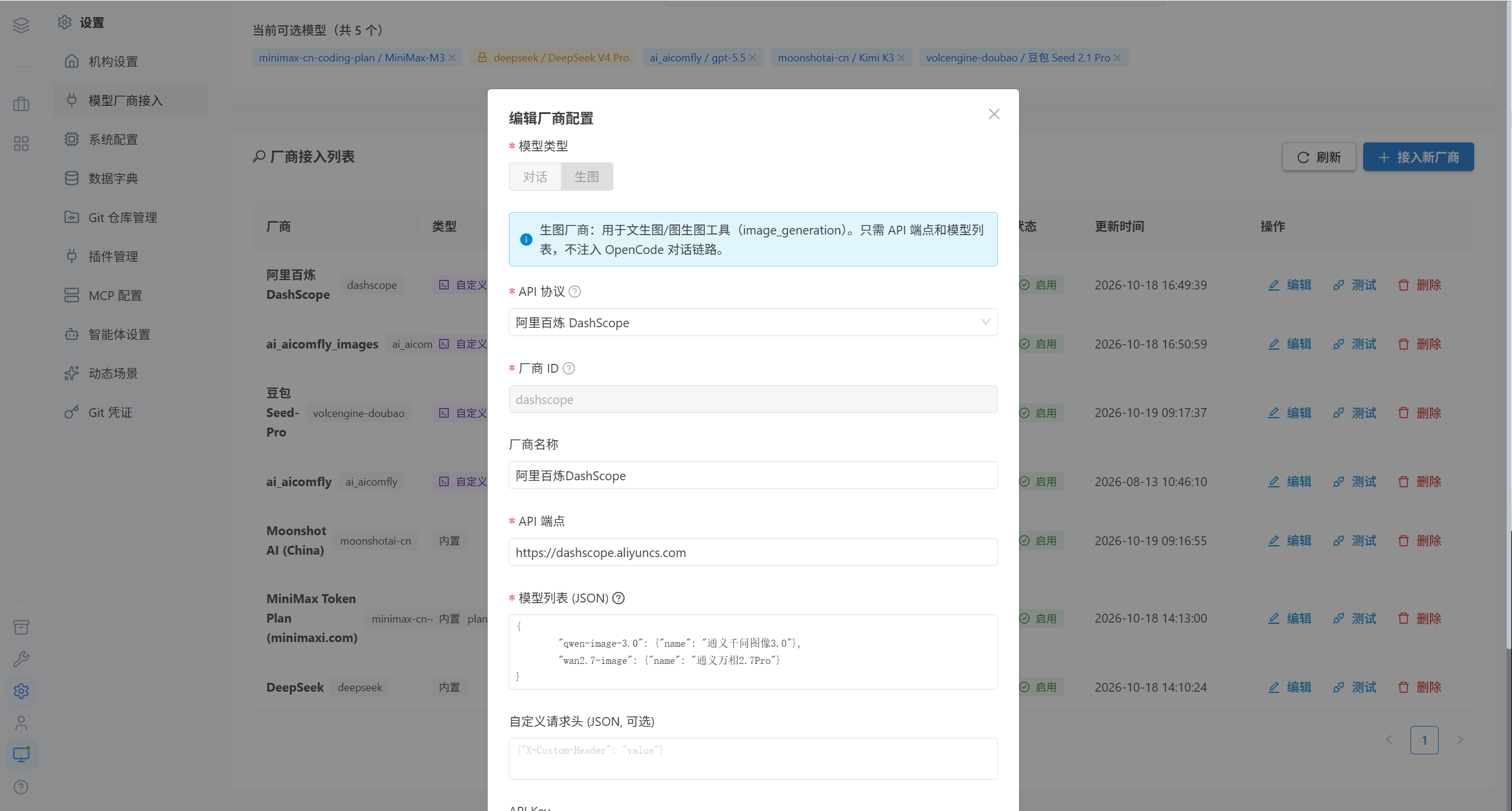
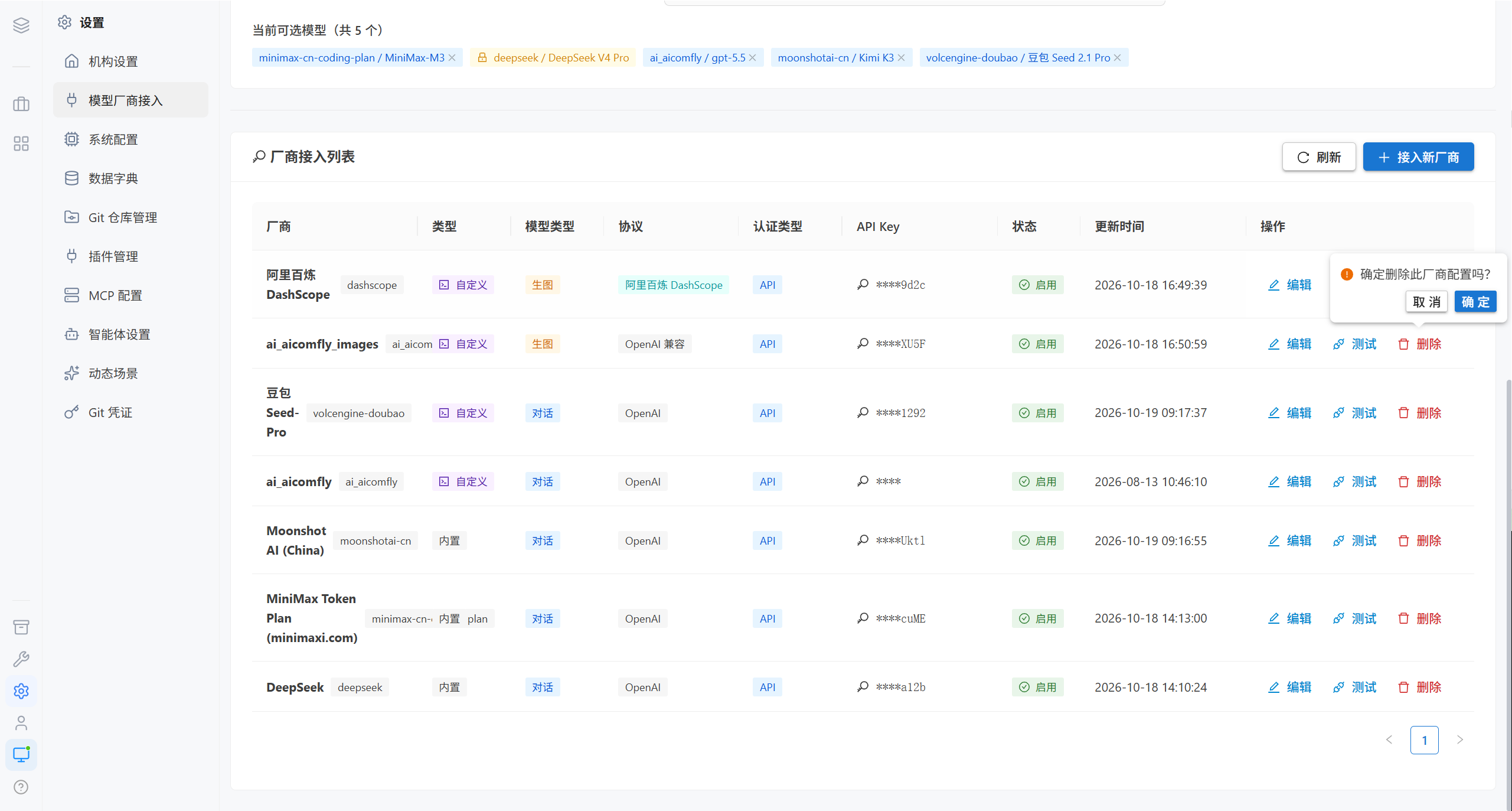
Note · Deleting a provider and some other changes require a backend restart to take full effect, and the interface will prompt you. Disabling (changing the status to disabled) takes effect immediately and can be re-enabled at any time.
4. Configure the Default Models
4.1 Default Language Model
Select a conversational model in the "Default Model" card and save.
| Item | Description |
|---|---|
| Scope | The initial model for all users and for all newly created sessions |
| Required | ✅ Required |
| Takes effect | Immediately |
Note · There is only one default language model. Users can switch to another model on the allowlist on their own in the input area.
4.2 Default Image Generation Model
Select an image generation model in the "Default Image Generation Model" card and save. When it is not configured, image generation entry points such as the box selection refinement are unavailable.
5. Configure the Optional Model Allowlist
Check the models that users are allowed to use in the "Currently available models" card; the setting takes effect after you save.
| Scenario | Recommendation |
|---|---|
| Control costs | Open up only the models that have been load-tested, and reserve the high-priced models for specific departments |
| Consistent experience | Open up only one model, so that users cannot pick a model they are unfamiliar with |
| Phased canary release | Open up 1–2 new models first, observe them, and then expand the scope |
| Symptom | Cause |
|---|---|
| A user cannot see a certain model in the dropdown | It is not on the allowlist |
| A user's dropdown is empty | The allowlist is not configured, or all models have been disabled |
6. Common Questions
| Symptom | Cause | Resolution |
|---|---|---|
| A user is told "The system has not configured a language model yet" | No default language model is set | Configure the default language model |
| The connection test fails | The Base URL / API Key / model ID do not match | Check the documentation of the provider and test again |
The API Key in the list shows only **** | The platform masks it on purpose | Click the magnifying glass to view the full value |
| A provider cannot be deleted | It may be referenced by the default model | Switch the default model first |
| A configuration change does not take effect | That change requires a backend restart | Restart as prompted by the interface |
| The image generation entry point is unavailable | No image generation model is configured | Configure the default image generation model |
7. Related Pages
| Page | Content |
|---|---|
| Capability Settings | AI agents, scenes, plugins, MCP |
| Basic Configuration | Organization, system parameters, data dictionary |