
Upgrade Documentation
Prerequisites:
- OpenPartner has already been deployed (single node: see the Single-Node Quick Deployment Guide; multi-node: see the Multi-Node Deployment Guide), and you can log in to the admin console;
- Network: for Method 1 the client must be able to reach the update server over TCP 3101; for Method 2 it must be able to reach the npm registry and the official image registry;
- Repository address: Docker Hub (https://hub.docker.com/).
I. Log In
Both methods share this step; log in to the admin console first:
- Open
http://<SERVER_IP>:9620in a browser (replace<SERVER_IP>with the actual OpenPartner IP). - Enter admin and the password set during deployment, then click Log In.
II. Upgrade Methods
⚠️ Method 1 and Method 2 are mutually exclusive — choose one of them.
Prepare the upgrade server: Method 1 requires you to prepare an upgrade server in advance.
2.1 Method 1: Configure a Local Upgrade Server
Suitable for intranet / offline environments: first deploy a local update server, then point the OpenPartner update source at it.
Permission note: on Windows, all commands are run in Administrator PowerShell (creating symbolic links requires administrator privileges).
2.1.1 Deploy the Upgrade Server (Linux)
In the commands below, replace
<VERSION>with the actual release version (e.g.1.5.6); replace<SERVER_IP>with the update server's actual IP.⚠️ Regular users: run everything in the same terminal. Replace
sudo install -d -m 755 /opt/update_server/update_serverwithmkdir -p "$HOME/update_server/update_server"; replace the twocd /opt/update_server/update_serverandcd /opt/update_serverwithcd "$HOME/update_server/update_server"andcd "$HOME/update_server"respectively. The Docker mount directory below still uses/opt/update_server/update_serveras an example; it must match the actual release directory before you run it.
Create the directories
sudo install -d -m 755 /opt/update_server/update_server
cd /opt/update_server/update_server
mkdir -p dist/images/latest dist/images/<VERSION>
mkdir -p dist/linux/latest dist/linux/<VERSION>
mkdir -p dist/windows/latest dist/windows/<VERSION>
Start the update server
# -d=background; --restart=auto-start on boot; host 3101 -> container 80; update directory mounted read-only
docker run -d --name openpartner_update_server --restart unless-stopped \
  -p 3101:80 \
  -v /opt/update_server/update_server:/usr/share/nginx/html:ro \
  nginx:latest

docker ps | grep openpartner_update_server
Place the agent image
docker pull sogood360/openpartner-agent:<VERSION>   # replace <VERSION> with the actual version, e.g. 1.5.6
# export the image tar into the version directory
docker save sogood360/openpartner-agent:<VERSION> -o dist/images/<VERSION>/openpartner_agent-<VERSION>.tar
Place the server program
sudo npm i -g @sogood360/openpartner   # after installation, extract the server program from node_modules
# linux server program
cp "$(npm root -g)/@sogood360/openpartner/node_modules/@sogood360/server-linux-x64/bin/openpartner-server" dist/linux/<VERSION>/openpartner-server-<VERSION>-linux-x64
# windows server program: extract it the same way from a Windows machine (server-win32-x64\bin\openpartner-server.exe) and place it in dist/windows/<VERSION>/openpartner.exe
Create the latest symlinks
cd dist/images/latest
ln -s ../<VERSION>/openpartner_agent-<VERSION>.tar .                        # relative-path symlink
cd ../../linux/latest
ln -s ../<VERSION>/openpartner-server-<VERSION>-linux-x64 .
cd ../../windows/latest
ln -s ../<VERSION>/openpartner.exe .
cd /opt/update_server
Symlinks must use relative paths (
../<VERSION>/...), otherwise the container will not find the files (it reports a 404).
Verify the update server
# expected: HTTP/1.1 200
curl -I http://<SERVER_IP>:3101/dist/images/latest/openpartner_agent-<VERSION>.tar
# expected: HTTP/1.1 200
curl -I http://<SERVER_IP>:3101/dist/linux/latest/openpartner-server-<VERSION>-linux-x64
curl -I http://<SERVER_IP>:3101/dist/windows/latest/openpartner.exe   # expected: HTTP/1.1 200
Port 3101 is changeable; the firewall must allow it as well.
Common commands
docker restart openpartner_update_server   # restart
docker logs openpartner_update_server      # check the errors
docker stop openpartner_update_server && docker rm openpartner_update_server   # stop and remove
2.1.2 Deploy the Upgrade Server (Windows)
In the commands below, replace
<VERSION>with the actual release version (e.g.1.5.6); replace<SERVER_IP>with the update server's actual IP.Run PowerShell as an administrator (creating symbolic links requires permissions). Use the same window throughout; the
$Rootvariable is only valid in the current window.
Create the directories
$Root = "C:\update_server"    # can be changed to any drive/path; the subsequent commands follow automatically
New-Item -ItemType Directory -Force -Path $Root | Out-Null
foreach ($d in @("$Root\update_server\dist\images","$Root\update_server\dist\linux","$Root\update_server\dist\windows")) {
  New-Item -ItemType Directory -Force -Path "$d\<VERSION>","$d\latest" | Out-Null
}
Start the update server
# -d=background; --restart=auto-start on boot; -p=host 3101 -> container 80; -v=update directory mounted read-only
docker run -d --name openpartner_update_server --restart unless-stopped `
  -p 3101:80 `
  -v "$Root\update_server:/usr/share/nginx/html:ro" `
  nginx:latest
docker ps | Select-String openpartner_update_server
Place the agent image
docker pull sogood360/openpartner-agent:<VERSION>   # replace <VERSION> with the actual version, e.g. 1.5.6
# export the image tar into the version directory
docker save sogood360/openpartner-agent:<VERSION> -o "$Root\update_server\dist\images\<VERSION>\openpartner_agent-<VERSION>.tar"
Place the server program
npm i -g @sogood360/openpartner   # after installation, extract the server program from node_modules
# windows server program
Copy-Item "$(npm root -g)\@sogood360\openpartner\node_modules\@sogood360\server-win32-x64\bin\openpartner-server.exe" "$Root\update_server\dist\windows\<VERSION>\openpartner.exe"
# linux server program: extract it the same way from a Linux machine (server-linux-x64/bin/openpartner-server) and place it in dist\linux\<VERSION>\openpartner-server-<VERSION>-linux-x64
Create the latest symlinks
# relative-path symlink
cmd /c mklink "$Root\update_server\dist\images\latest\openpartner_agent-<VERSION>.tar" "..\<VERSION>\openpartner_agent-<VERSION>.tar"
cmd /c mklink "$Root\update_server\dist\linux\latest\openpartner-server-<VERSION>-linux-x64" "..\<VERSION>\openpartner-server-<VERSION>-linux-x64"
cmd /c mklink "$Root\update_server\dist\windows\latest\openpartner.exe" "..\<VERSION>\openpartner.exe"
The link target must use a relative path (
..\<VERSION>\...); it cannot be a full path with a drive letter (e.g.C:\update_server\...). Create it withcmd /c mklink.
Verify the update server
# expected: 200
(Invoke-WebRequest -Method Head -Uri "http://<SERVER_IP>:3101/dist/images/latest/openpartner_agent-<VERSION>.tar").StatusCode
# expected: 200
(Invoke-WebRequest -Method Head -Uri "http://<SERVER_IP>:3101/dist/linux/latest/openpartner-server-<VERSION>-linux-x64").StatusCode
# expected: 200
(Invoke-WebRequest -Method Head -Uri "http://<SERVER_IP>:3101/dist/windows/latest/openpartner.exe").StatusCode
Common commands
docker restart openpartner_update_server   # restart
docker logs openpartner_update_server      # check the errors
docker stop openpartner_update_server; docker rm openpartner_update_server   # stop and remove
2.1.3 Configure the Update Source
Go to Settings > System Configuration > Add Configuration (the exact menu path depends on your version):
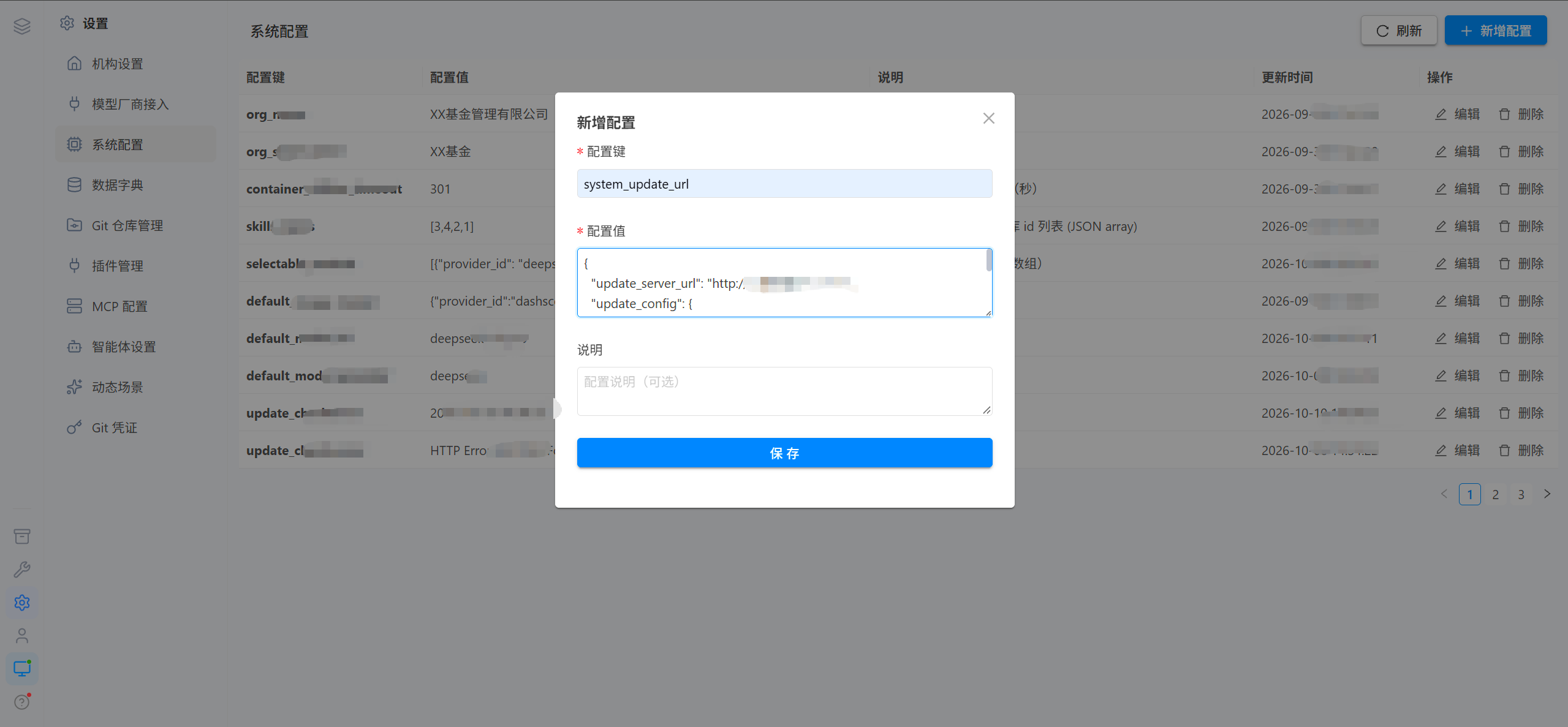
- Configuration key:
system_update_url - Configuration value (replace
<SERVER_IP>with the update server's actual IP):
{
  "update_server_url": "http://<SERVER_IP>:3101",
  "update_config": {
    "allow_backend": true,
    "allow_agent_image": true,
    "backend_path": "",
    "agent_image_path": ""
  }
}
Click Save to save the configuration; the client should then be able to discover the new version.
2.1.4 Trigger the Update
Go to the update page in the admin console (the exact entry point depends on your version):
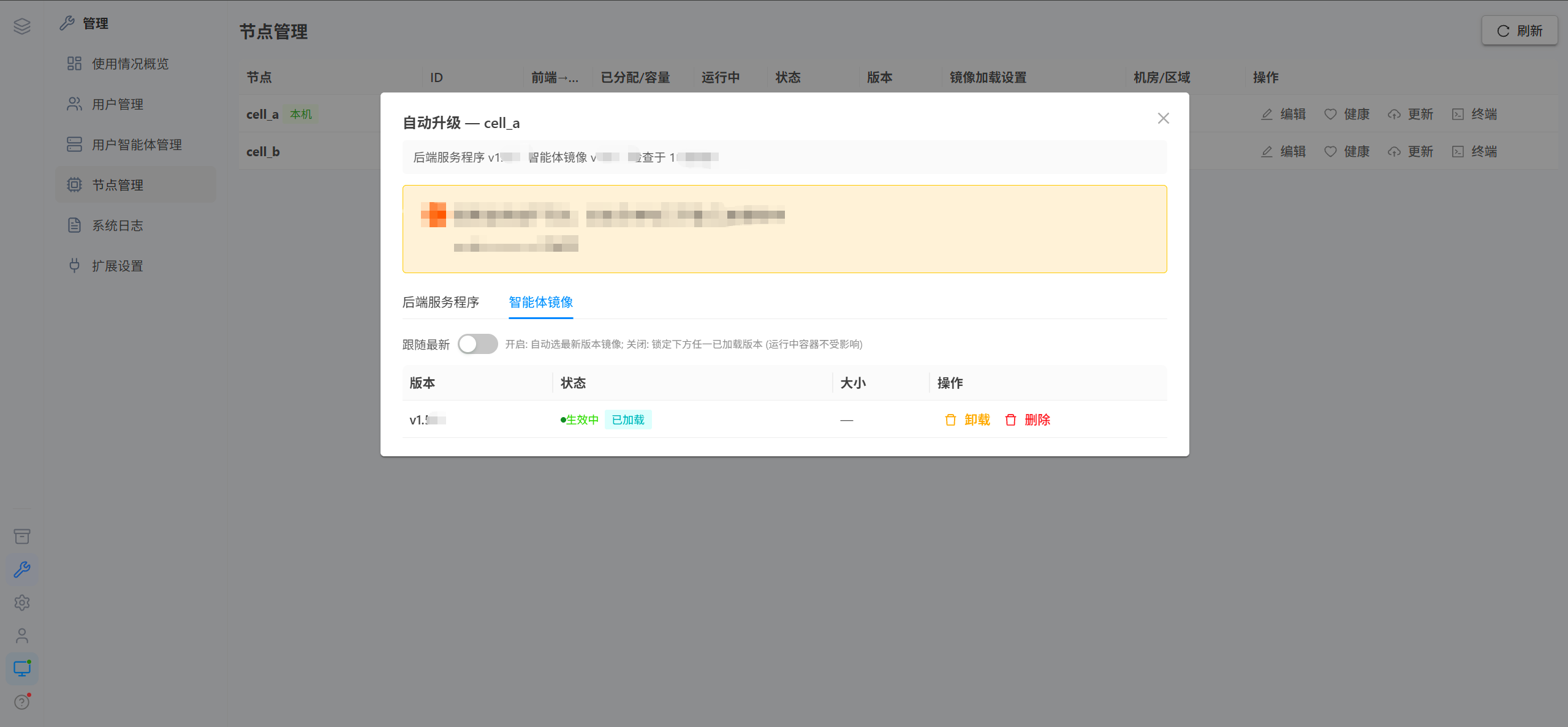
⚠️ If you are prompted to restart the service after the update, just follow the on-screen instructions.
2.2 Method 2: Online Upgrade via npm
No update source needs to be configured. Run the following commands directly on the server where OpenPartner is deployed to upgrade to the latest version (or to a specific version):
Windows (Administrator PowerShell):
# installs the latest version by default; to install a specific version: npm i -g @sogood360/openpartner@<VERSION> (replace <VERSION> with the actual version)
npm i -g @sogood360/openpartner
# pull the new agent image (the tag matches the npm-installed version; replace <VERSION> with the actual version)
docker pull sogood360/openpartner-agent:<VERSION>
Linux:
# installs the latest version by default; to install a specific version: npm i -g @sogood360/openpartner@<VERSION> (replace <VERSION> with the actual version)
npm i -g @sogood360/openpartner
# pull the new agent image (the tag matches the npm-installed version; replace <VERSION> with the actual version)
docker pull sogood360/openpartner-agent:<VERSION>
⚠️ Regular users:
npm i -g --prefix "$HOME/.local" @sogood360/openpartner.
Restart the backend so that the new version takes effect (the backend program and the agent image take effect together; the backend automatically stops the old task containers and starts new containers with the new image):
openpartner stop
openpartner start
III. Frontend Update (Required for Both Methods)
Run the following steps on the server that runs the OpenPartner frontend:
Pull the new image
docker pull sogood360/openpartner-frontend:<VERSION> # replace <VERSION> with the actual version, e.g. 1.5.6Record the child node addresses of the old container (mandatory for multi-node deployments; skip it for a single node)
In a multi-node deployment, the frontend records the address of each child node in CELL_ROUTES; this record is lost once the old container is deleted, so copy it down first:
Linux:
docker inspect openpartner_frontend --format '{{range .Config.Env}}{{println .}}{{end}}' | grep '^CELL_ROUTES='Windows (Administrator PowerShell):
docker inspect openpartner_frontend --format '{{range .Config.Env}}{{println .}}{{end}}' | Select-String CELL_ROUTESCopy the content that follows CELL_ROUTES= in the output completely.
Delete the old container and recreate it with the new image
Paste the content copied in the previous step verbatim in place of <ORIGINAL_VALUE>; for a single node, remove -e CELL_ROUTES="<ORIGINAL_VALUE>".
Linux:
docker stop openpartner_frontend && docker rm openpartner_frontend   # stop and delete the old container
docker run -d --name openpartner_frontend -p 9620:9620 -e CELL_ROUTES="<ORIGINAL_VALUE>" sogood360/openpartner-frontend:<VERSION>
Windows (Administrator PowerShell):
docker stop openpartner_frontend; docker rm openpartner_frontend   # stop and delete the old container
docker run -d --name openpartner_frontend -p 9620:9620 -e CELL_ROUTES="<ORIGINAL_VALUE>" sogood360/openpartner-frontend:<VERSION>
Verify
docker ps --filter name=openpartner_frontend # the Up status means it is workingOpen http://<SERVER_IP>:9620 in a browser and confirm that the frontend displays the new version.
IV. Verification
- After the update is complete, refresh the page; About / Version Info must show the latest version number (expected:
<NEW_VERSION>, replaced with the actual new version number). - After logging in again, all features work normally.
V. FAQ
Q: "The file already exists" appears when creating a symbolic link?
- Run
Remove-Item "<FULL_LINK_PATH>" -Forcefirst, then run the command again; - If the symbolic link still cannot be created, use the copy method instead (do not create a link; copy the file directly into the
latestdirectory).
Q: The symbolic link is broken?
- Delete the original link, then recreate the link with
cmd /c mklink; - Or run
docker restart openpartner_update_server; if it is still broken, use the copy method.
Q: Accessing port 3101 reports a 404?
- Check whether the
-vmount directory is correct; - If the latest files cannot be fetched, check whether the symlink target is a relative path.
Q: A local update source was configured before — how do I switch to Method 2, the online upgrade?
- First delete
system_update_urlunder Settings > System Configuration (this restores the default online image registry); - Then run the npm upgrade as described in Method 2 in 2.2.