
Users & Permissions
Applicable roles: Administrators
Prerequisites: You understand group-driven resource visibility
This page covers three areas: User Management (creating accounts, assigning nodes), Group Management (the unit of permission), and User AI Agent Management (container lifecycle and resource tiers).
1. User Management
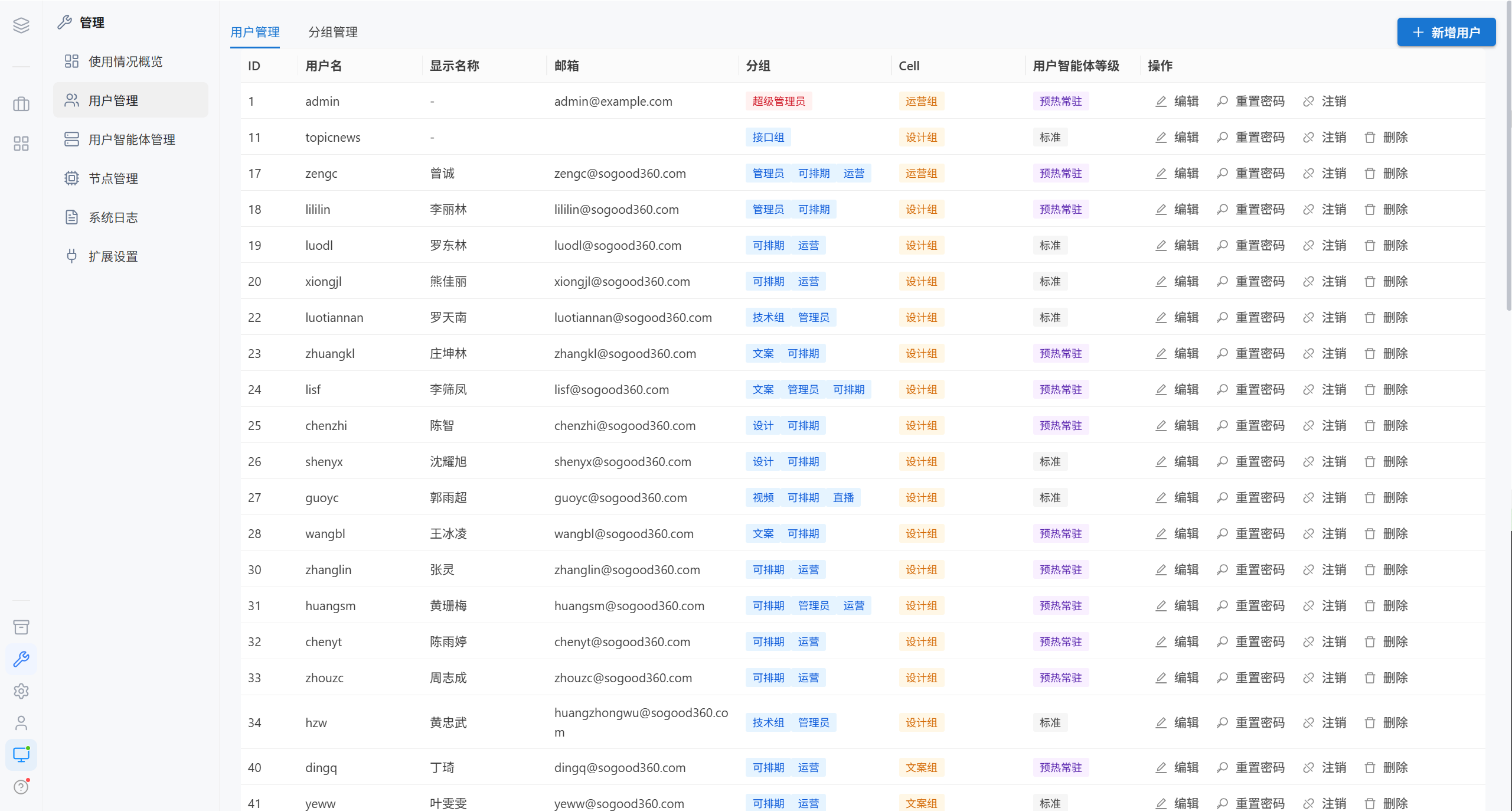
| Tab | Content |
|---|---|
| User Management | All users |
| Group Management | Group list |
1.1 User List
| Column | Description |
|---|---|
| Username | The login name; generally unchangeable after creation |
| Display name | The name shown in the interface |
| Contact email | |
| Groups | The groups the user belongs to, which determine the resources visible to them |
| Node | The node assigned to the user; shows "Unassigned" when none is assigned |
| Actions | Edit, reset password, deregister, reassign, delete |
1.2 Add a User
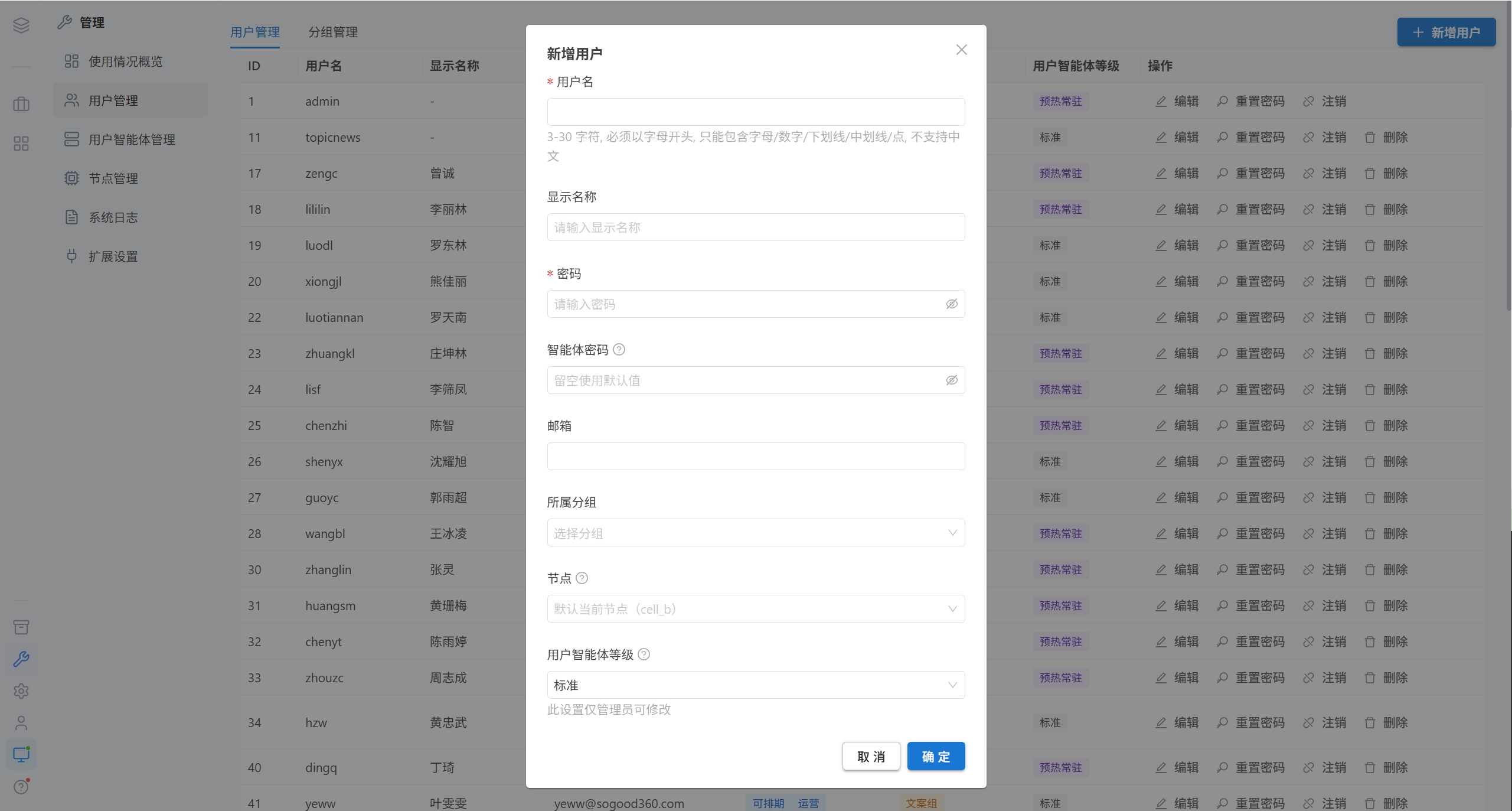
| Field | Required | Rules |
|---|---|---|
| Username | ✅ | 3–30 characters, must start with a letter, may contain only letters / digits / underscores / hyphens / dots; Chinese is not supported |
| Display name | — | The name shown in the interface |
| Password | ✅ | Required when creating |
| ❌ | — | |
| Groups | ❌ | Multiple selections allowed. The super administrator's groups cannot be modified |
| Node | ❌ | Leave blank to use the default node; if one is selected, the user is assigned to that node |
| AI agent password | ❌ | The container HTTP Basic Auth password, 16–64 characters. Leave blank to use the image default |
Note · The username not supporting Chinese is a system-level limitation, not a form validation issue. Put Chinese text in the "Display name" field.
1.3 Edit a User
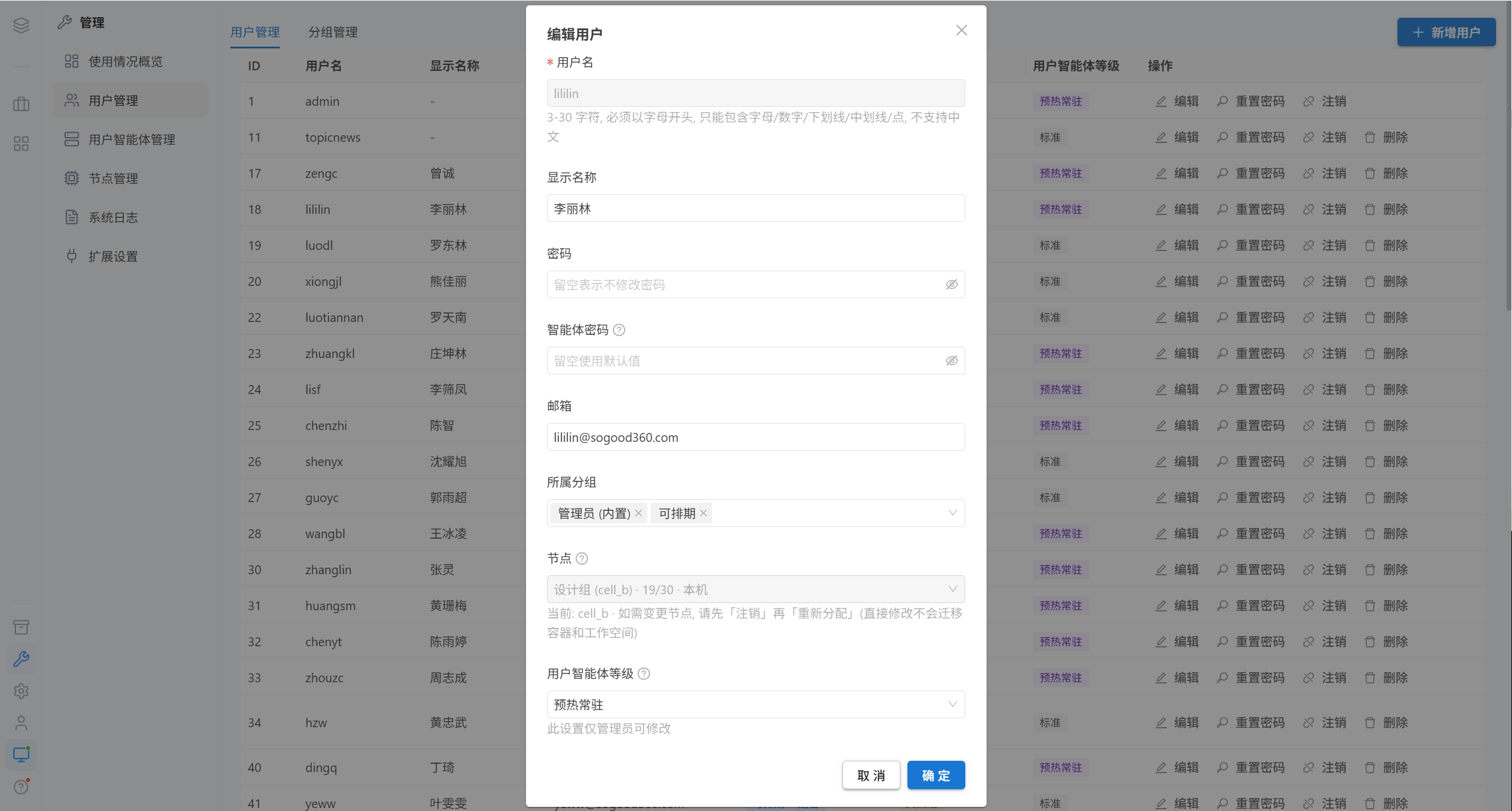
| Field | When editing |
|---|---|
| Password | Leaving it blank means no change |
| Node | Direct modification is not supported. To change it, "Deregister" first and then "Reassign" |
1.4 Reset the Password
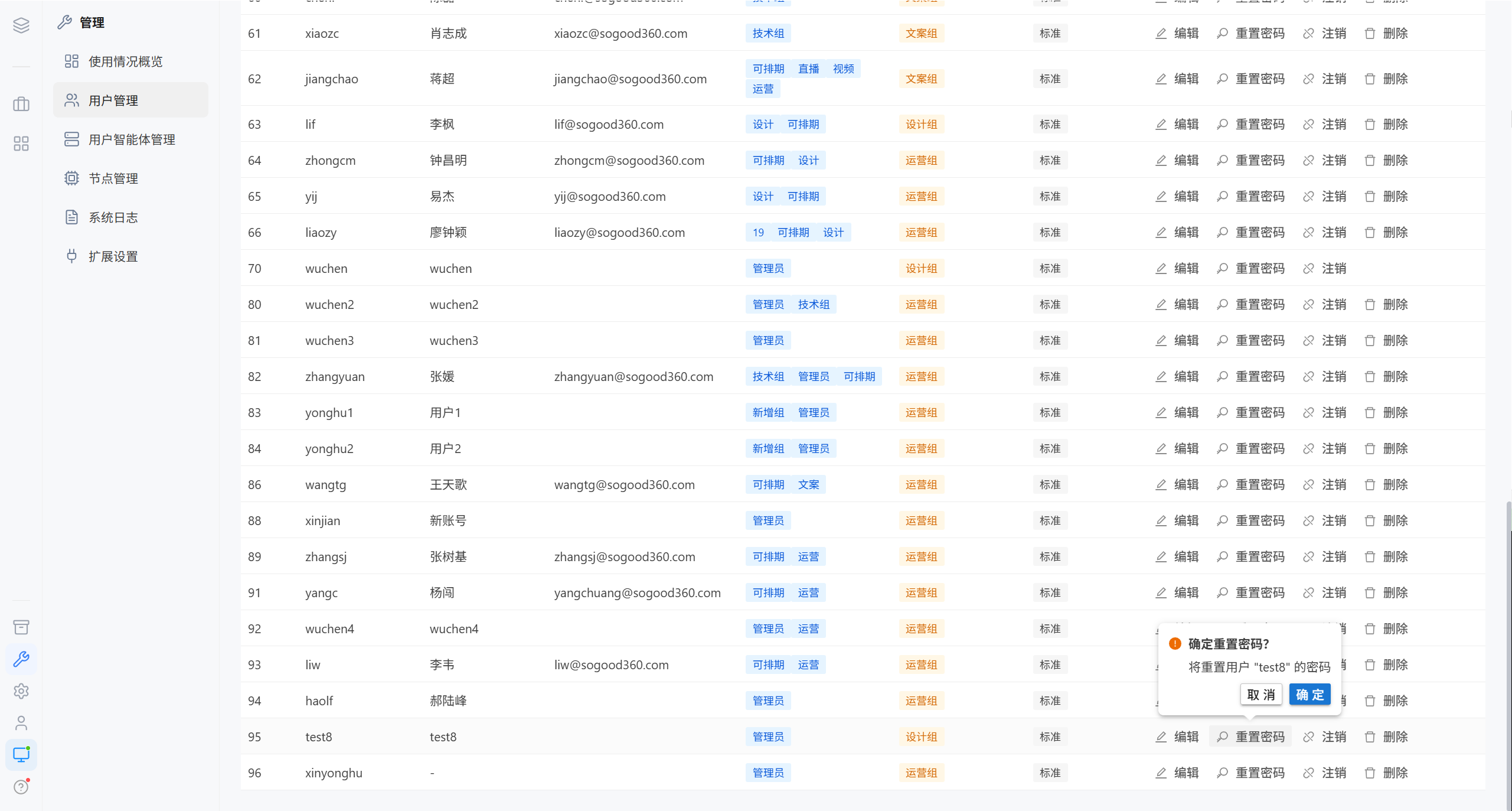
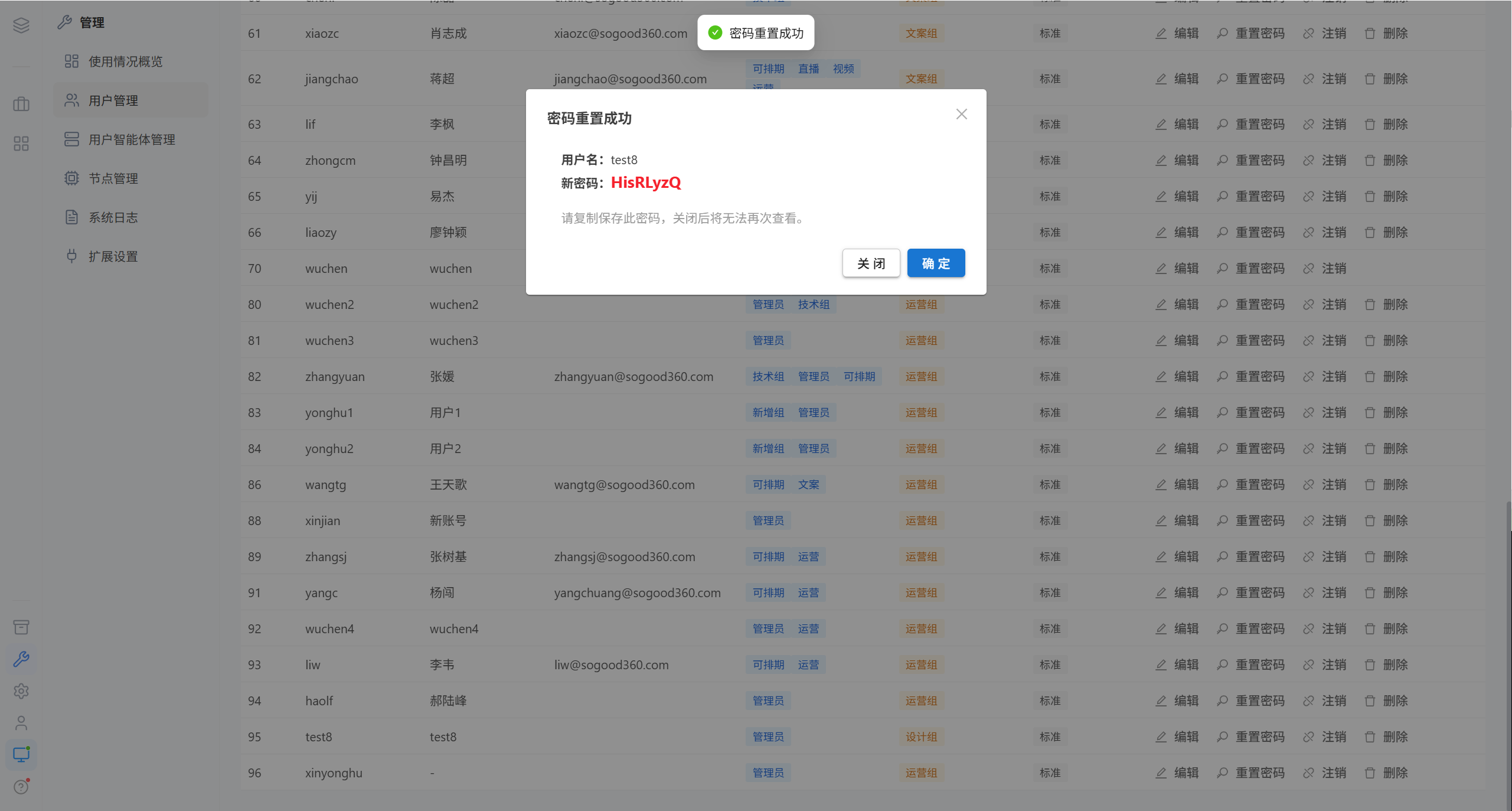
After the reset, the new password is displayed and can be viewed only once; it cannot be viewed again after the window closes. Deliver it to the user through a secure channel.
Note · Resetting the password immediately invalidates the sessions of every device the user has signed in on.
1.5 Deregister a User
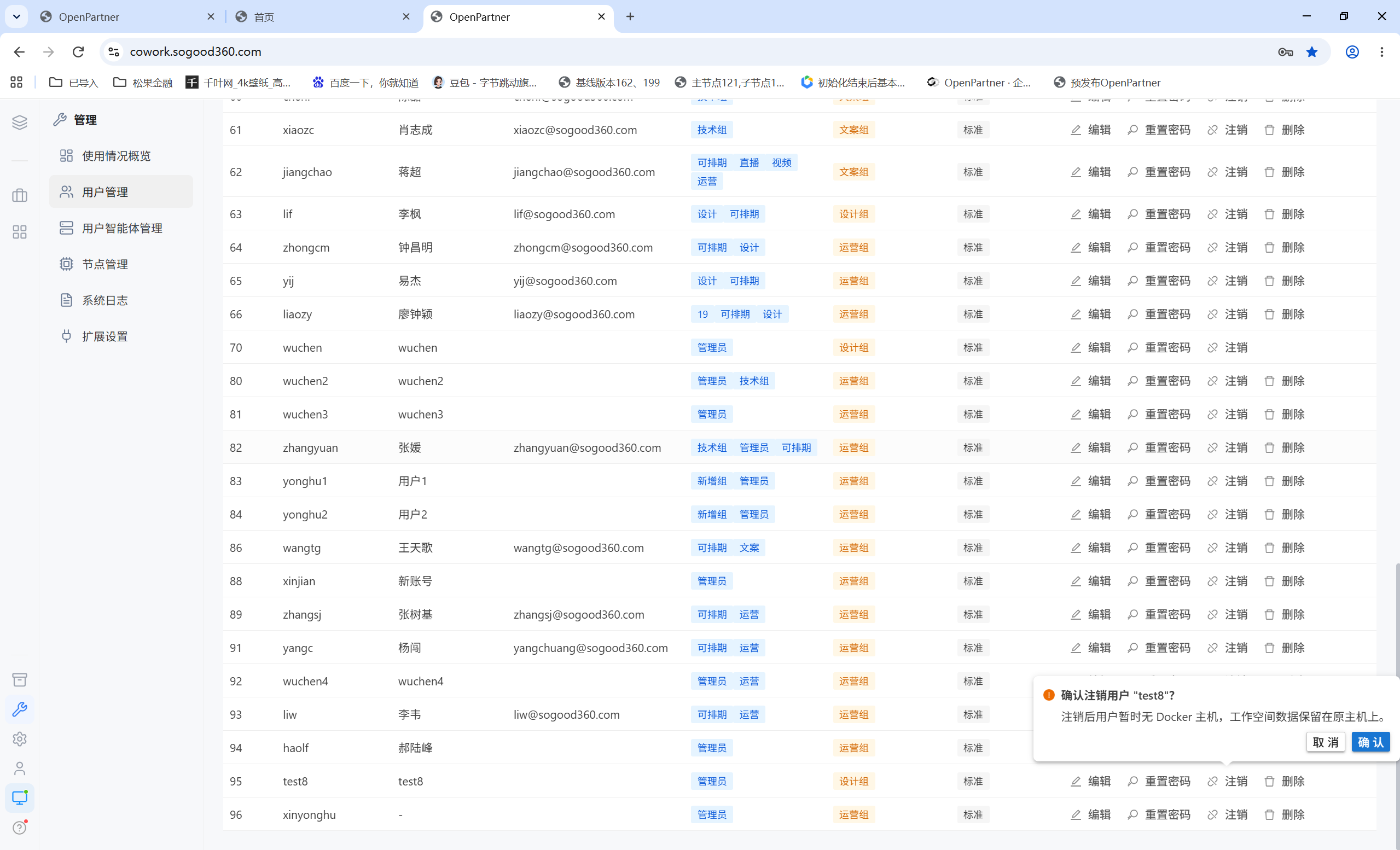
| Item | Description |
|---|---|
| Effect | The user temporarily has no node, and AI conversations are unavailable |
| Data | Workspace data stays on the original node and is not deleted |
| Afterward | When the user is reassigned to another node, the workspace content on the old node is cleared |
Tip · "Deregister" is the safe first step and loses no data. Only "Delete" is irreversible.
1.6 Reassign
Two-step confirmation; you must type the username to confirm.
| Step | Content |
|---|---|
| 1 | Select the target node; the interface shows which node the user is switched from and to, and lists the data that will be cleared |
| 2 | Enter the username to confirm, and then the operation is executed |
⚠️ Data that will be cleared (not recoverable):
| Data | Description |
|---|---|
| Workspace content | All files |
| OpenCode session history | All conversations |
| OpenCode preference settings | Personal preferences |
| SSH key cache | Cached keys |
1.7 Delete a User
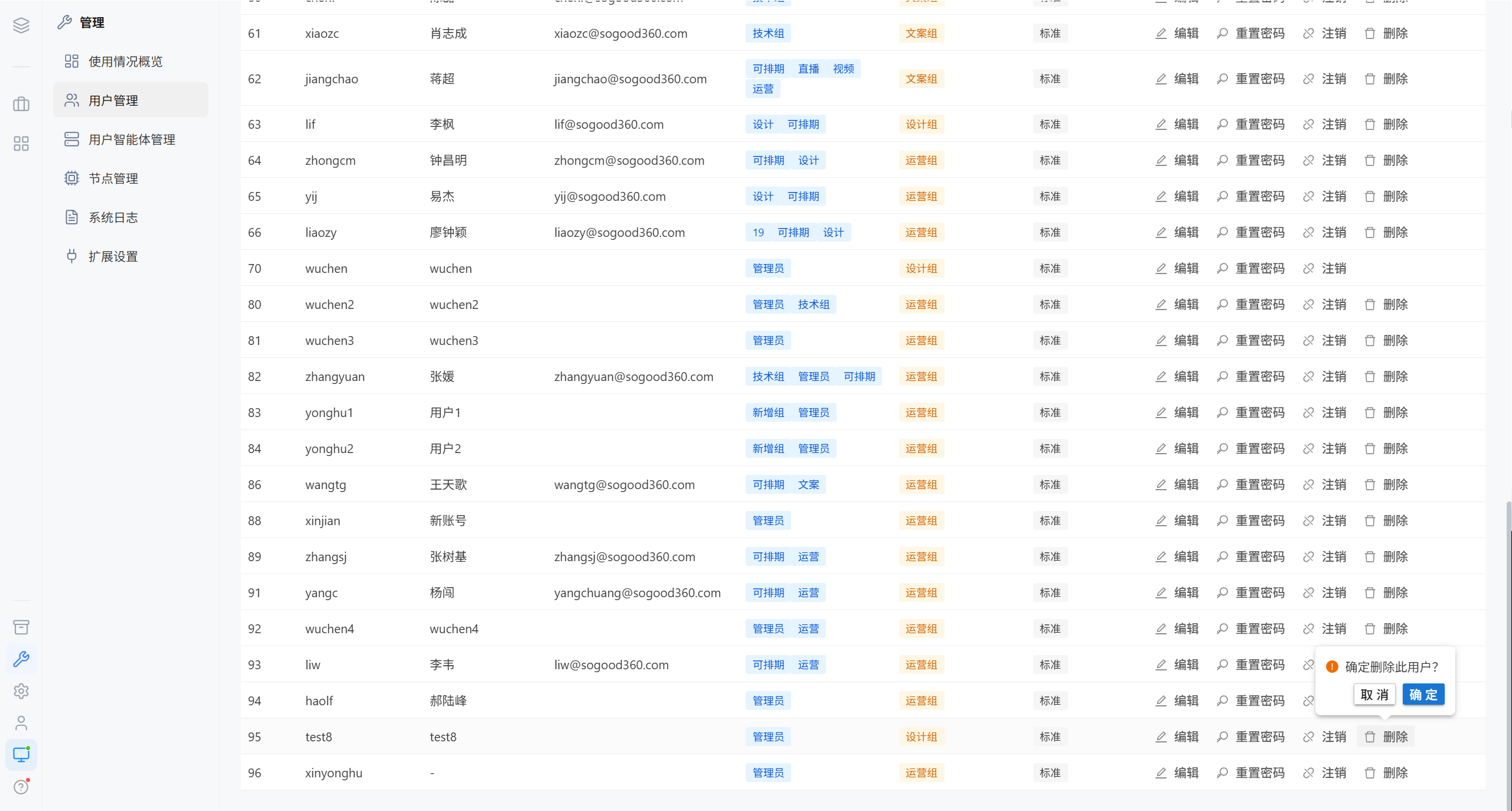
After deletion, the user record is removed together with its container.
2. Group Management
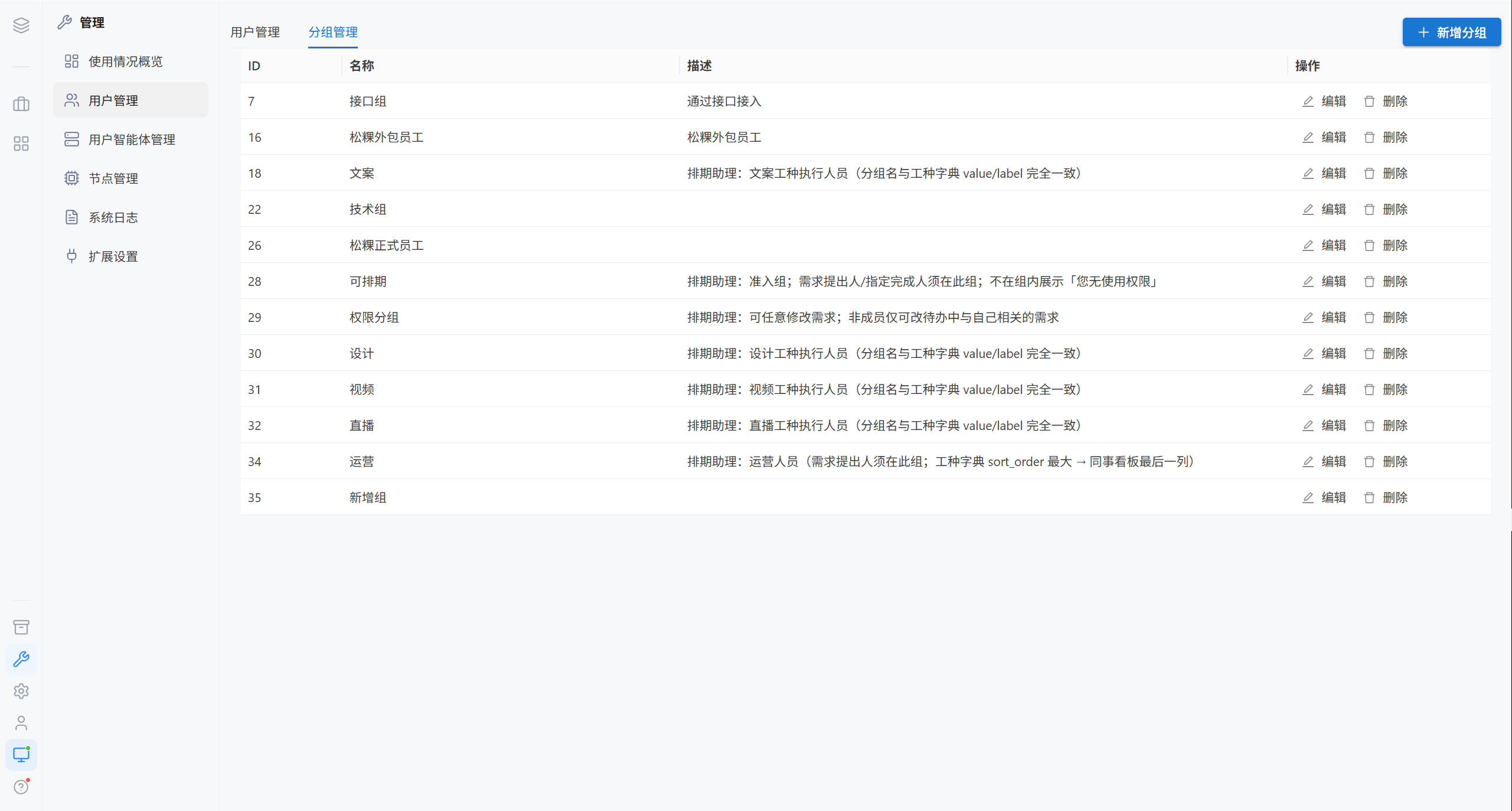
| Column | Description |
|---|---|
| Name | Group name |
| Description | What it is used for |
| Actions | Edit, delete |
2.1 Add a Group
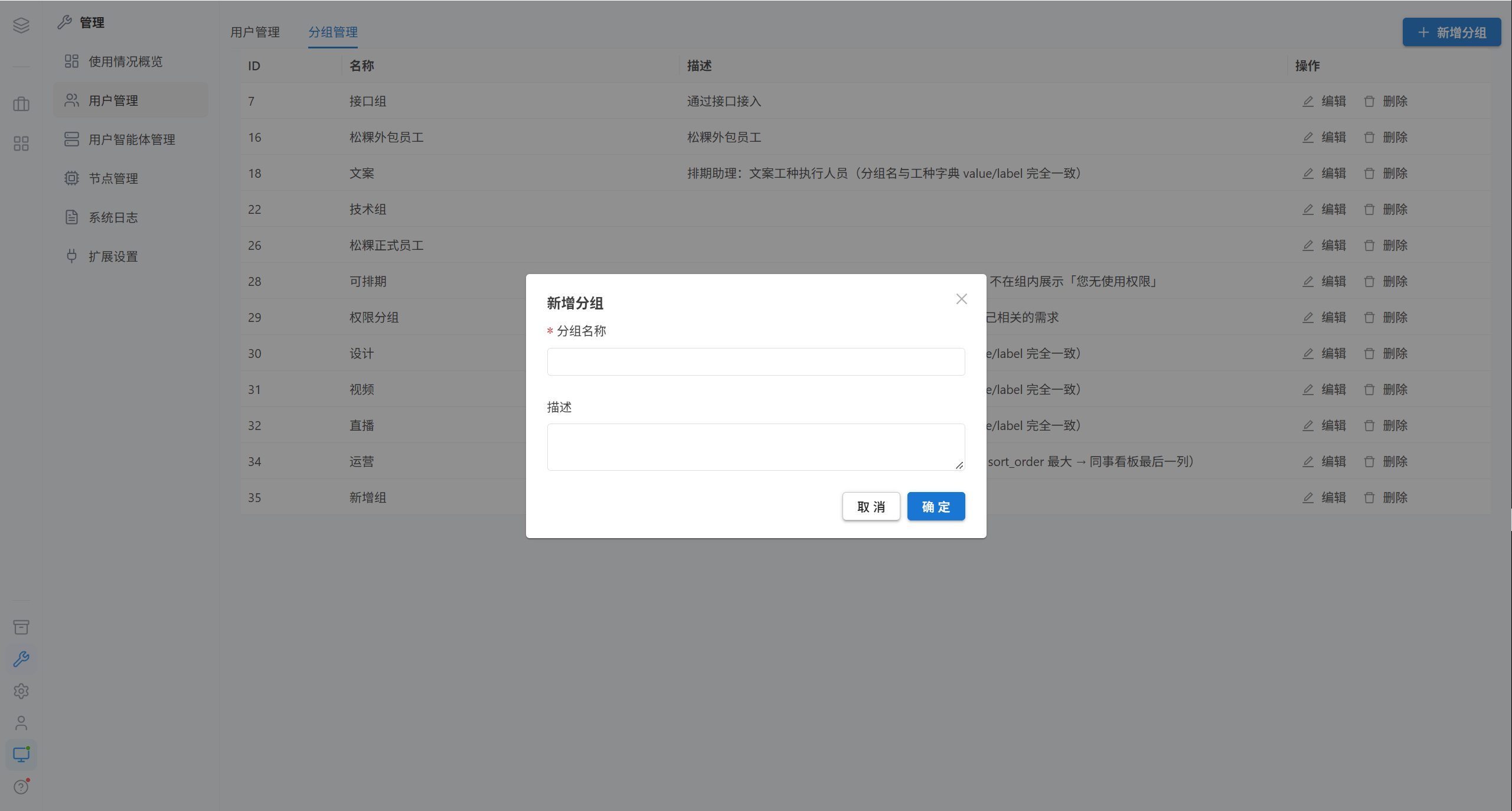
| Field | Required | Description |
|---|---|---|
| Group name | ✅ | For example "Engineering" |
| Description | ❌ | What it is used for |
Note · The two built-in groups cannot be deleted: Super Administrator (id=1) and Administrator (id=2); both have identical permissions.
2.2 Edit a Group
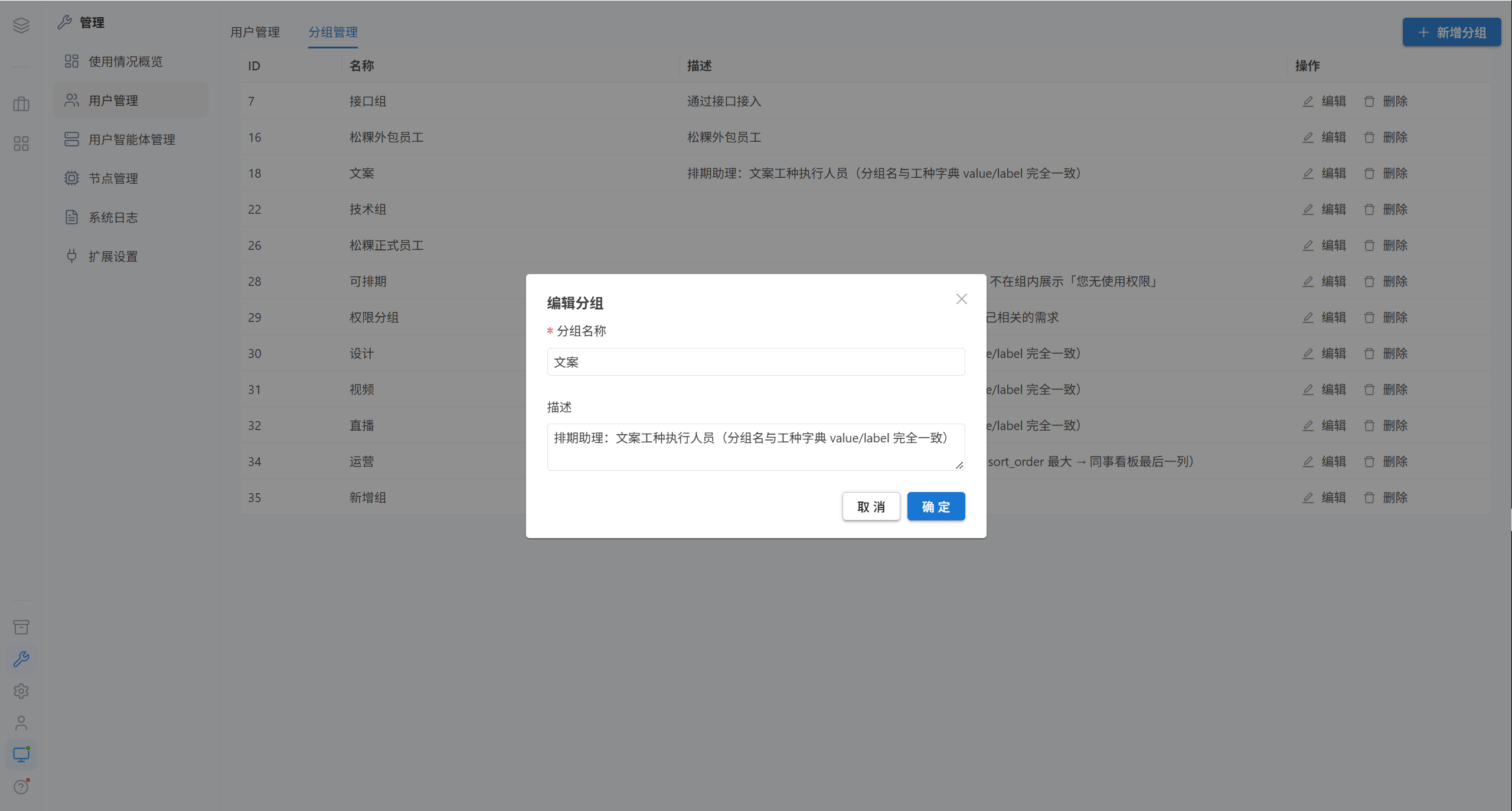
2.3 Delete a Group
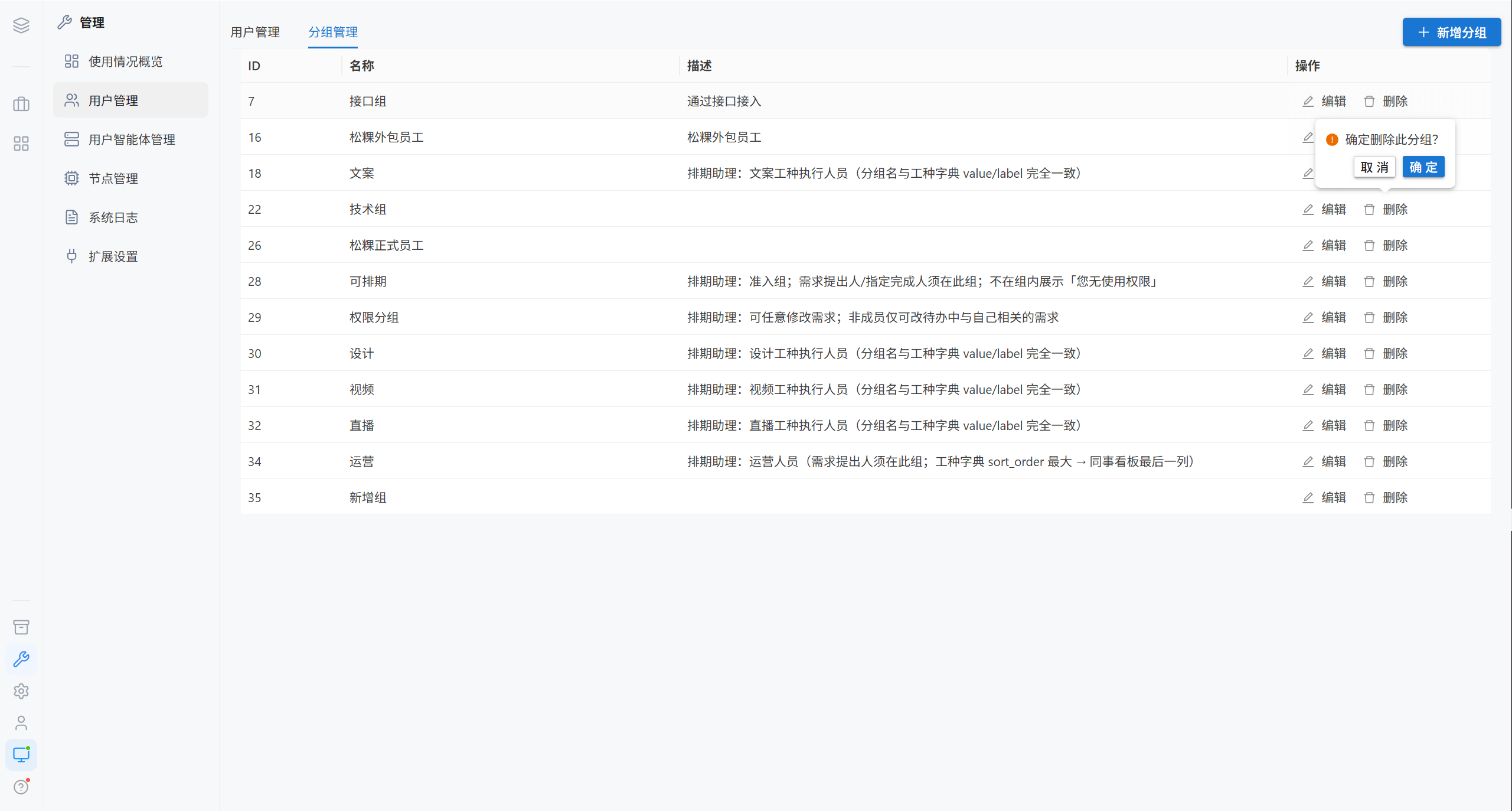
Note · Before deleting a group, make sure its members have been transferred; otherwise those users lose access to the corresponding resources.
2.4 Where Groups Apply
| Resource | Configuration location |
|---|---|
| Git repository | Git Repository Management |
| Skill directory | Assets · Permission Settings |
| Important document directory | Assets · Permission Settings |
| Dynamic scene | Dynamic Scenes |
| Extension | The access group configuration of the extension itself |
3. Node Assignment
Nodes are assigned from the add / edit form of a user.
| Option | Effect |
|---|---|
| Leave blank (default) | Uses the default node of the system |
| Select a node | The user is bound to that node; both the container and the workspace reside on it |
| Local machine | The current node itself (shown when an administrator operates) |
| Node status | Description |
|---|---|
| Online | Serving normally |
| Offline | Unreachable, needs troubleshooting |
| Draining | Users are being migrated out; no new tasks are accepted |
Note · A user with no node bound cannot use AI conversations at all. After signing in, the user sees "No AI agent container assigned, AI conversation is temporarily unavailable".
4. User AI Agent Management
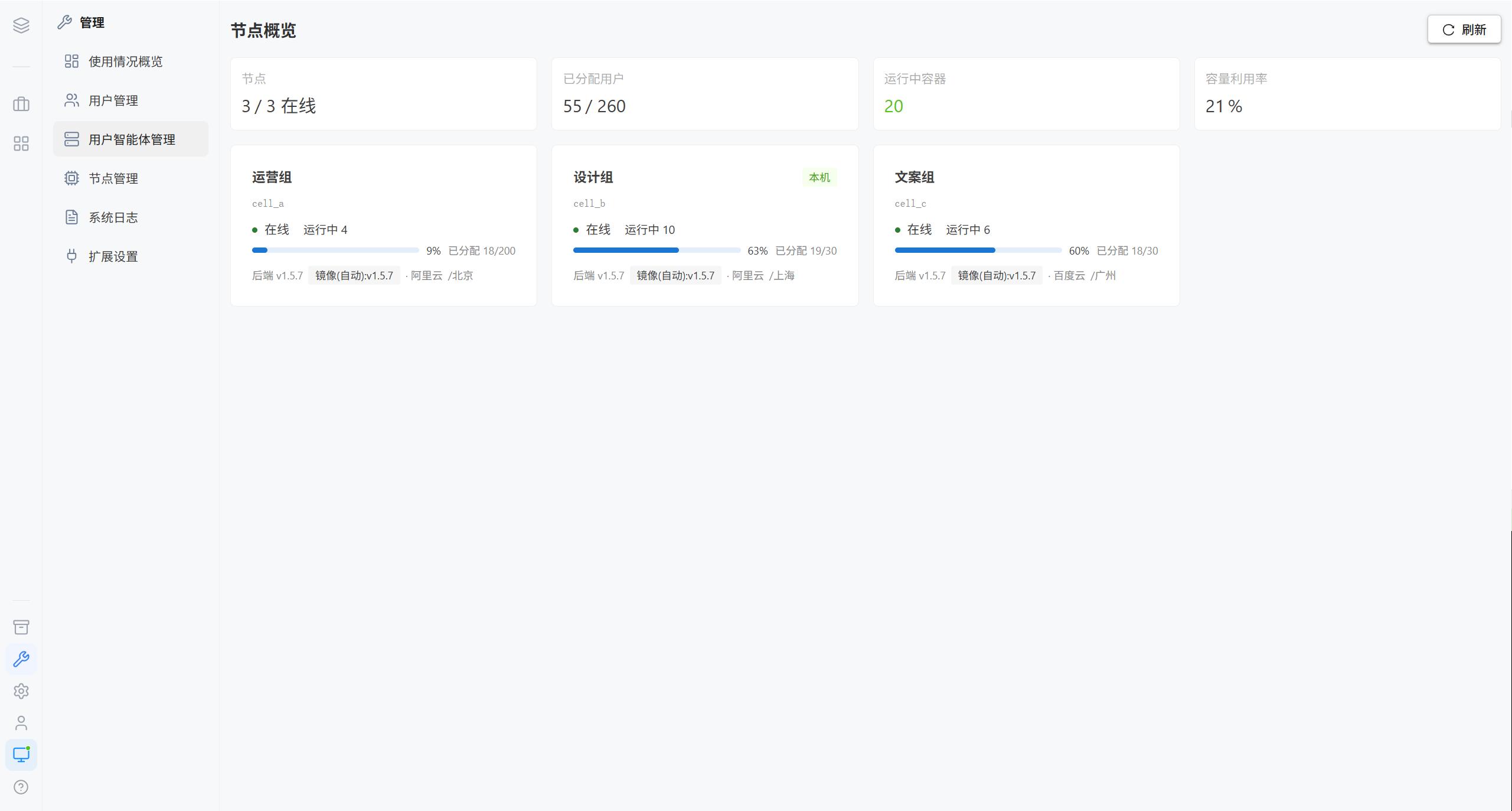
This module manages user AI agent containers (not AI role definitions, which belong to AI Agent Settings).
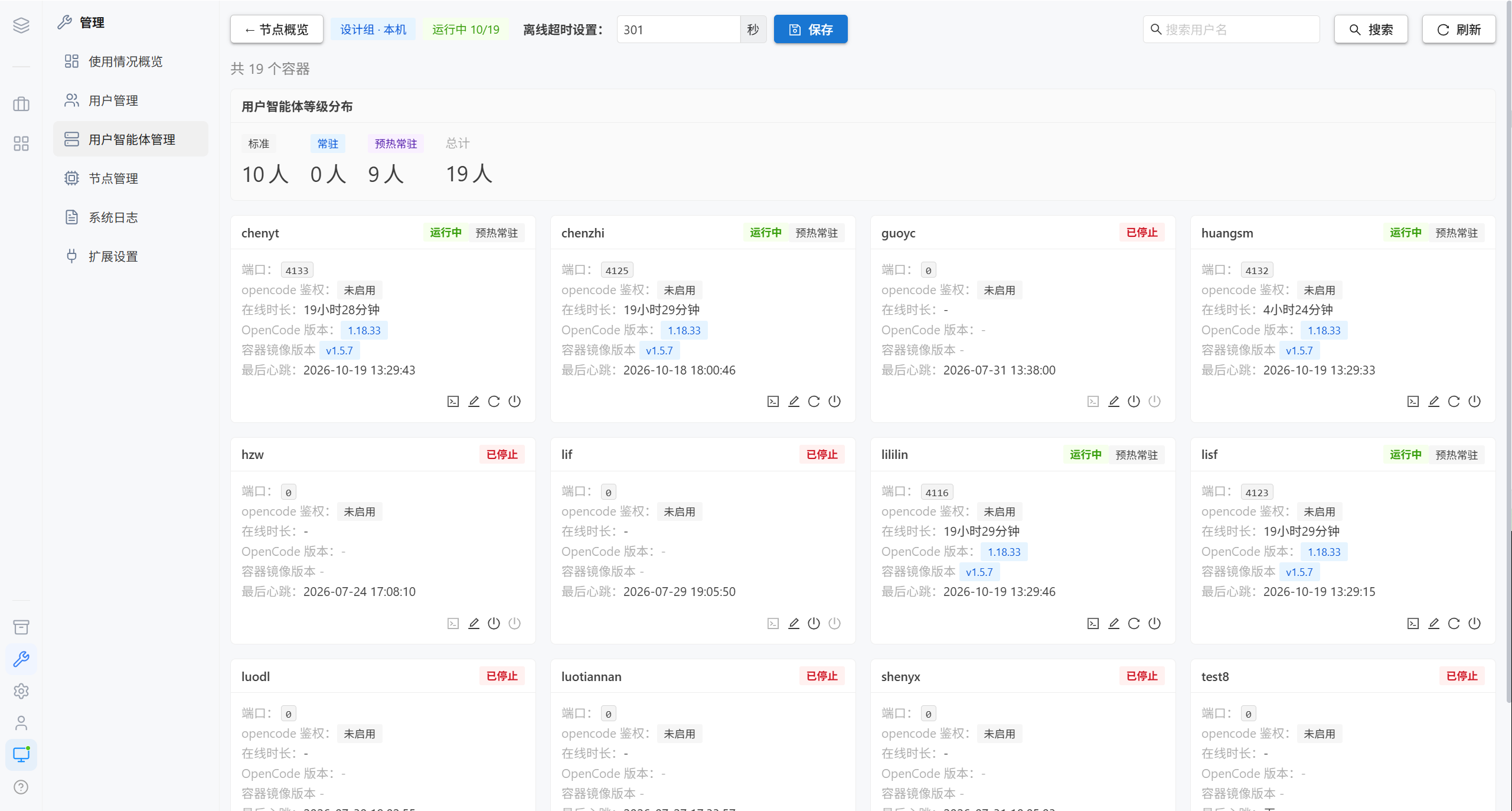
| Card field | Description |
|---|---|
| Status | Running / Stopped |
| Port | The port the container is mapped to on the host; "Auto" means it is assigned by the system |
| Rebuild required | The port does not match the current configuration; the container has to be rebuilt |
| opencode auth | Enabled / Disabled |
| Uptime | How long the container has been running |
| OpenCode version | The runtime version inside the container |
| Last heartbeat | The container's most recent liveness report |
4.1 Start and Stop Containers
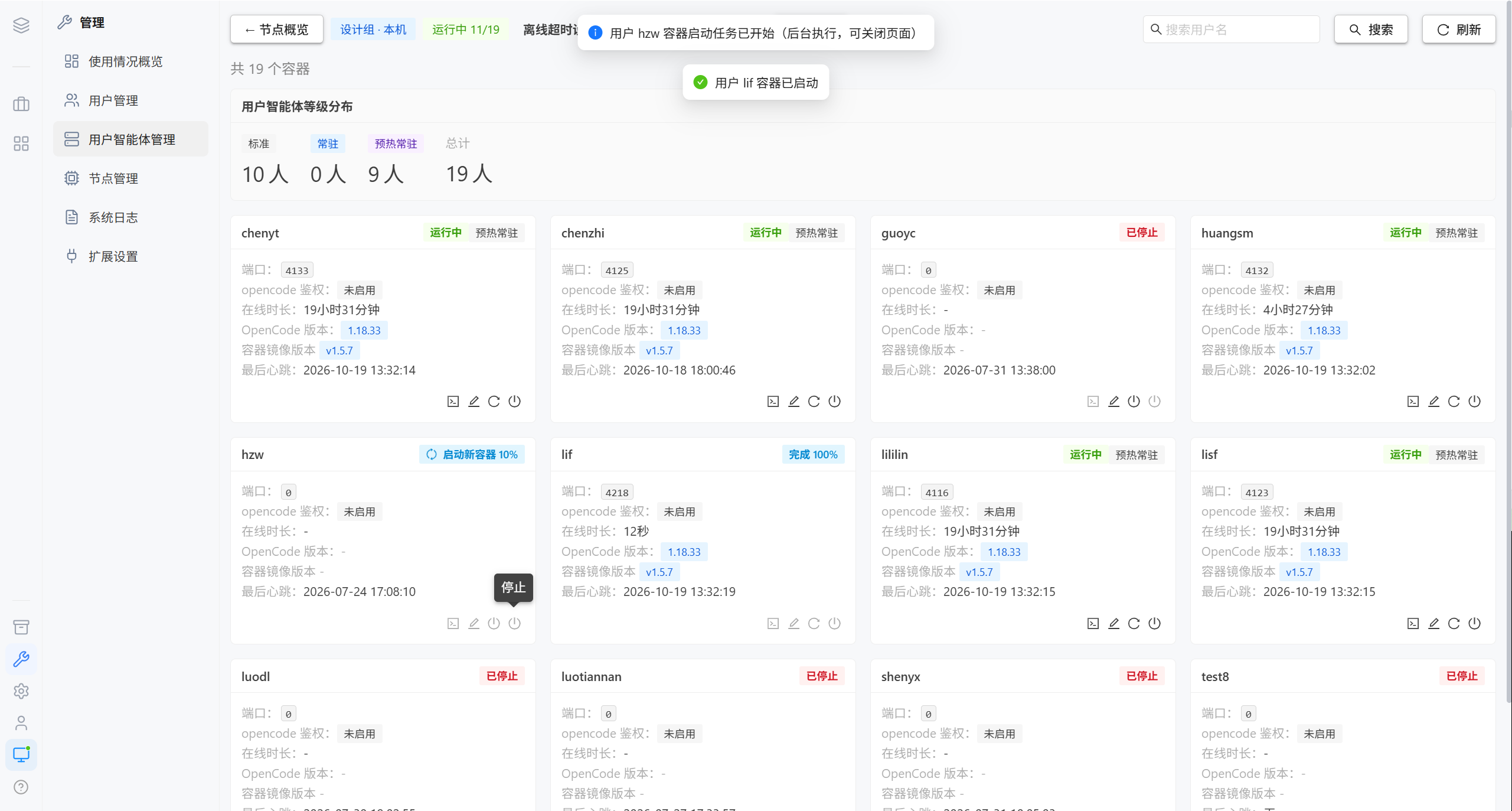
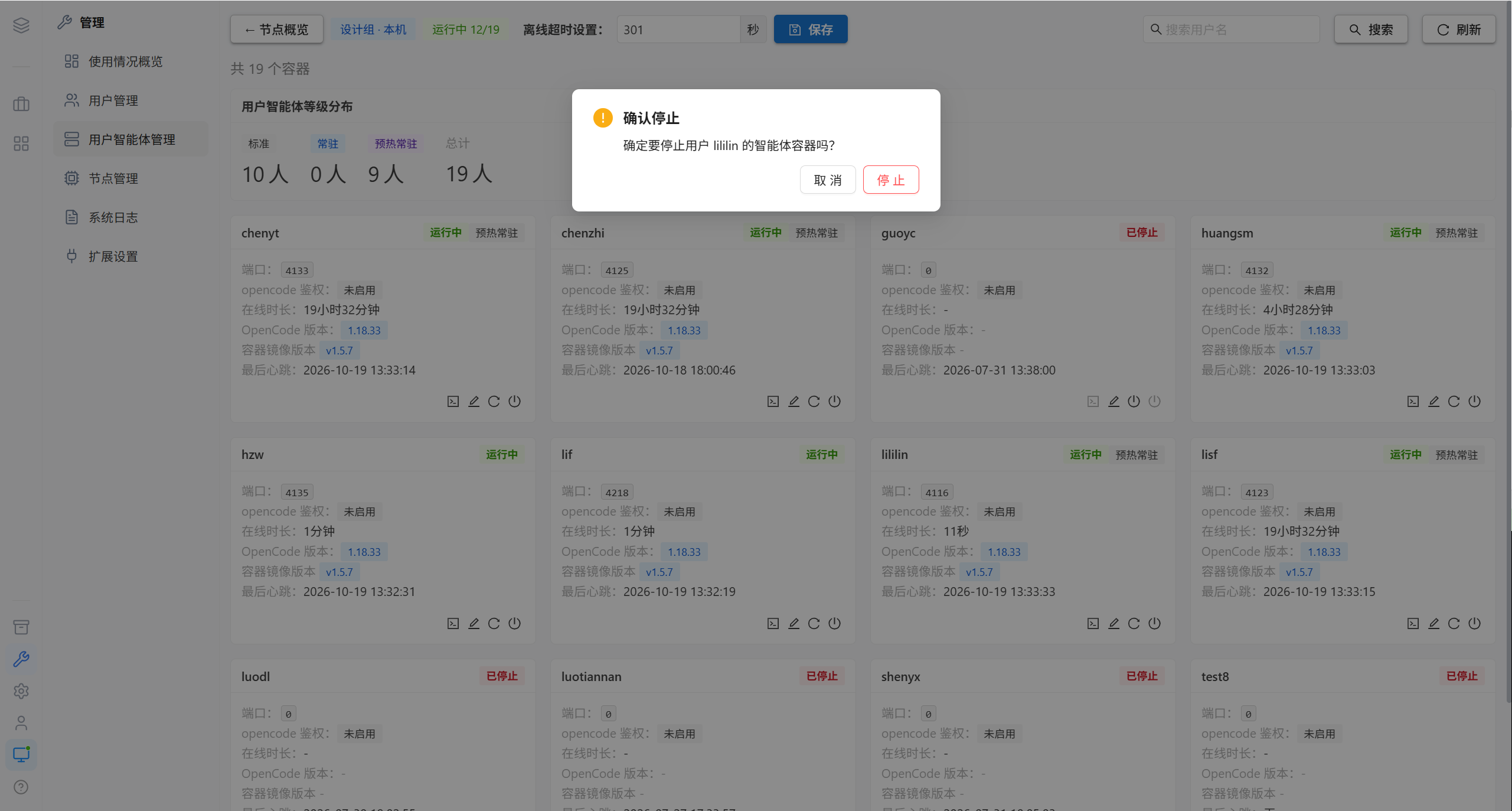
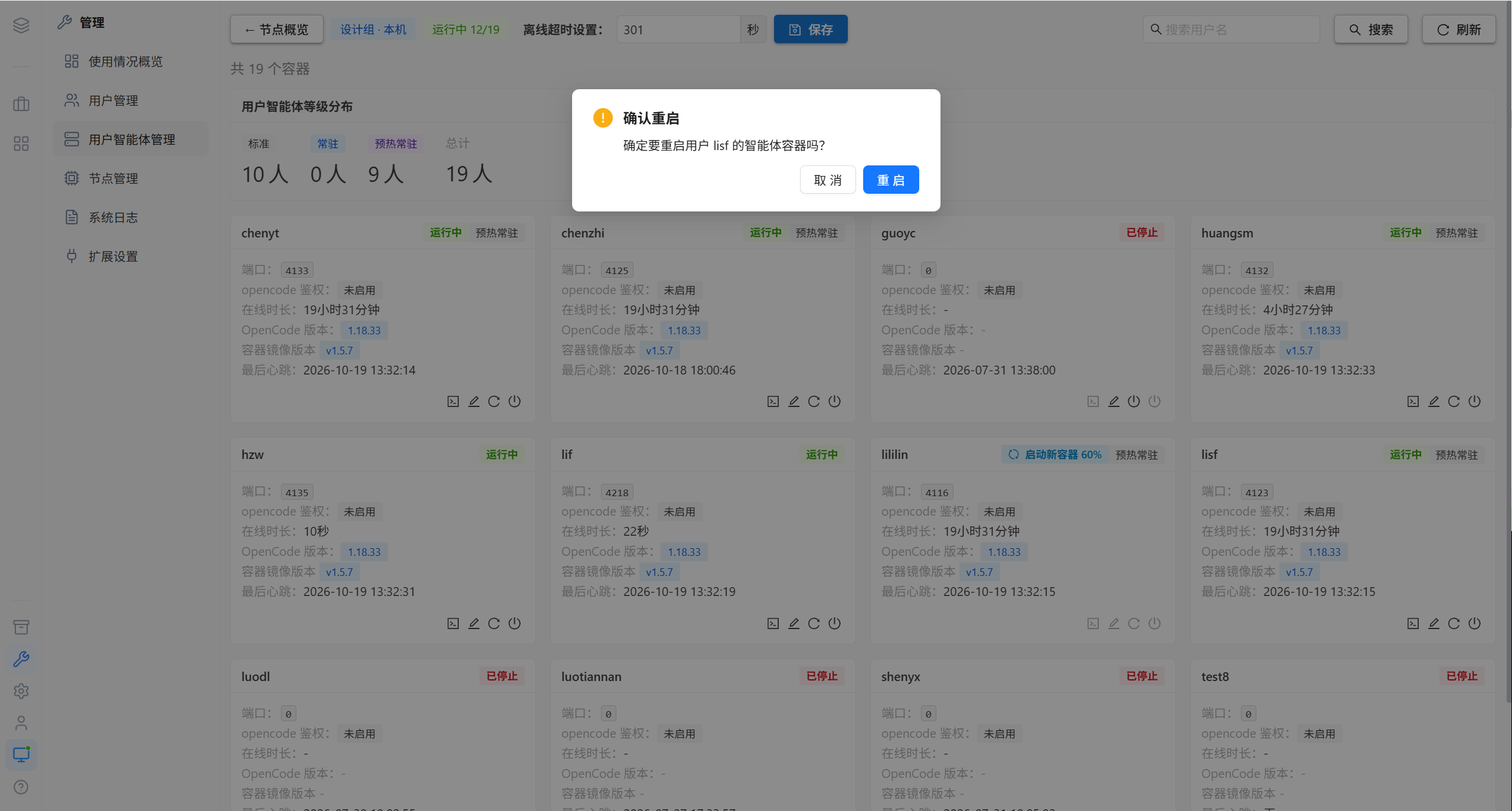
| Action | Effect |
|---|---|
| Start | Brings the container up. The first start requires a 30–90 second cold start |
| Stop | Stops the container; the workspace files are preserved |
| Restart | Restarts the container; sessions are preserved |
4.2 Terminal
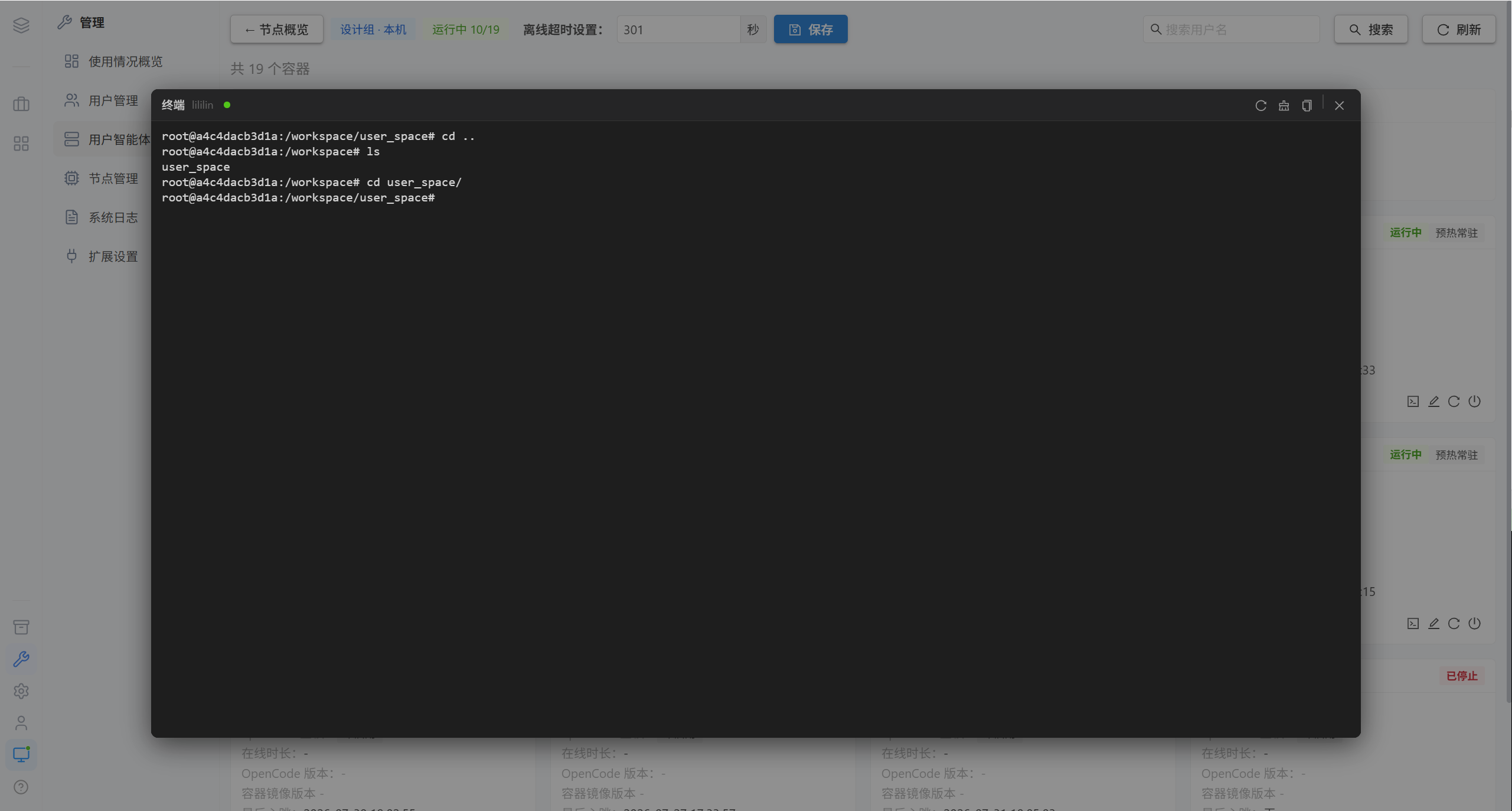
Opens a shell directly inside the container, used to troubleshoot OpenCode runtime issues.
Note · The terminal is the highest-privilege entry point; confirm the target container before operating.
4.3 Edit the User Configuration
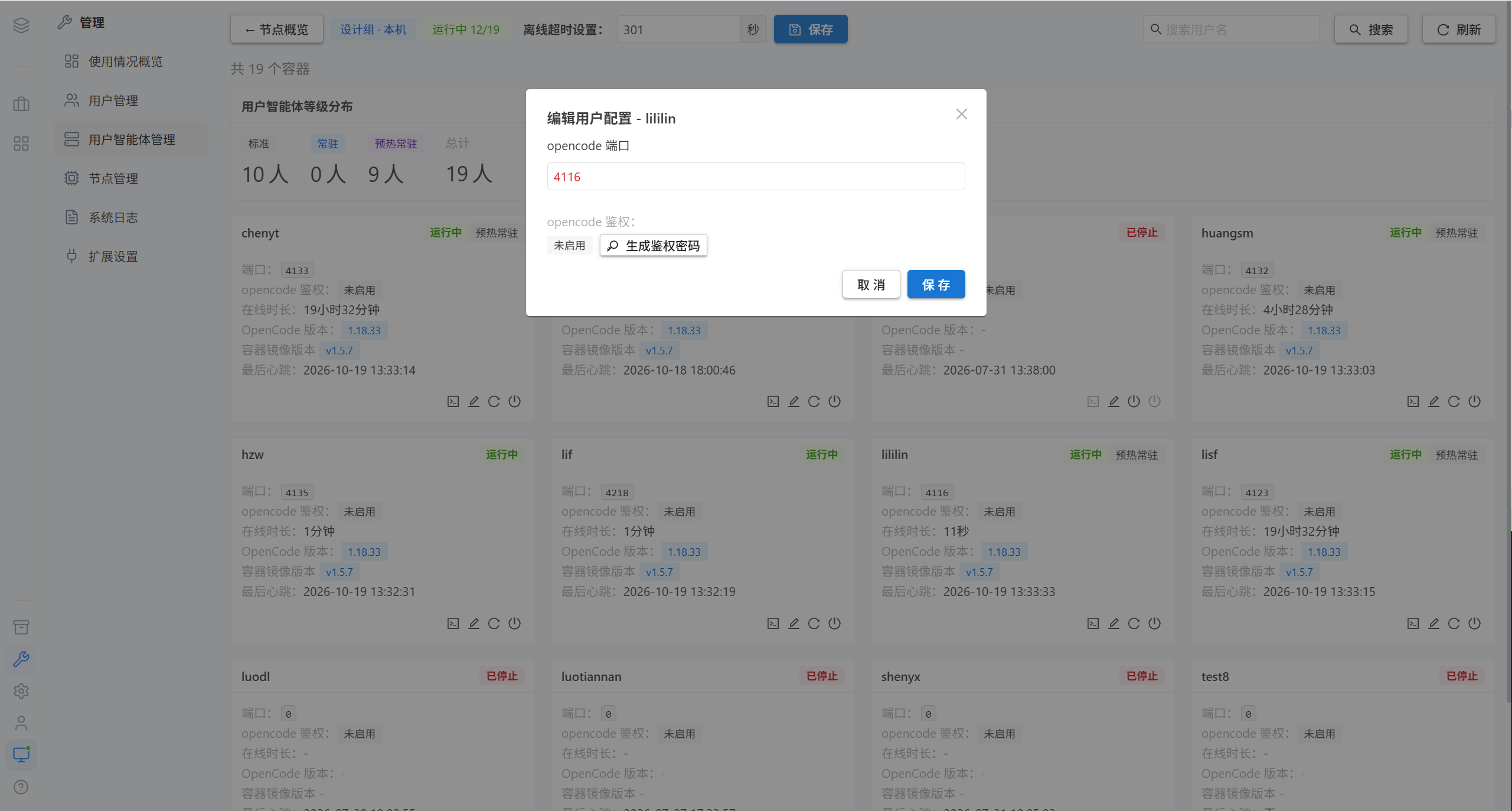
The setting that is adjusted most often here is the user AI agent tier (resource tier).
| Tier | Behavior | Resource cost |
|---|---|---|
| Standard | Starts on demand and shuts down automatically after a period of inactivity | Low |
| Always on | Starts on demand and stays online at all times, always ready to use | Medium |
| Pre-warmed always on | Stays online at all times, with a faster first response | High |
Note · When set to "Pre-warmed always on", the interface shows a resource cost warning. Every always-on container continuously occupies memory and CPU, so allocate them as needed.
Tip · You can review the number of users at each tier in the User AI Agent Tier Distribution.
5. Common Questions
| Symptom | Cause | Resolution |
|---|---|---|
| A user cannot see a certain repository / Skill / scene | The user has not joined the corresponding group | Edit the user to adjust the groups |
| A user is told "No AI agent container assigned" | No node is bound | Assign a node |
| A user is kicked offline after signing in | Single sign-on is enabled on the platform | Adjust the login policy |
| The old data is gone after a reassignment | The data on the old node was cleared | Not recoverable; always confirm before assigning |
| A port shows "Rebuild required" | The port configuration does not match the actual one | Rebuild the container |
| A username cannot be in Chinese | System-level limitation | Put Chinese text in the "Display name" field |
6. Related Pages
| Page | Content |
|---|---|
| Nodes & Upgrades | Node health, image strategy, and upgrades |
| Assets | The specific settings of resource authorization |