
Assets
Applicable roles: Administrators
Prerequisites: Git Repository Management has been configured
Assets are reusable team capabilities, divided into two categories: Skills (reusable working methods) and Important Documents (material shared by the team). Both use the company Git repository as their storage backend.
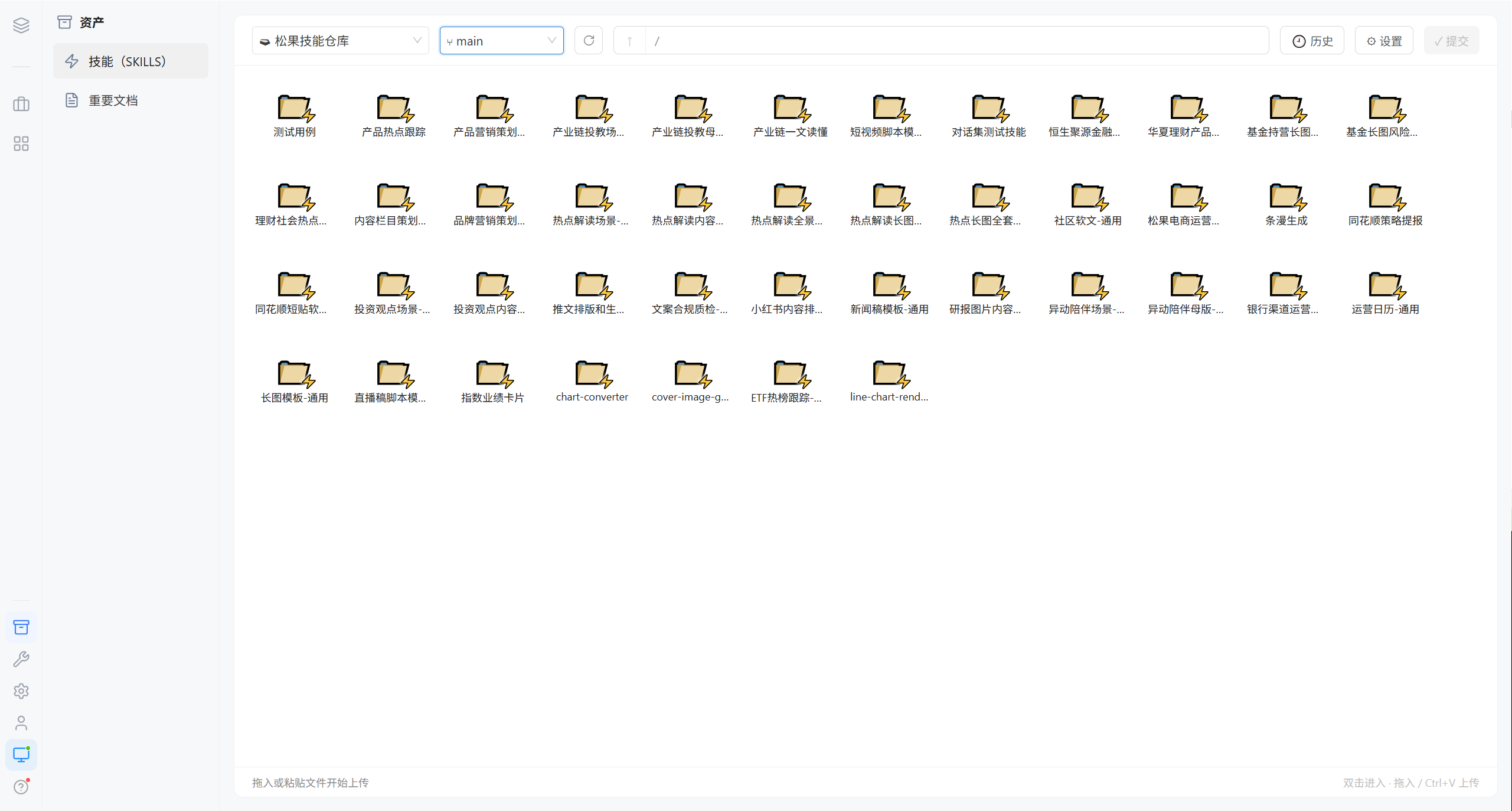
Who Can Do What
| Role | Action |
|---|---|
| Administrator | Maintains the asset library on this page: binding repositories, setting authorization, submitting changes, renaming |
| Regular user | Imports assets into their own workspace from the Workspace to use them |
1. Skills
1.1 Repository Settings: Deciding Which Repositories Are Skill Libraries
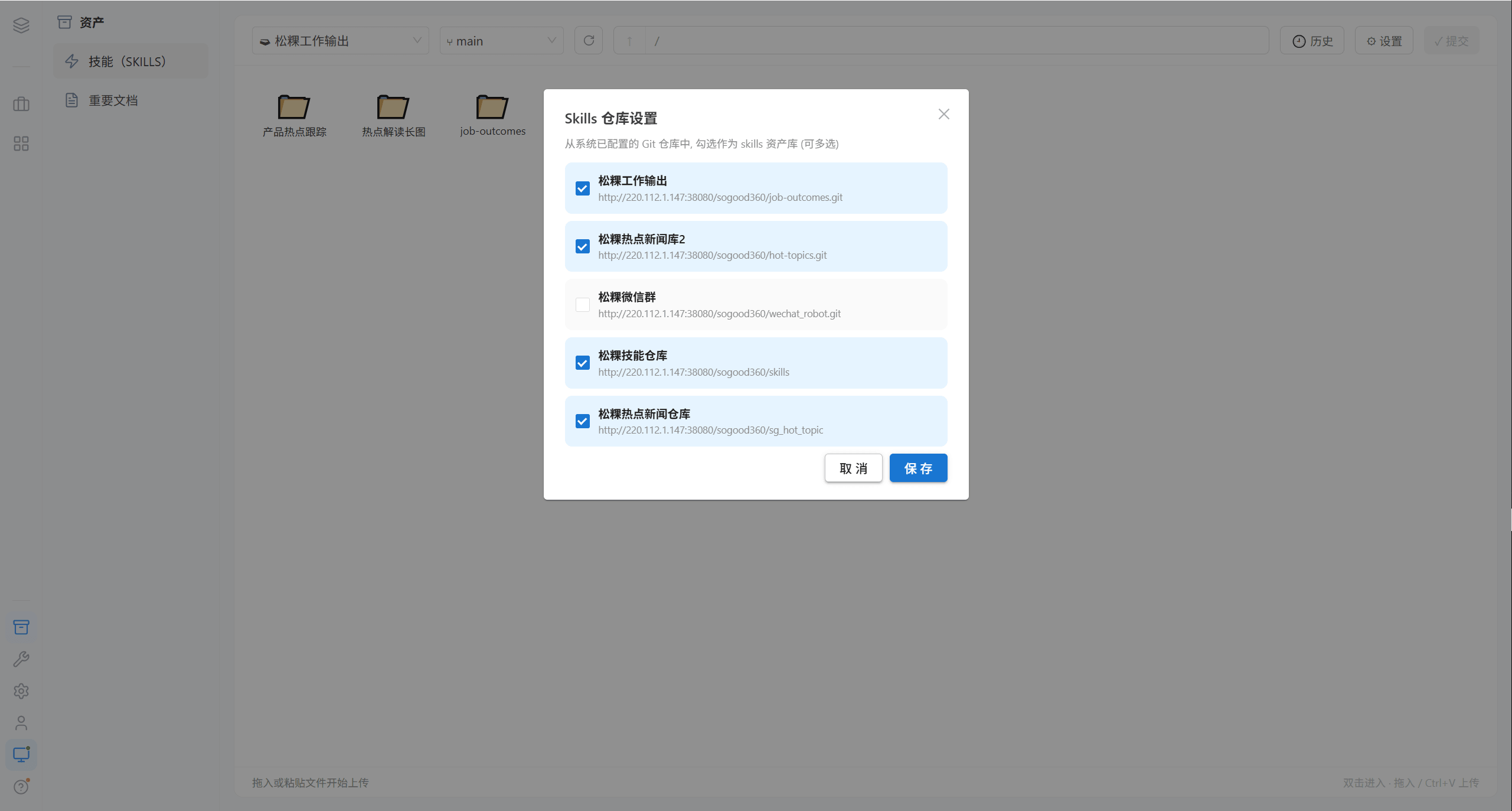
Select from the configured Git repositories; multiple selections are allowed. The selected repositories become skill asset libraries, and administrators can pick skills from them to import into users' workspaces.
| Change | Impact |
|---|---|
| Select a new repository | That repository immediately becomes a source of skill libraries |
| Unselect | Removed from the skill libraries. Skills already imported into users' workspaces are not affected |
1.2 Permission Settings: Directory-Level Authorization
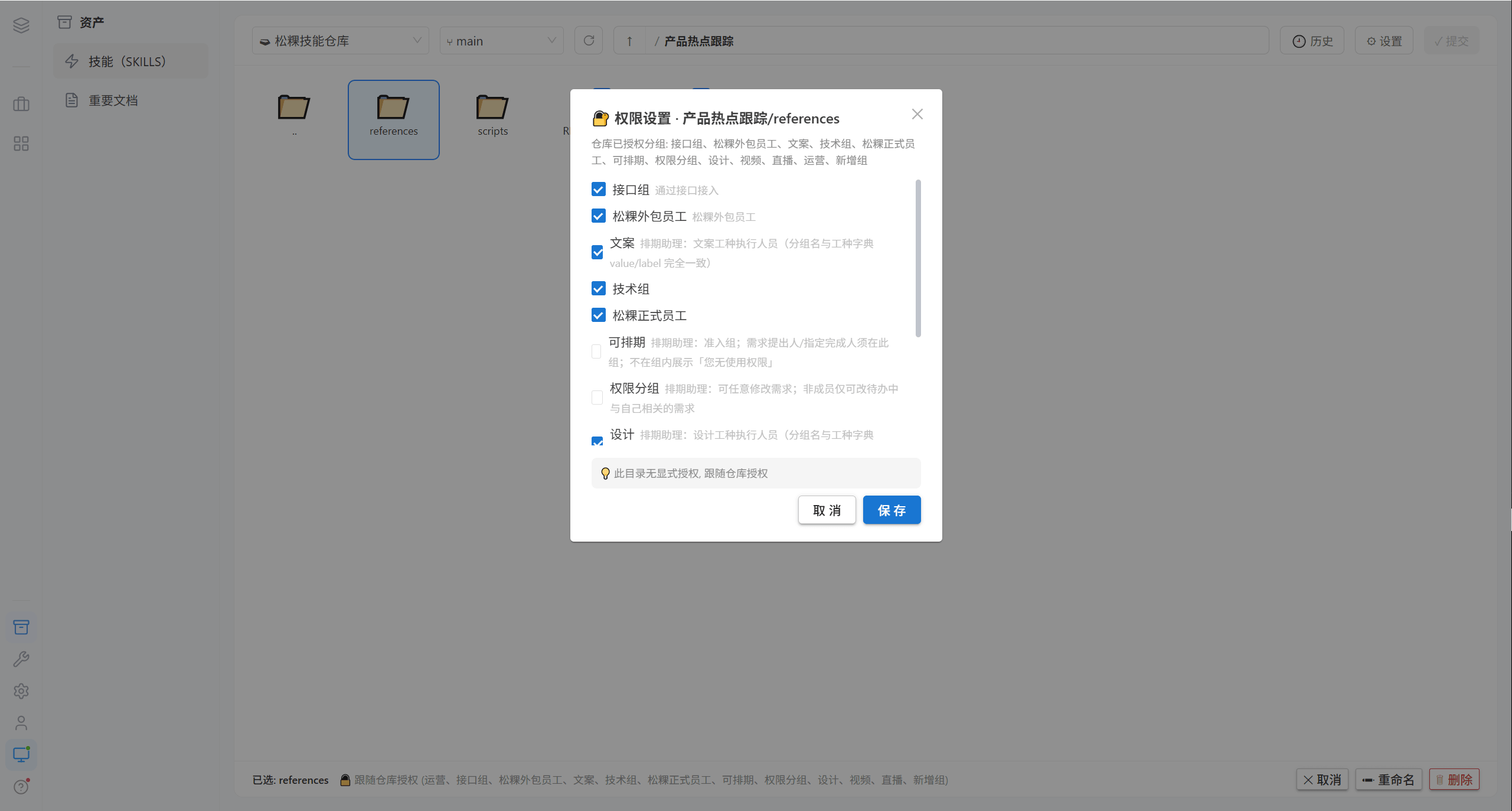
Skills are authorized per directory. Open the "Permission settings" of a skill directory and check the groups that may use that directory.
Dialog structure:
| Element | Meaning |
|---|---|
| Title | Permission settings · directory name |
| "Groups authorized for this repository" | The explanatory line at the top, listing which groups the repository as a whole is authorized for |
| Group checkboxes | Any number of groups can be checked, taking effect per directory |
| Yellow notice | Explains whether the current directory has explicit authorization or follows the repository |
| Cancel / Save | Takes effect immediately after saving |
Three authorization states:
| State | Notice text | Meaning |
|---|---|---|
| Explicit authorization | Explicitly authorized to XX (unchecking = revokes the permission, checking none = follows the repository) | Groups are assigned to this directory individually |
| Follow the repository | This directory has no explicit authorization and follows the repository authorization | The directory is not set individually, so it takes the repository's authorization scope |
| Public | Public (visible to all groups) | Open to all groups |
Note · Checking none = follows the repository authorization, not "nobody can use it". To completely close off access, remove the repository's group authorization in Repository Management.
1.3 Commit to the Remote
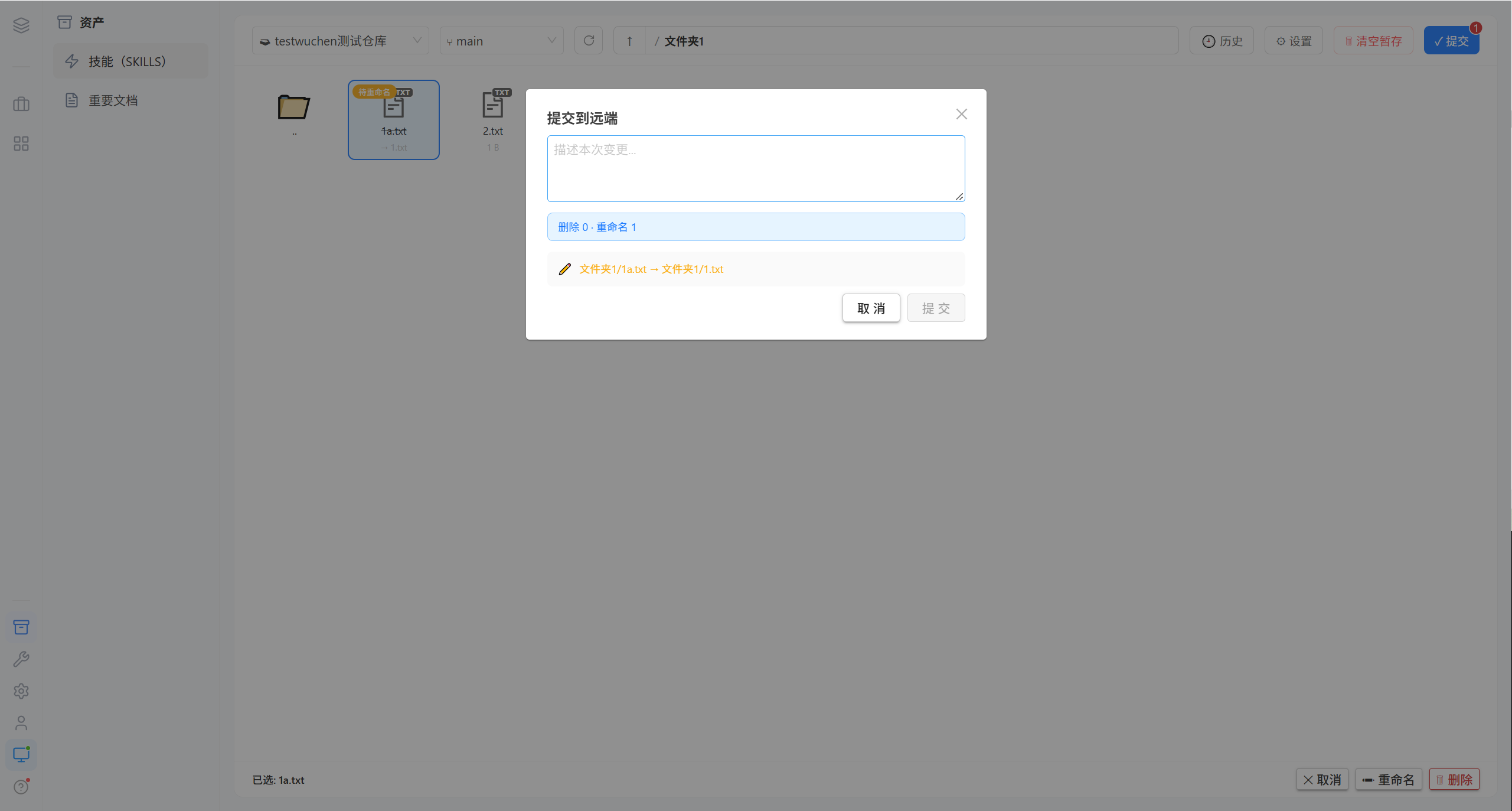
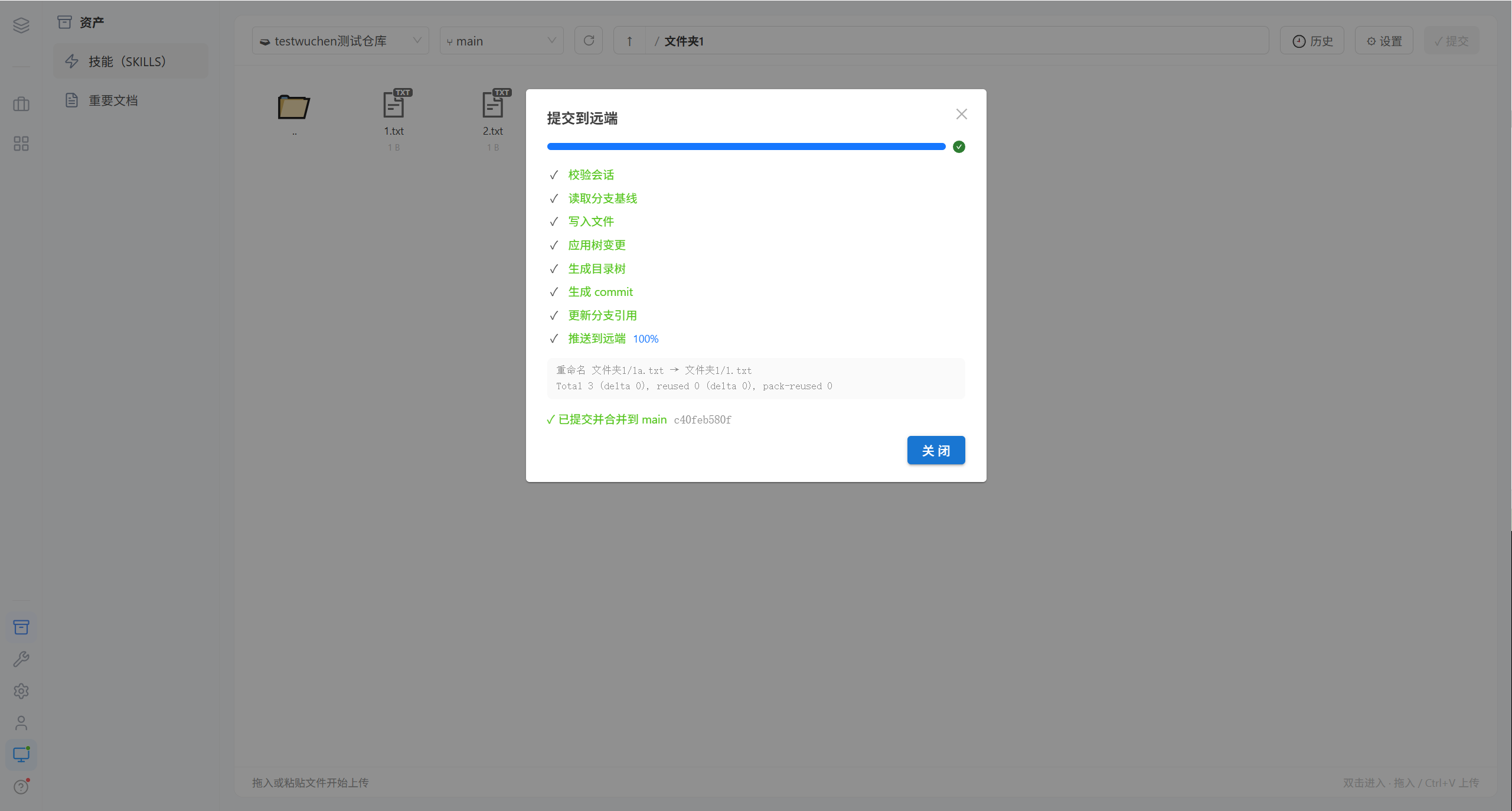
Changes such as deletions and renames in the asset library do not take effect automatically; they must be committed back to the Git remote.
| Field | Description |
|---|---|
| Describe this change | The commit message, describing what was changed this time |
| Change statistics | Of the form "Delete 0 · Rename 1" |
| Change details | Lists path changes one by one, such as "Folder1/1a.txt → Folder1/1.txt" |
Note · Committing triggers a series of validation steps (validate → read the directory tree → update the index → write the directory tree → commit the directory tree → update references → push → merge). If any step fails, the process is interrupted and a retry entry point is provided.
1.4 Rename a File
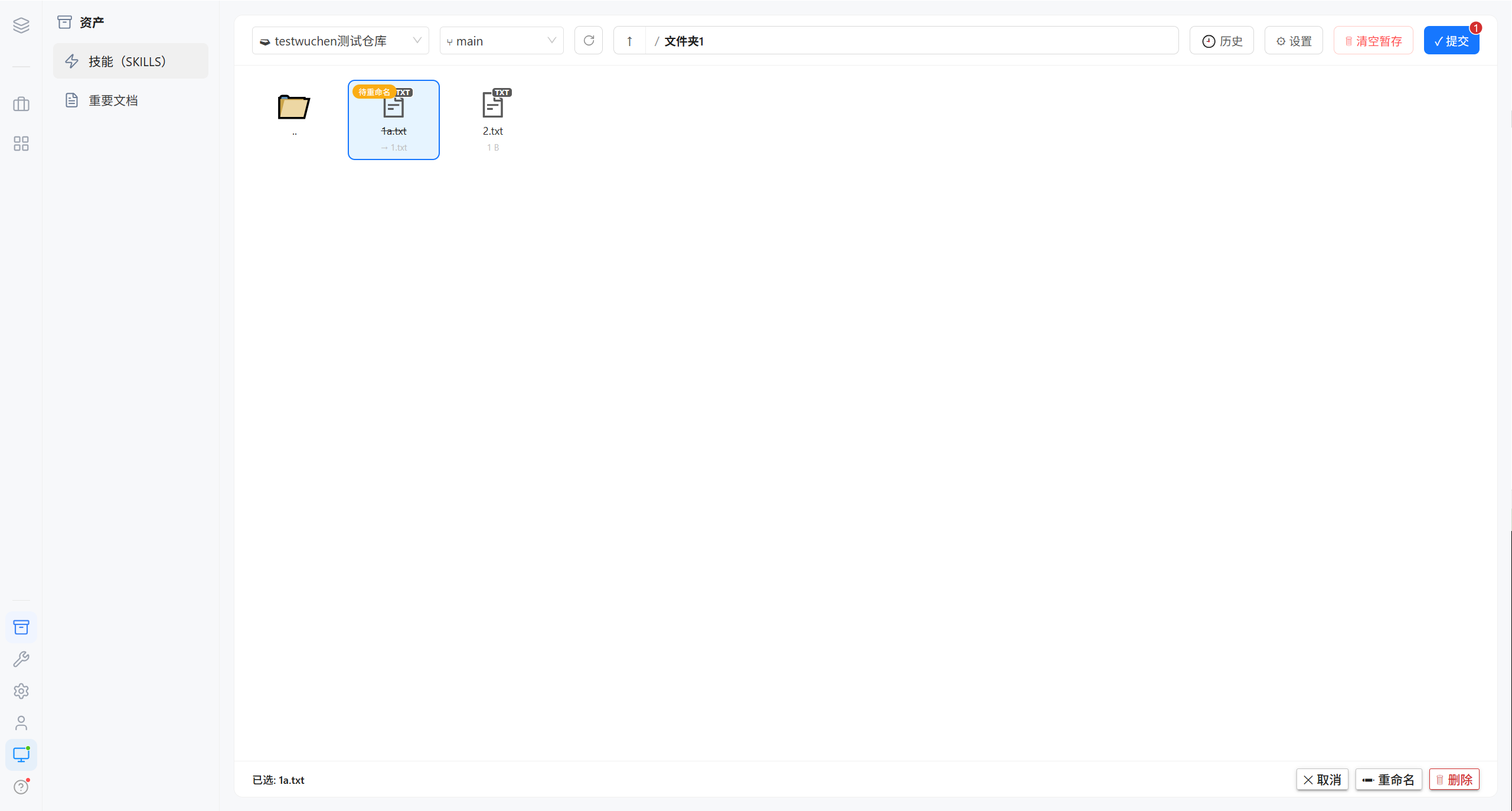
Renaming is also a pending change, and it only takes effect for others after it is committed to the remote.
1.5 Context Menu
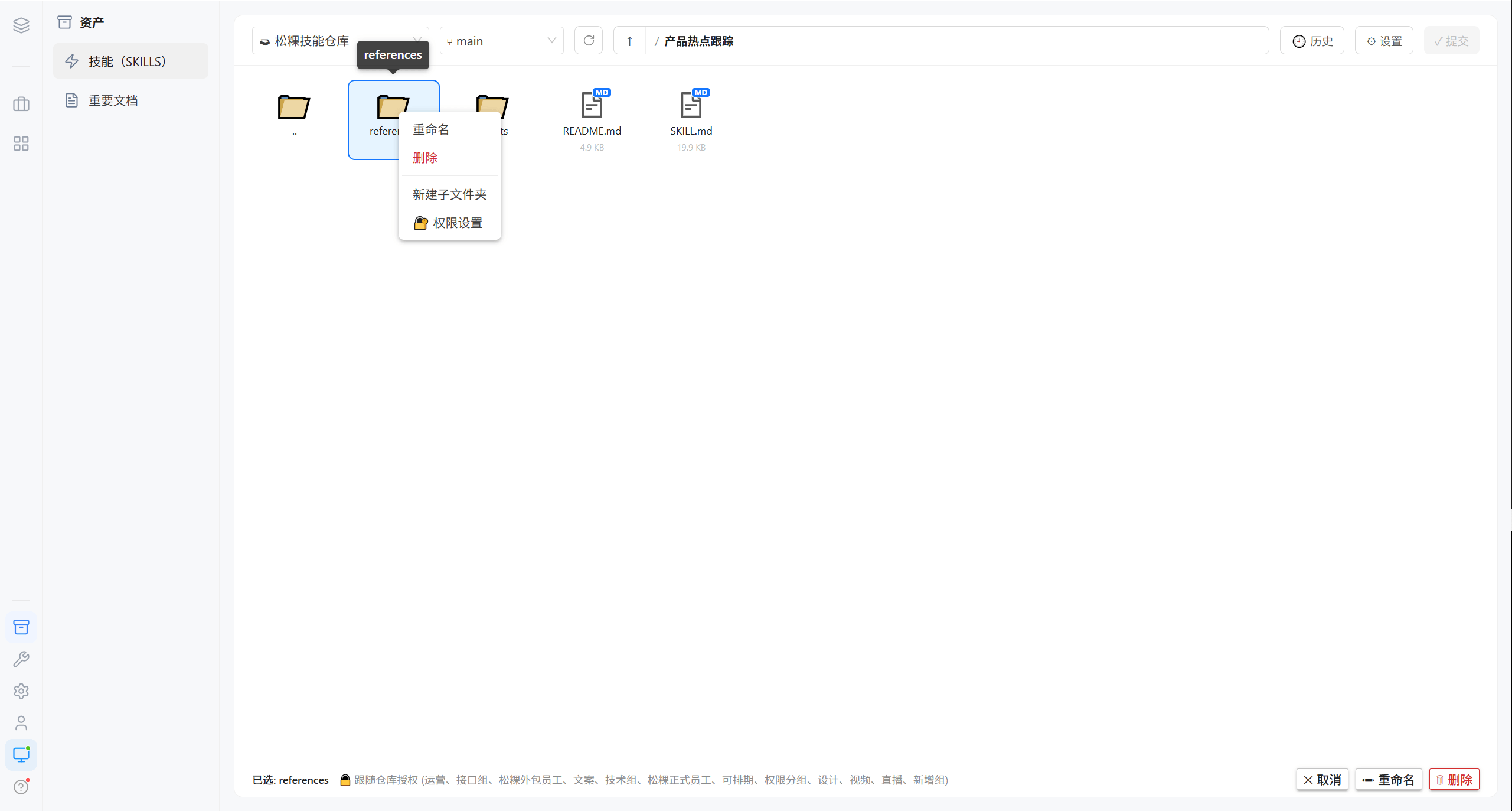
| Menu item | Action |
|---|---|
| Rename | Rename a skill file or directory |
| Permission settings | Open the group authorization for that directory |
| Commit to repository | Open the commit dialog |
| Delete | Delete a skill file or directory |
2. Important Documents
2.1 Document Directory
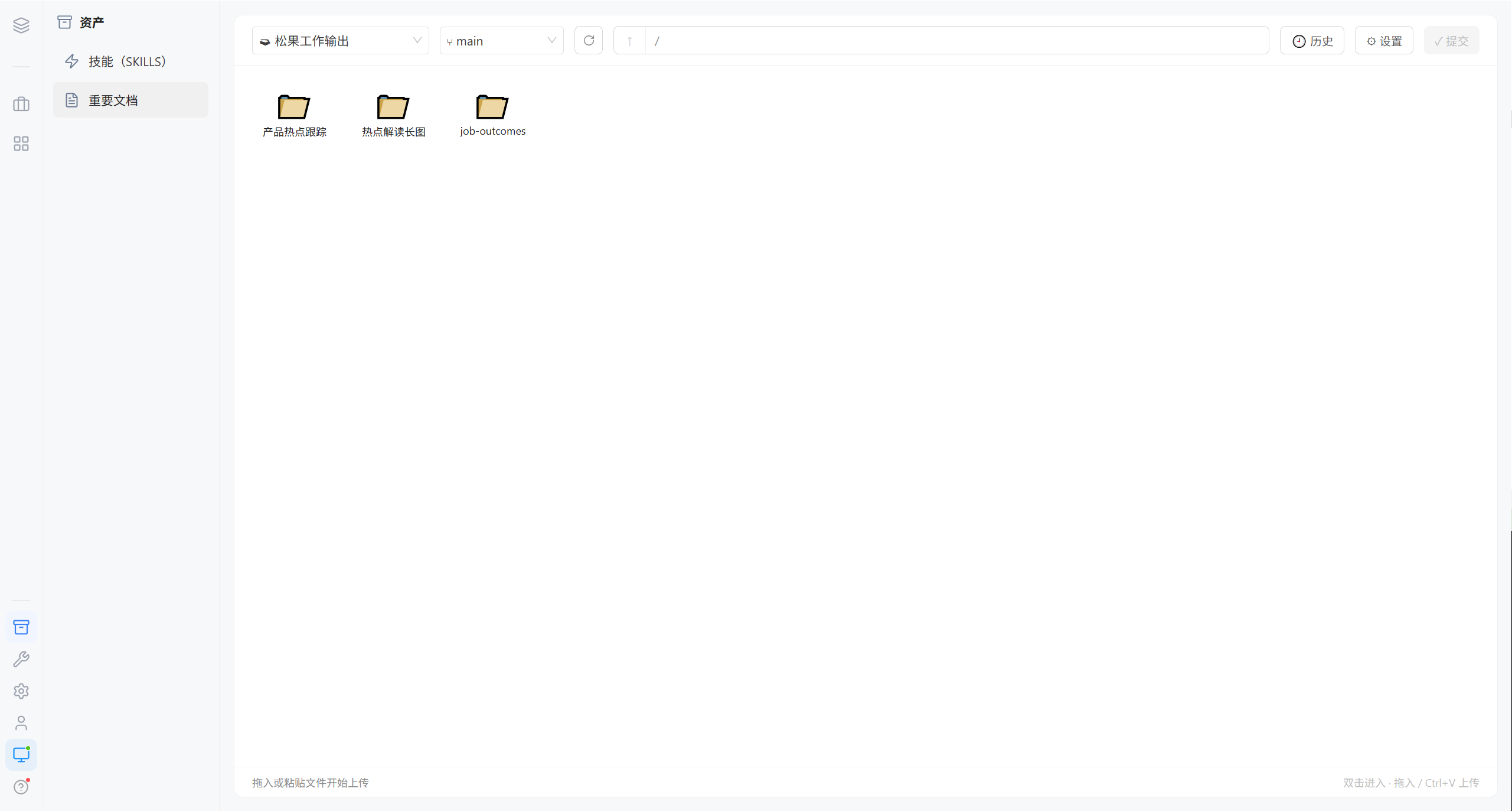
The structure is the same as for skills: a directory tree + file entries.
2.2 Repository Settings
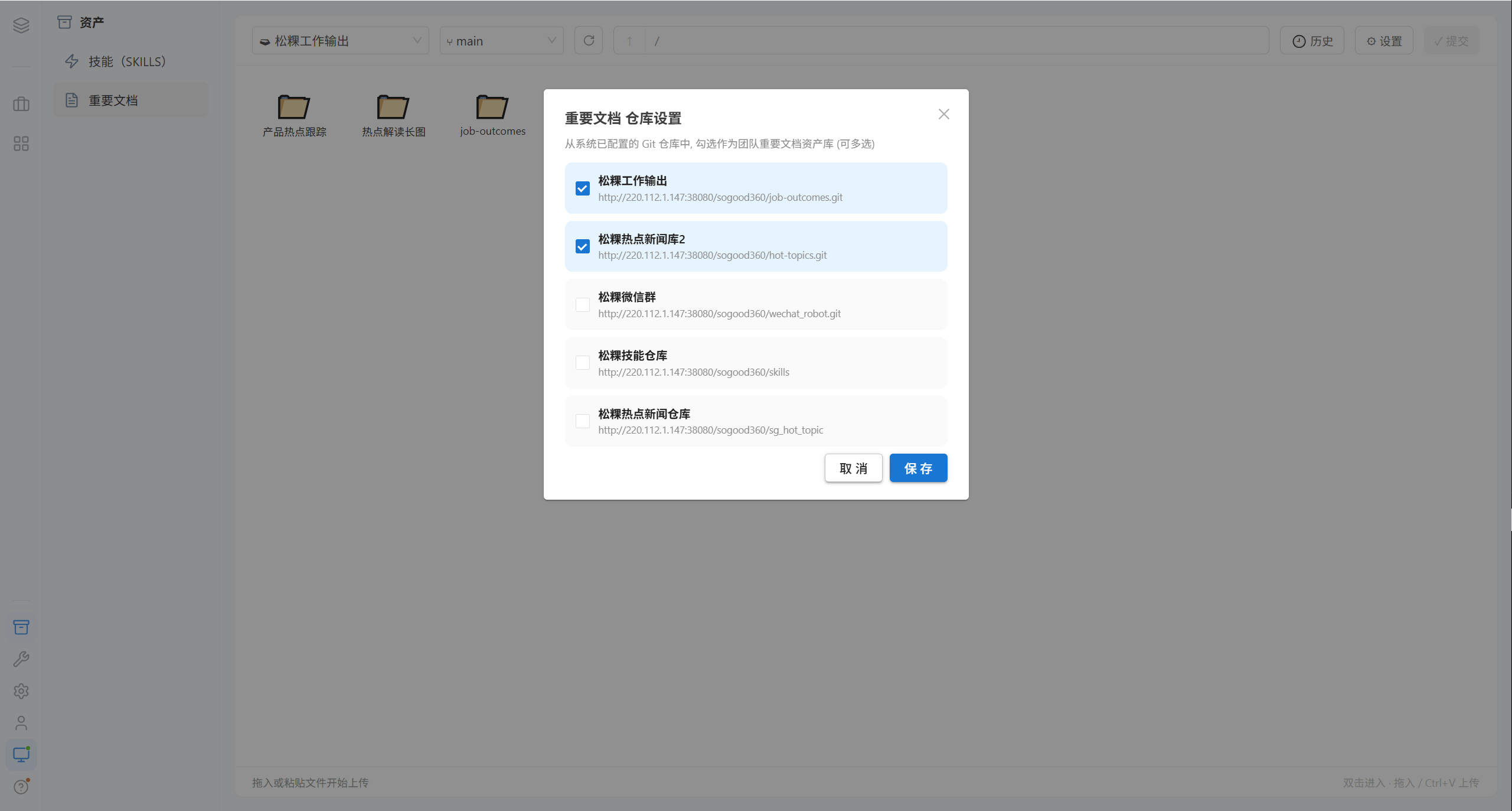
From the Git repositories already configured in the system, check the ones to serve as the team's important document asset library (multiple selections are allowed)
| Element | Description |
|---|---|
| Checkbox | One per configured repository, with the repository URL attached for easy identification |
| Cancel / Save | Takes effect immediately after saving |
2.3 Context Menu
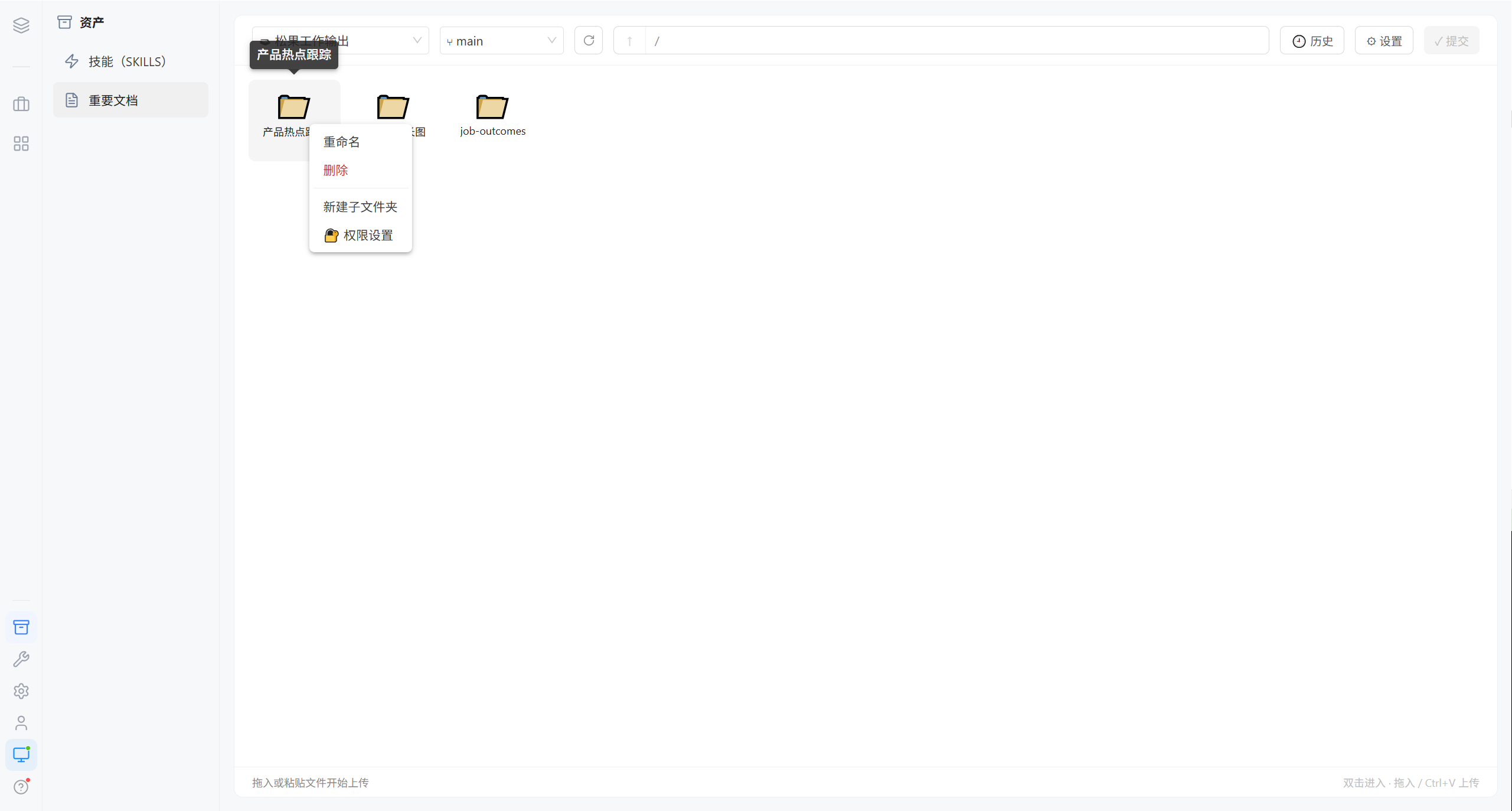
| Menu item | Action |
|---|---|
| Rename | Rename a document or directory |
| Permission settings | Open the group authorization for that directory |
| Commit to repository | Open the commit dialog |
| Delete | Delete a document or directory |
3. Versions and Updates
Important documents support version detection. After they are imported into the workspace, they are marked "Update available" when the source repository has new commits, and can be updated with one click. 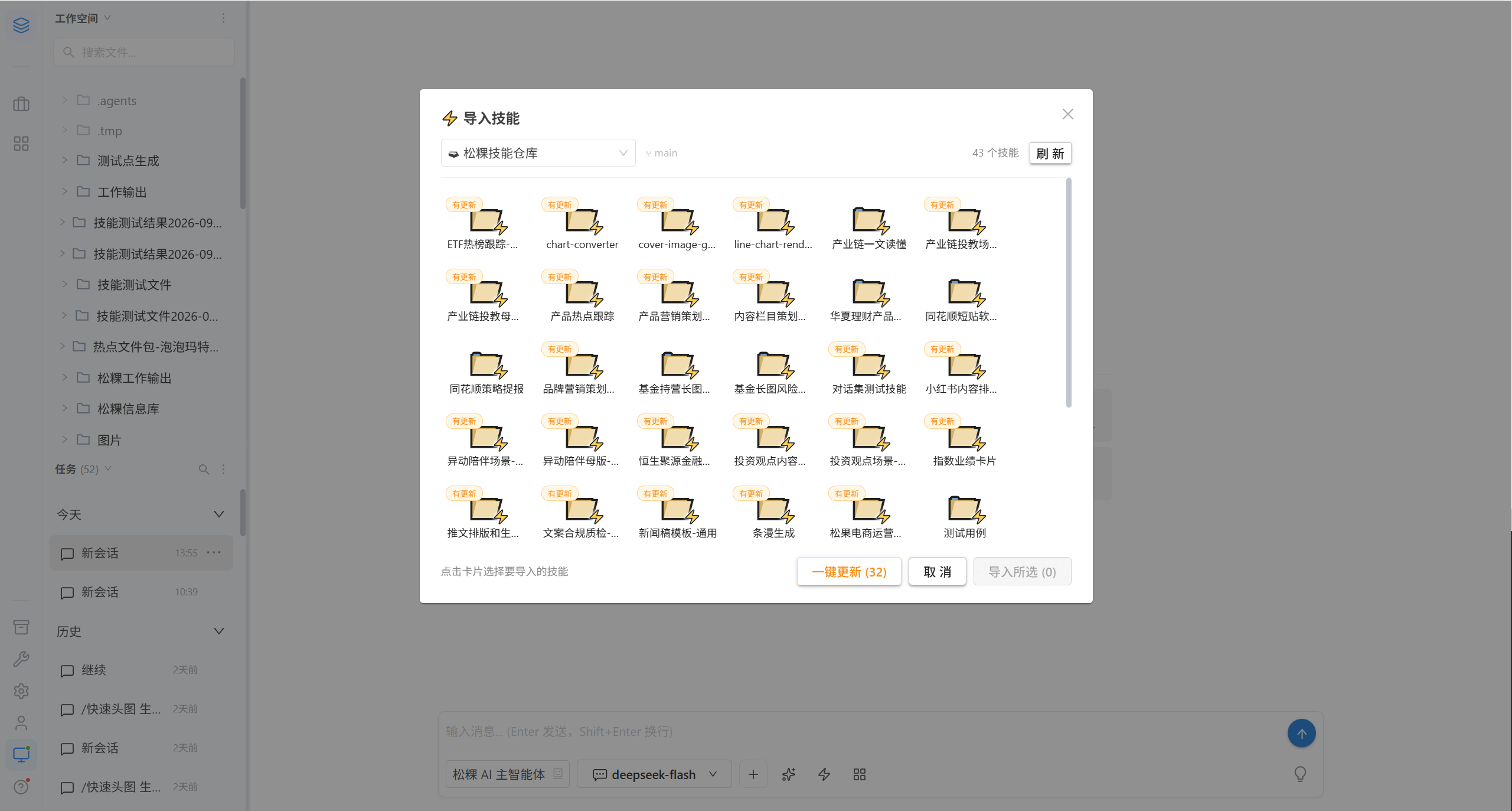
| Marker | Meaning |
|---|---|
| Imported | The version in the workspace matches the one in the repository |
| Update available | An updated version is available in the repository and can be synced with one click |
Skills support the same mechanism.
4. Common Questions
| Symptom | Cause | Resolution |
|---|---|---|
| A user cannot see a certain skill in the workspace | That directory is not authorized for the user's group | Permission settings |
| After unchecking everything, the user can still use it | Checking none = follows the repository authorization | Remove the repository authorization in Repository Management |
| The commit button cannot be clicked | The change description is empty | Fill in the description and commit again |
| The commit is interrupted | The validation or push step failed | Click "Retry" as prompted |
| An imported skill did not disappear after the repository settings changed | Removing the repository binding does not affect imported copies | Delete it manually inside the user's workspace |
5. Related Pages
| Page | Content |
|---|---|
| Integration configuration | Register Git repositories and configure SSH / HTTP credentials |
| Workspace · Import Skills and Important Documents | Importing and using them on the user side |
| Capability configuration | Configuration of AI agents, scenes, plugins, and MCP |