
Quick Start
Applicable roles: All users
Prerequisites: You have received the platform access address and account; see Installation and Deployment
Estimated time: 5 minutes
1. Sign In
Open the platform address provided by the administrator in your browser (by default http://<server IP>:9620), then enter your account and password to sign in.
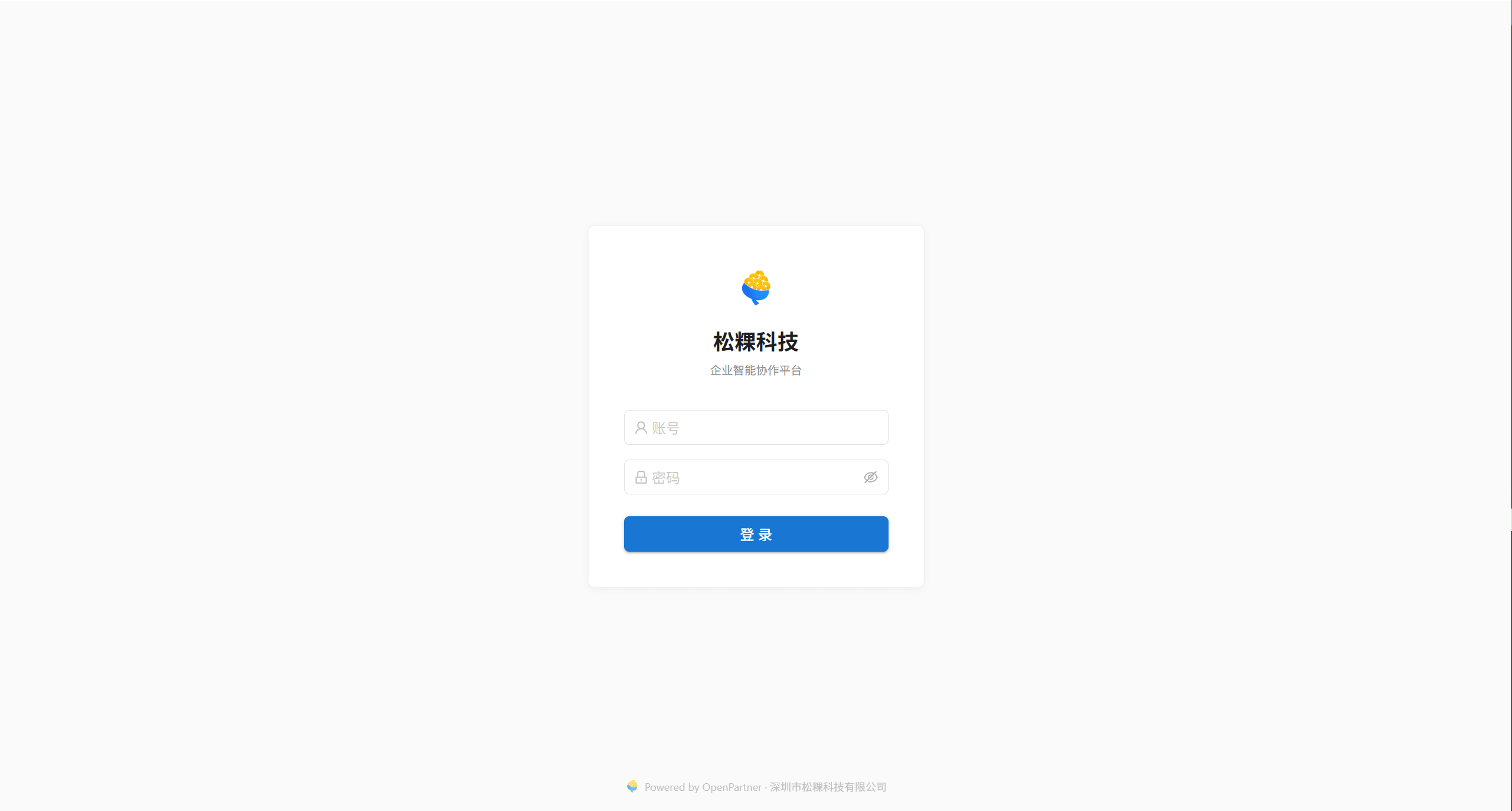
| Element | Description |
|---|---|
| Organization logo | Uploaded by the administrator in Organization Settings; not displayed if left blank |
| Organization short name | Displayed below the logo; not displayed if left blank |
| Account | 3–30 characters, starting with a letter, and may contain letters, digits, underscores, hyphens, and dots; Chinese is not supported |
| Password | On the first sign-in, use the initial password issued by the administrator |
| Sign in | After submission, redirects automatically to "Workspace" |
Note · An account is bound to a node. After you sign in, the system automatically routes you to your node, so there is no need to select one manually.
2. Interface Tour
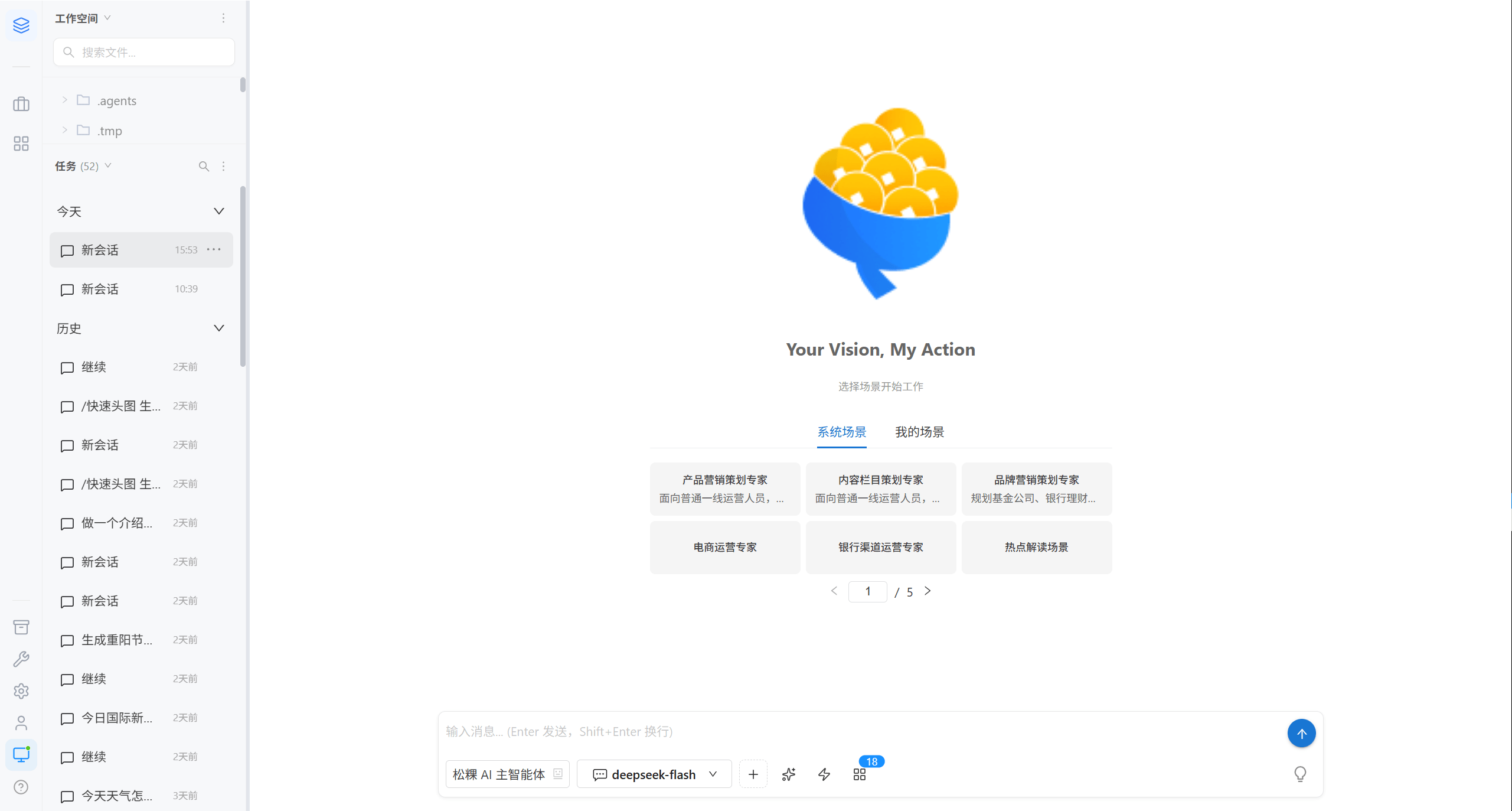
| Number | Section | Description |
|---|---|---|
| ① | Vertical navigation bar | The icon bar on the left, for switching between Workspace / Assets / Administration / Settings / Extensions; the account menu is at the bottom |
| ② | Workspace panel | Upper left, the file directory tree of your workspace |
| ③ | Task list | Lower left, all of your sessions, grouped by Today / Yesterday / History |
| ④ | Conversation area | The center, multi-turn conversations with the AI, including the reasoning chain, tool invocations, and artifacts |
| ⑤ | Input area | The bottom of the conversation area, where the AI agent, model, Skills, scenes, MCP, and attachments live |
3. Finish Your First Task in 5 Minutes
Step 1 · Confirm the AI Agent and Model
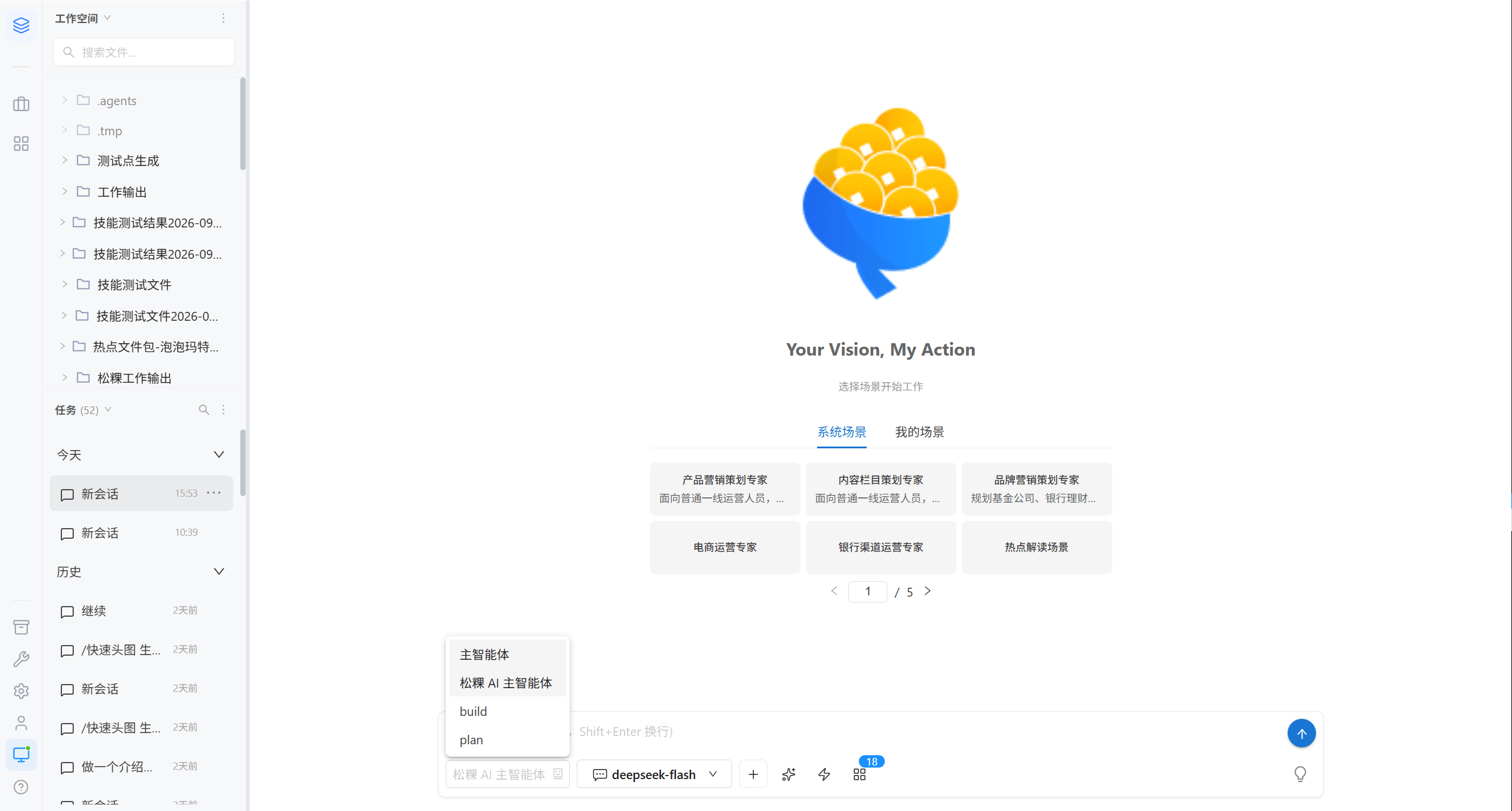
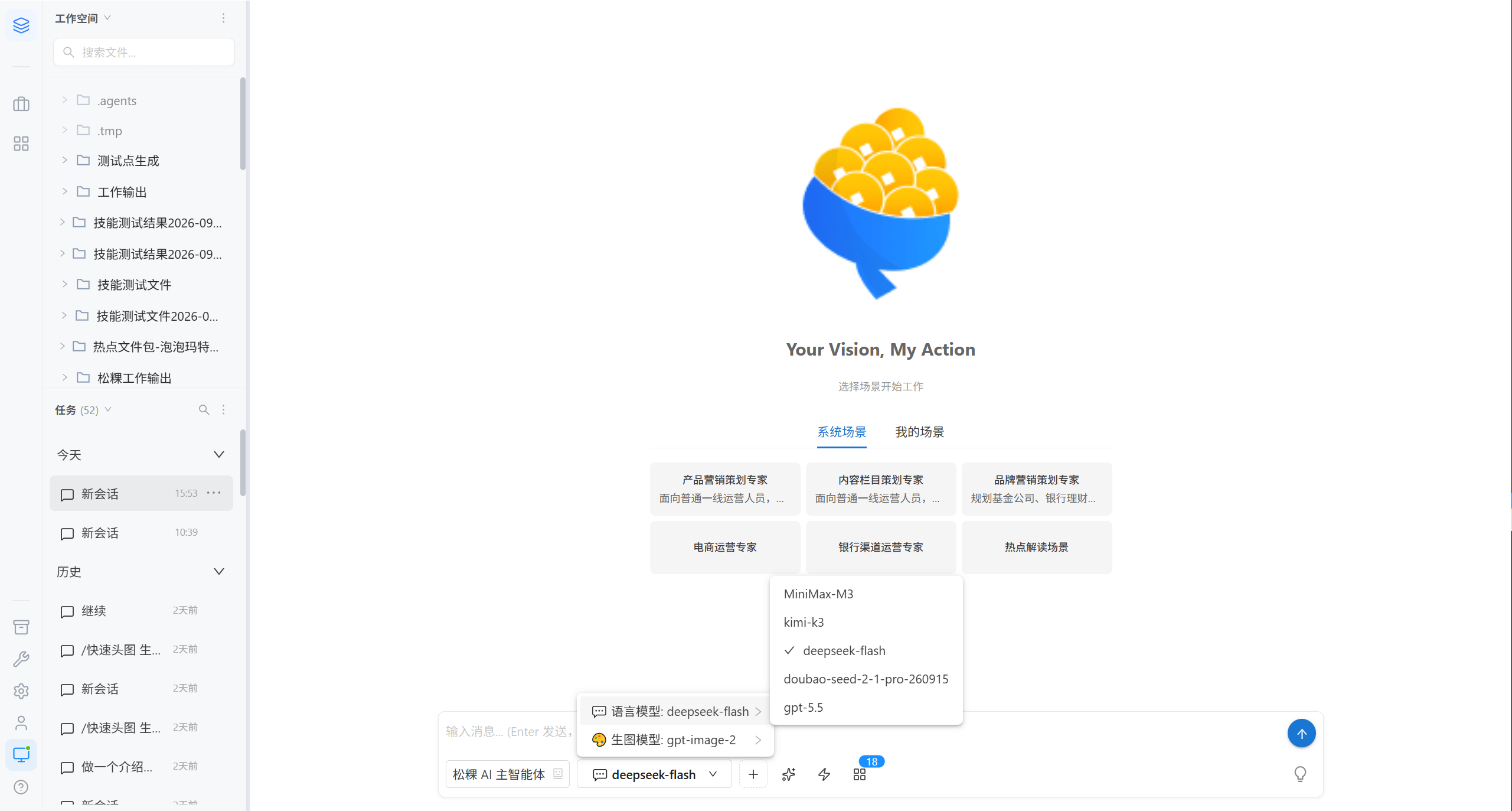
The first dropdown in the lower-left corner of the input area is the AI agent, and the second is the Model.
| Dropdown | Default | Description |
|---|---|---|
| AI agent | Main AI agent | Determines the role, prompt, and callable tools of the AI; configured by administrators |
| Model | System default model | Determines which large model is used. A language model is required; an image generation model is only needed when you want to produce images |
Note · If the input box cannot send, the interface shows "The system has not configured a language model yet" or "No AI agent container assigned", which means the administrator has not finished the configuration; please contact the administrator.
Step 2 · Describe What You Need
Simply state in the input box what you want to do, for example:
Read the Q3 retrospective materials in the workspace and organize them into a 5-page briefing outline| Shortcut | Action |
|---|---|
Enter | Send the message |
Shift + Enter | Insert a line break |
Step 3 · Watch the AI Work
The conversation area shows the AI's execution process in real time:
| Element | Meaning |
|---|---|
| Thinking | Expand to view the reasoning chain of the AI |
| Tool: xxx completed | The AI invoked a tool (read a file, run a command, run a Skill, and so on) |
| Answer | The final output of the AI |
Tip · When the process is long, you can collapse the "Thinking" section and read only the conclusion.
Step 4 · Collect the Artifacts
Files generated by the AI appear under Right Panel → Session-related Files, and you can open or download them directly.
4. Account Menu
Click the avatar in the lower-left corner to open it.
Sign Out
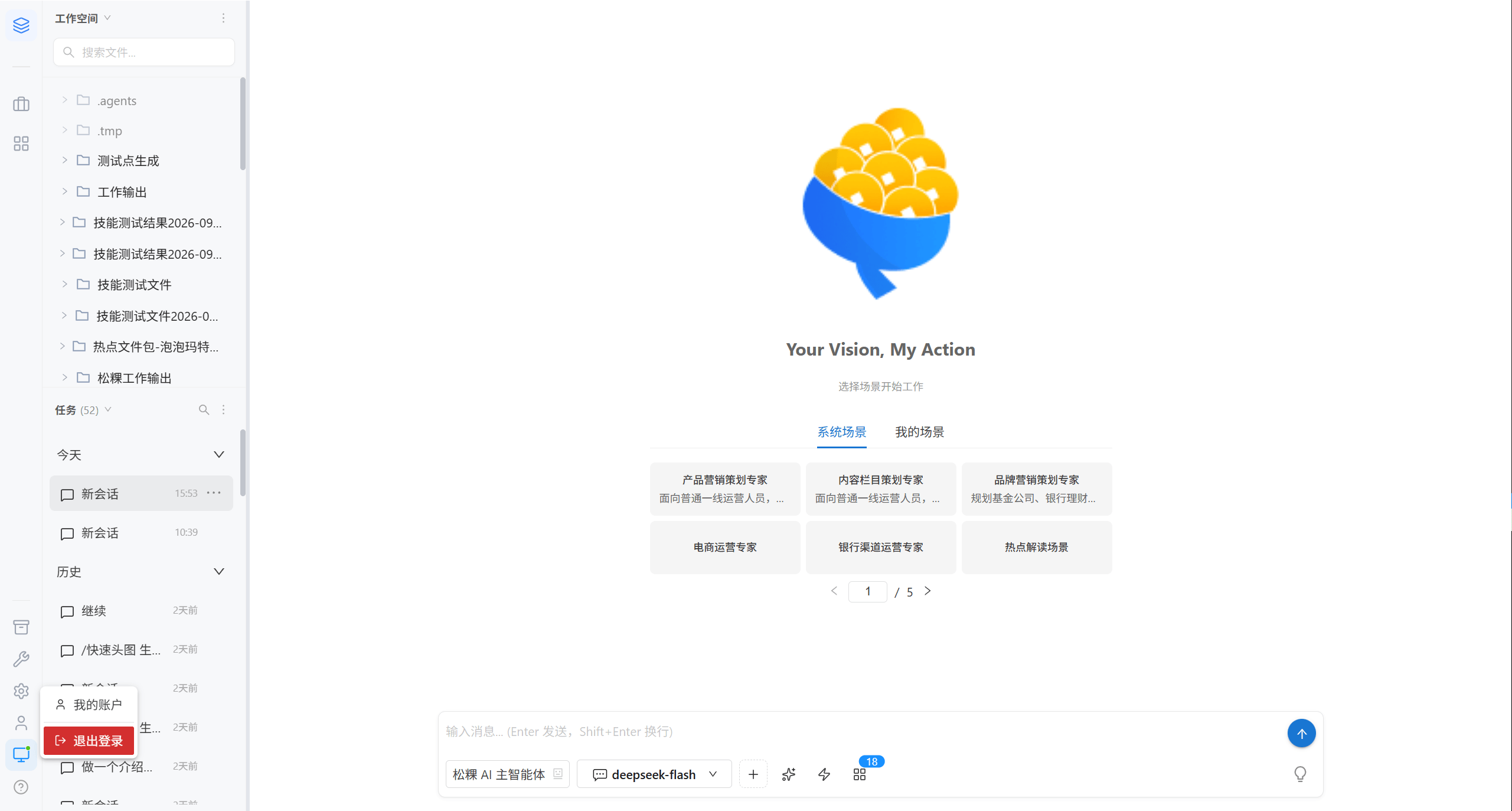
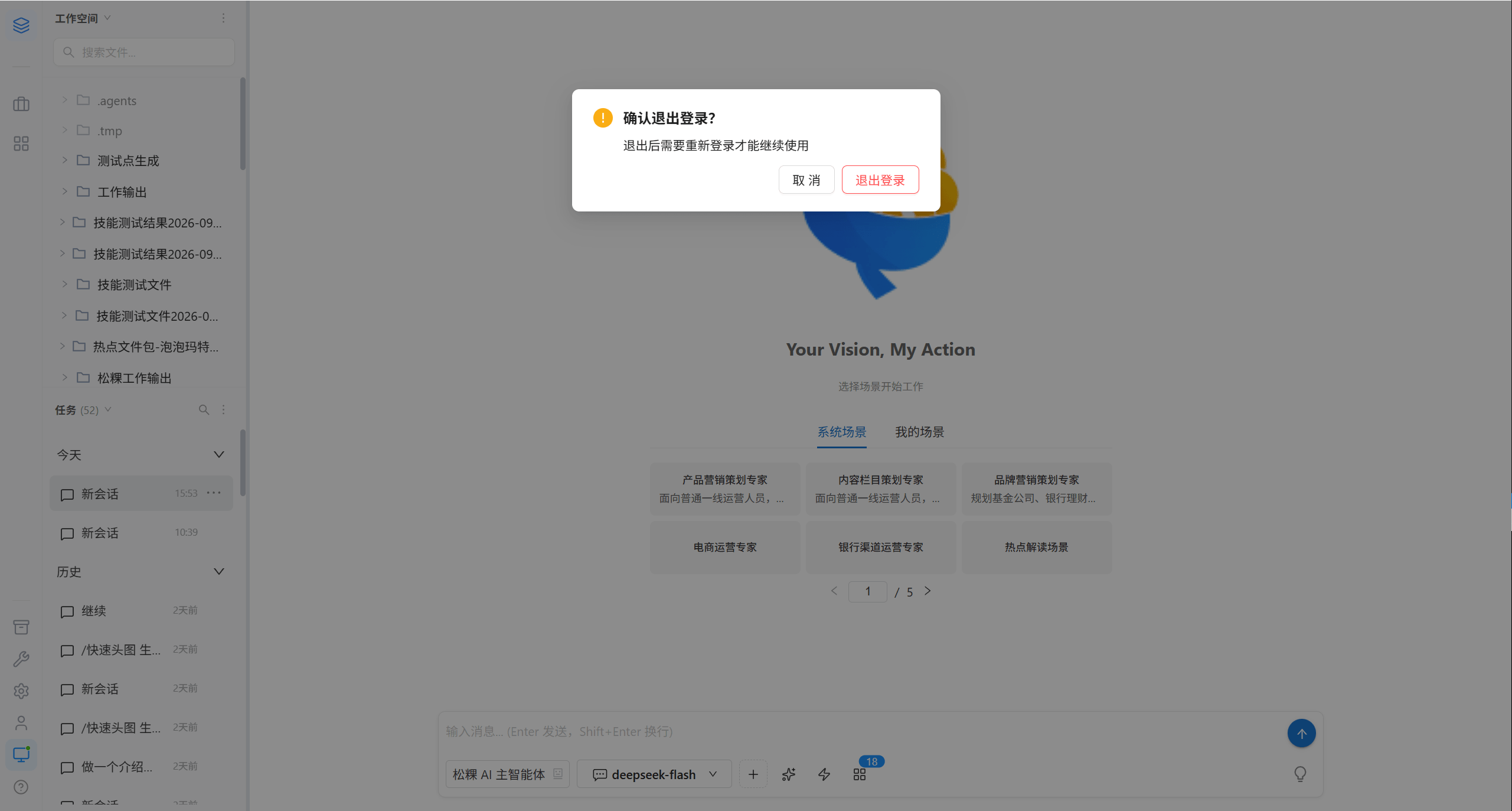
After signing out, you must sign in again to continue using the platform.
Restart the AI Agent
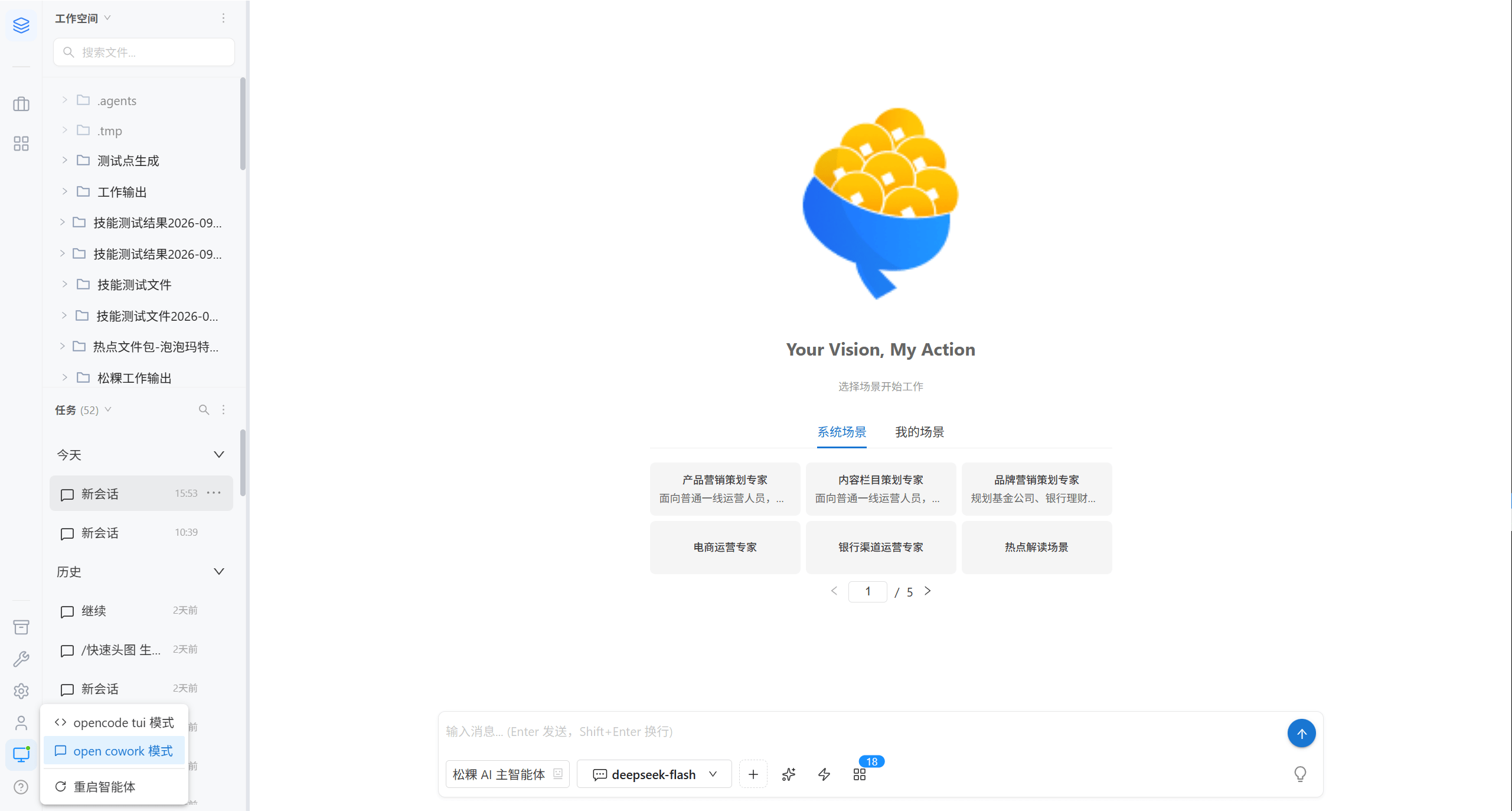
| Scenario | Restart required |
|---|---|
| The AI responds abnormally or the context gets mixed up | ✅ Restart |
| You just switched the default workspace | ✅ Restart to take effect |
| The AI agent service has crashed (a banner appears in the interface) | ✅ Restart |
| An administrator changed the AI agent configuration but it does not take effect | ✅ Restart |
Note · Restarting interrupts the current session, but it does not delete historical tasks.
Switch to opencode Terminal Mode
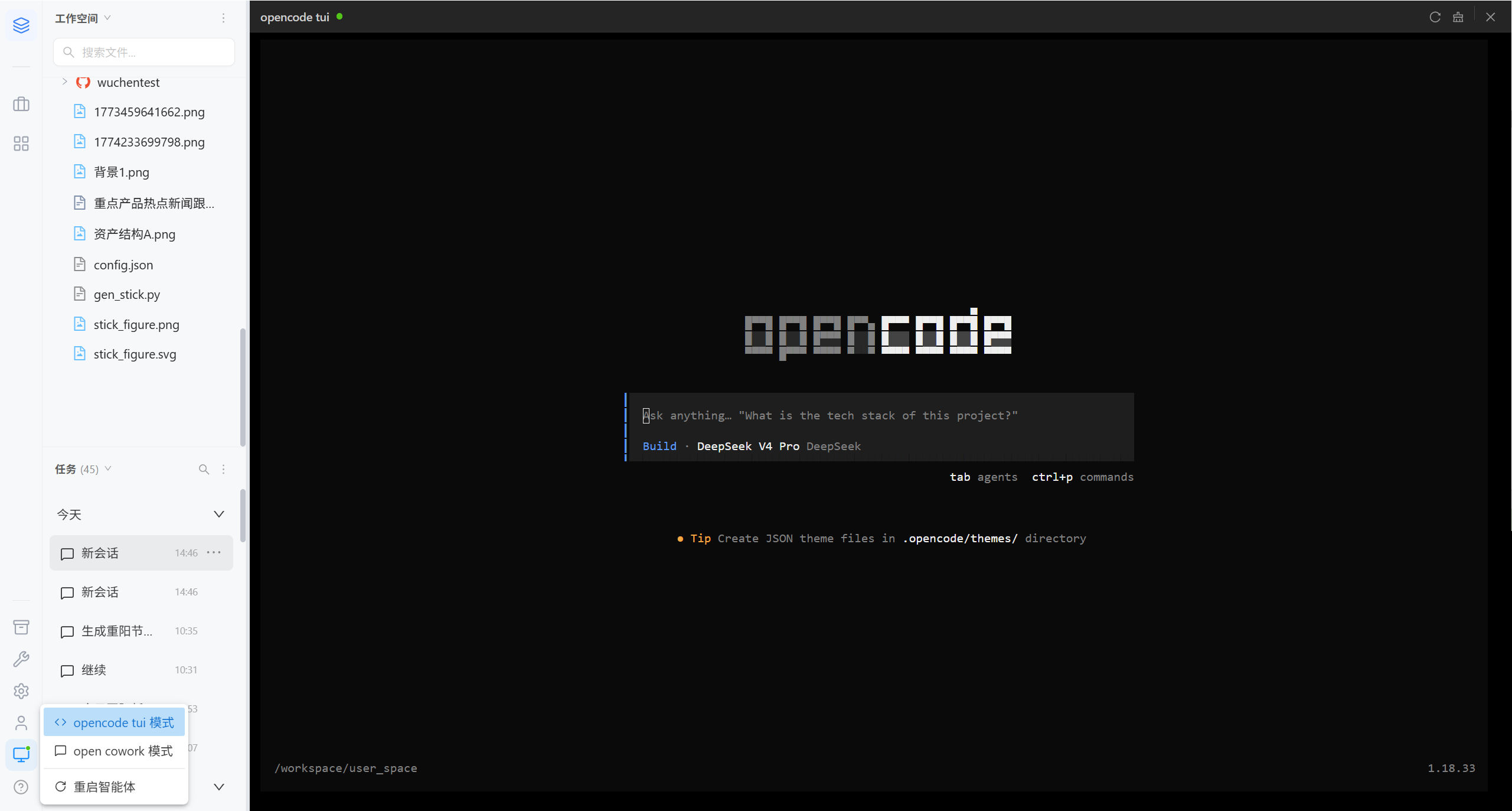
Aimed at developers who are comfortable with the command line, it lets you operate the terminal directly. It shares the same container and the same workspace with the graphical interface, and you can switch back at any time.
5. Versions and Updates
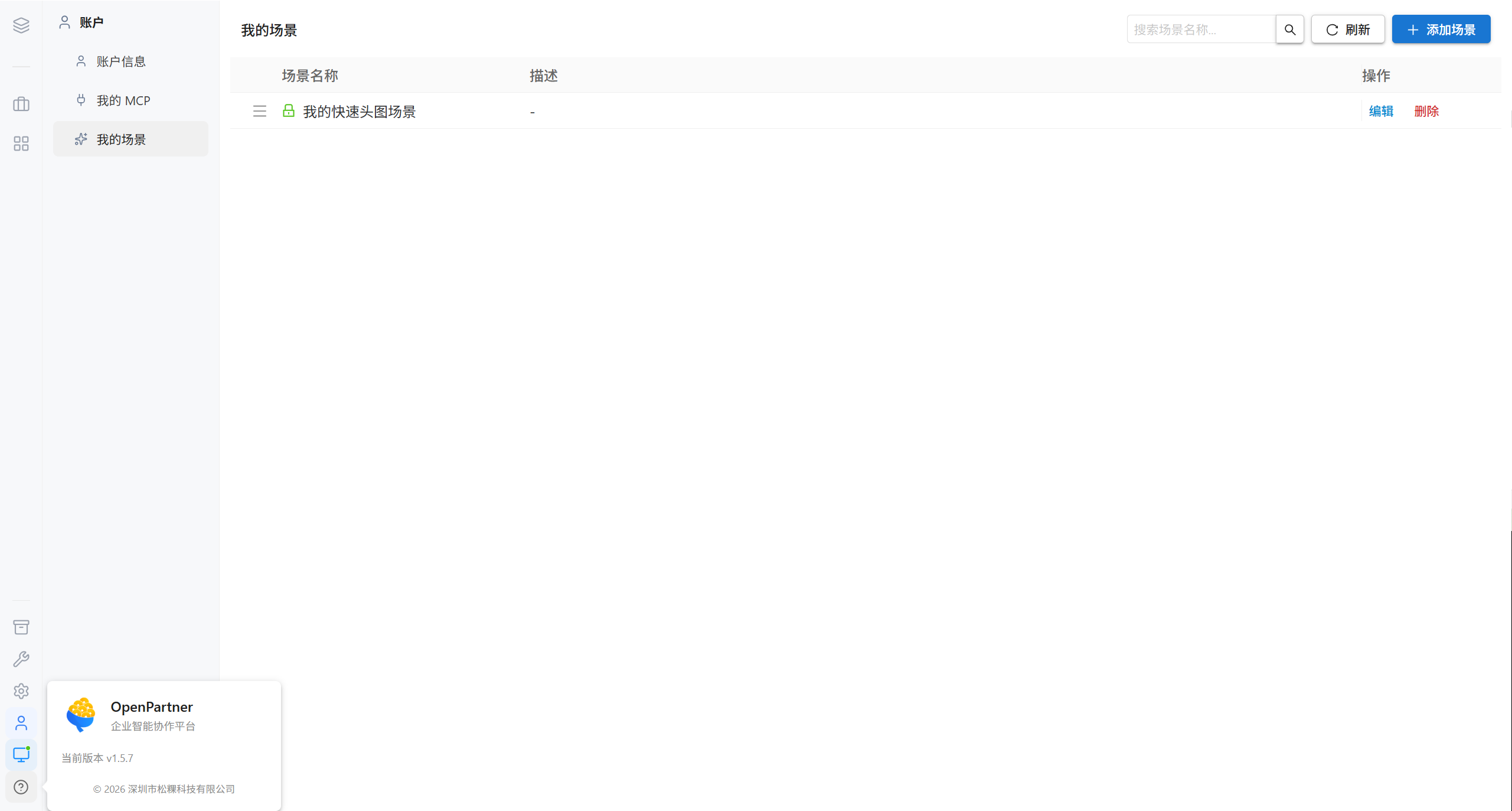
| Version item | Meaning |
|---|---|
| Frontend version | The version of the interface and the browser-side code |
| Backend version | The version of the server-side program |
| Only one version number is shown | The frontend version and the backend version are identical |
Note · Platform upgrades are performed by an administrator under Nodes and Upgrades; regular users do not need to do anything.
6. Common Blockers
| What you see | Cause | Resolution |
|---|---|---|
| The input box is grayed out and says "The system has not configured a language model yet" | The administrator has not configured a default language model | Contact the administrator |
| The top banner says "No AI agent container assigned, AI conversation is temporarily unavailable" | Your account is not bound to a node | Contact the administrator |
| The top banner says "The node X you are bound to is currently offline" | The node is unreachable and the platform has degraded | Wait for the administrator to restore the node; you can still manage other content in the meantime |
| A message says "OpenCode service is cold-starting (about 30-90 seconds the first time)" | The AI agent container starts on demand | Just wait |
| A message says "The AI agent service has crashed, please try restarting the container" | The container process exited abnormally | Account menu → Restart AI agent |
| You cannot find a certain scene / Skill in the dropdown | That resource is not authorized for your group | Contact the administrator |
| You cannot find "Assets", "Administration", or "Settings" | You are a regular user, and these three are visible only to administrators | This is normal |
| The conversation keeps spinning and never returns | The AI task is fairly complex | Wait; or press Esc to interrupt the request |
7. Next Steps
| I am | Go to |
|---|---|
| A regular user | Workspace · Assets · Account |
| An administrator | Administration & Operations Overview — start configuring from there |