
Product User Guide
OpenPartner is the enterprise-grade dedicated AI agent platform built by Sogood Technology. Every employee gets an independent AI Workspace and their own workspace files, the enterprise accumulates governable AI assets, and operations scale smoothly from a single machine to multiple nodes, with a full audit trail and data that never leaves your company.
This section is the manual for using and operating the platform after it has been installed. For installation and deployment, go to Installation.
About the Screenshots
All screenshots in this section were taken from the demo environment. The organization names, usernames, directory names, and business content shown in the screenshots are all demo instances; they vary slightly between deployments depending on Organization Settings. All screenshots are 1920 × 1080.
1. Interface Overview
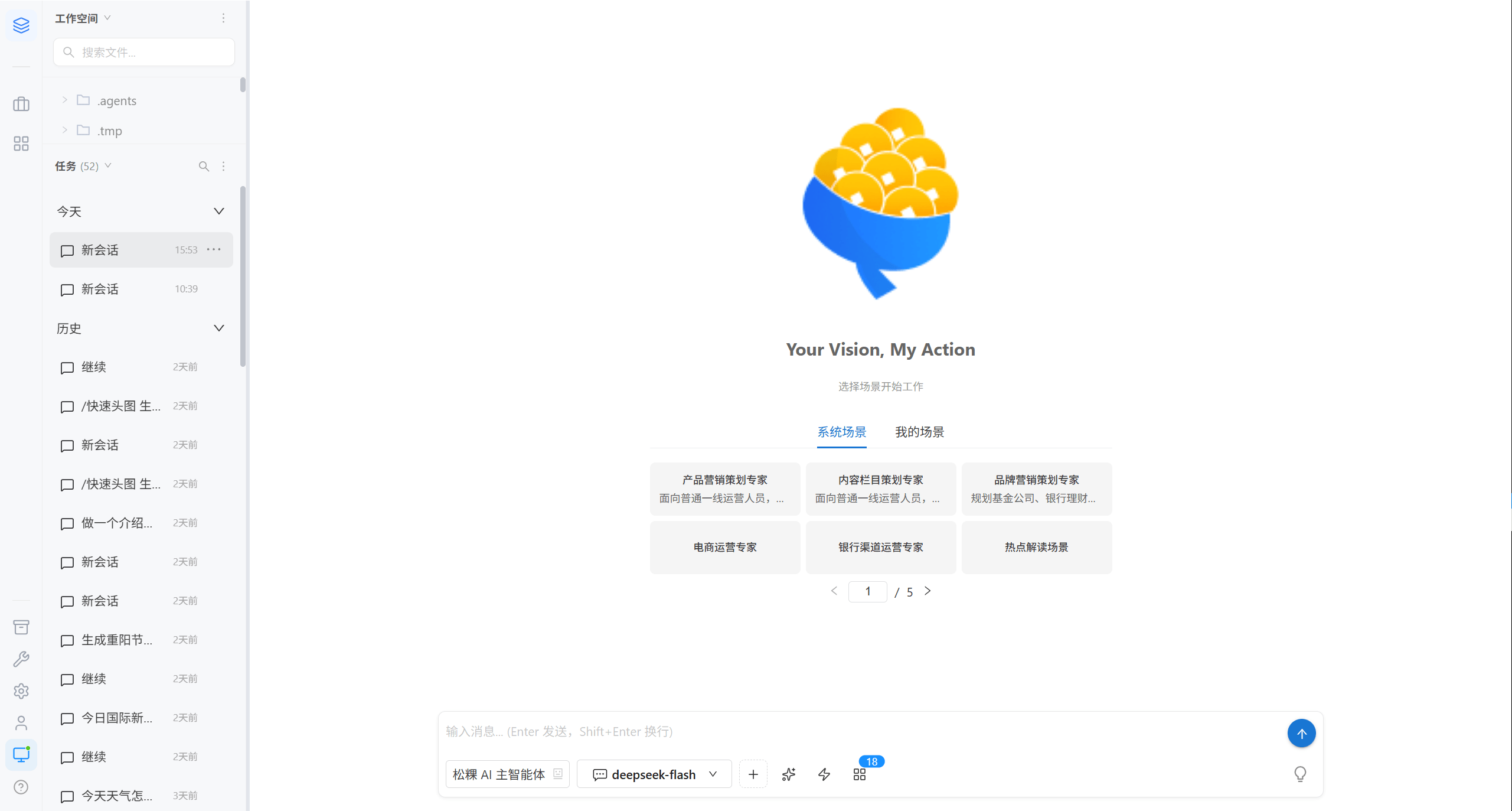
| Section | Position | Purpose | See |
|---|---|---|---|
| Vertical navigation bar | Far left | Entry point to all global features; the account menu sits at the bottom | This page · Role routing table |
| Workspace panel | Upper left | File directory tree; upload, import, preview, and Git operations | Workspace files |
| Task list | Lower left | Session list, grouped by Today / Yesterday / History | Task management |
| Conversation area | Center | Streaming conversation, reasoning chain, tool invocations, artifacts | AI conversation |
| Input area | Bottom of the conversation area | AI agent, model, Skill, scene, MCP, attachments | The eight capability slots around the input box |
| Right panel | Far right | Repository management, session-related files, file preview | Git repository management |
| Account menu | Avatar in the lower left | My account, sign out, restart AI agent, terminal mode | Account |
Composition of the Vertical Navigation Bar
| Position | Icon item | Visibility | Points to |
|---|---|---|---|
| Top | Workspace | All users | Workspace |
| Middle | Extensions (icons customized by the administrator) | Depends on whether each extension is enabled | Extensions |
| Bottom | Assets | Administrators only | Assets |
| Bottom | Administration | Administrators only | Administration overview |
| Bottom | Settings | Administrators only | Administration & Operations overview |
| Very bottom | Account menu | All users | Account |
Note · Non-administrators cannot see "Assets", "Administration", or "Settings". This is by design, not a loading failure.
2. Role Routing Table
Start from what you want to do, not from the menu:
| What I want to do | Open | Role |
|---|---|---|
| This is my first time — I don't know where to start | Quick Start | All users |
| Have AI write documents / look up code / produce a proposal for me | Workspace · AI Conversation | All users |
| Store the files AI produced in the company repository | Workspace · Git Repository Management | All users |
| Feed the AI the company's own materials | Workspace · Import Skills / Important Documents | All users |
| Let AI call the external tools I have connected | Workspace · Connect MCP Tools | All users |
| Turn my methods into something the whole company can use | Assets · Skills | Administrators |
| Bring a large model provider on board | Model Providers | Administrators |
| Create a Skill / scene / plugin | Capability Settings | Administrators |
| Create an account for a new colleague and assign a node | Users & Permissions | Administrators |
| See who is using what and how many tokens have been spent | Usage Overview | Administrators |
| Upgrade the program / image on a node | Nodes & Upgrades | Administrators |
| Something is misconfigured / unclickable / erroring out | Nodes & Upgrades · Operations & Logs | Administrators |
3. Full Feature Map: Seven Layers of Capability
All of the platform's configuration capabilities form seven layers. The lower the layer, the more fundamental it is; once configured, it takes effect for everyone.
| Layer | Name | Where to configure | Purpose |
|---|---|---|---|
| 1 | Model providers | Settings → Model Providers | Connect large models and determine what the AI is able to do |
| 2 | AI agents | Settings → AI Agent Settings | Define AI roles, prompts, and tool permissions |
| 3 | Scenes | Settings → Dynamic Scenes | Preset prompt + tool combinations, activated with one click |
| 4 | Plugins | Settings → Plugin Management | Extend the capabilities of AI agents |
| 5 | MCP tools | Settings → MCP Configuration | Connect external tools and data sources |
| 6 | Skills | Assets → Skills | Reusable working methods, shareable across the team |
| 7 | Extensions | Administration → Extension Settings | Embed third-party sub-applications |
Plus three foundation settings: Organization Settings, System Configuration, and Data Dictionary.
When changes take effect · After the AI agent is restarted, they take effect.
4. Two Usage Modes
| Mode | Entry point | Suitable for |
|---|---|---|
| Graphical interface (Web) | Open the platform address in a browser | Everyday office work and the vast majority of users |
| opencode terminal mode (TUI) | Account menu → "opencode tui mode" | Developers who are comfortable with the command line and need direct terminal access |
Both modes operate the same AI agent container and the same workspace, and you can switch between them at any time.
5. Glossary
| Term | Meaning |
|---|---|
| Workspace | The first item in the left navigation; it hosts the task list and the conversation area, and is the main interface for everyday use |
| Workspace files | The file directory tree inside the Workspace; each user has their own, physically isolated on their own node's disk |
| AI agent | An AI role definition (including the prompt and tool permissions), maintained by the administrator under "AI Agent Settings" |
| User AI agent | A container running exclusively for one employee; one per user, and it can be started or stopped under "User AI Agent Management" |
| Task | One multi-turn conversation session, grouped by Today / Yesterday / History |
| Node | A server on which OpenPartner is deployed; it hosts several user AI agent containers |
| Scene | A preset combination of prompt + tools; once activated, it is carried into the conversation automatically |
| Skill | A reusable working method (prompt + script), which can be authorized to groups for use |
| MCP | Model Context Protocol, an industry-standard protocol for connecting external tools and data sources |
| Plugin | A module that extends the capabilities of AI agents; once registered, it can be installed and enabled |
| Extension | A third-party sub-application embedded via iframe, displayed as its own icon in the left navigation |
| Group | A unit of permission. Resources (repositories, skill directories, scenes) are authorized per group, which determines who can see them |
| Assets | Reusable team capabilities, namely Skills and important documents |
| Permission dialog | The confirmation box that appears when the AI needs to perform a sensitive operation; you decide to allow it once, always allow it, or deny it |
Easily Confused Terms
- Workspace ≠ Workspace files: the former is an interface area, the latter is a file directory.
- AI agent ≠ User AI agent: the former is an AI role definition, the latter is the container that runs it.
- This guide uses "node" throughout; the internal term "cell" never appears.
6. Related Pages
| Page | Content |
|---|---|
| Quick Start | Sign-in, interface tour, your first task in 5 minutes, common blockers |
| Installation · Single-Node Quick Deployment | Set up a single machine from scratch |
| Installation · Multi-Node Deployment | Scale out to multiple machines |
| Administration & Operations Overview | The administrator's startup order and permission matrix |